
Skip to content
Deepvue
Charts Screener Watchlist AI Terminal Pricing Reviews Blog
Sign in Get Started
Charts Screener Watchlist AI Terminal Pricing Reviews Blog
Sign in Get Started

Deepvue Knowledge Base

Getting Started

3
  • Welcome Message & Platform Walkthrough
  • How to Login & Account Dashboard
  • Support Menu

General

7
  • Stats Table
  • Quick Access Menu
  • Dark Mode / Light Mode
  • Market Bell
  • Deepvue Keyboard Shotcuts – Windows
  • Deepvue Keyboard Shortcuts – macOS
  • Sharing Links

Dashboard

13
  • Alert Widget
  • Industry Ranks Widget
  • Creating a Custom Dashboard
  • Dashboard Drag and Drop
  • Screener App
  • Watchlist App
  • Data Panel App
  • Stats Table App
  • Performance Charts App
  • Heat Map App
  • Scatter Plots – Bubble Chart App
  • Position Sizing Calculator App
  • Theme Tracker App

Screener

6
  • Screener Overview
  • Creating a Screen
  • Screen Watchlists
  • Screener Presets
  • Drag and Drop Screener
  • Bookmarking Screeners

Watchlists

6
  • Watchlist Overview
  • Creating a Watchlist
  • Combo Watchlist
  • Coloured Lists
  • Creating a Section
  • Drag and Drop Symbols

Alerts

4
  • Notifications Panel
  • Set a Price Alert
  • Set a Trendline Alert
  • Setting Conditional Alerts

Charts

4
  • Creating a Custom Chart Layout
  • Multi Timeframe Layouts
  • Mini-chart View
  • Pre & Post Market Data for Charts

Custom Indicators

34
  • Average Daily Range % (ADR %)
  • ATR % Multiple from 50D Moving Average
  • RS Phases and Divergences Indicator
  • Relative Measured Extension (RME)
  • Candle Patterns
  • Earnings Line & Estimates
  • Enhanced Volume
  • Relative Strength Line
  • Stage Analysis
  • Relative Measured Volatility (RMV)
  • Webby’s Real Simple Indicator (RSI)
  • Percent (%) from SMA/EMA
  • Up/Down Volume Ratio
  • Key Moving Averages
  • Sales Line & Estimates
  • Net New Highs/Lows
  • Webby % off 52 Week
  • Webby RS Line
  • Webby RSI 5.150
  • Webby Tight
  • Webby’s Quick & Grateful Dead RS
  • Ripster EMA Clouds
  • Mansfield RS
  • Technical Patterns
  • Enhanced Dollar Volume
  • Zanger Volume Ratio (ZVR)
  • Qullamaggie Moving Averages
  • Market Trend Indicator
  • Market Navigator
  • Market Cycle Indicator
  • TTM Squeeze
  • Larry Williams Blast Off
  • Stockbee 4% Breakouts
  • Stockbee – Trend Intensity

Columns

7
  • Creating a Column Set
  • Column Set Overview
  • Column Sorting
  • Adjust Your Row Height
  • Blue Industry Groups Identify Themes
  • How to Turn EPS Flags On and Off
  • Sectors, Groups, Industries and Sub-industries

Data Panels

11
  • Accessing Data Panels
  • Preset Data Panels
  • Create a Custom Data Panel
  • Create and Organize Data Panel Folders
  • Sector, Group, Industry, Subindustry Top 10 Stocks
  • Top Ranked Sector, Group, Industry and Subindustry
  • Earnings and Guidance Tables
  • Sales and Guidance Tables
  • Fund and Insider Ownership Tables
  • Margin Tables
  • Return on Equity & Return on Assets Tables

Data Points, Ratings and Ranks

10
  • Custom Tickers
  • Earnings Per Share Rating
  • Sales Rating
  • Fundamental Rating & Rank
  • Accumulation/Distribution Rating and Rank
  • Liquidity Rating
  • Composite Rating
  • Performance Ratings
  • Sector, Group, Industry & Sub-industry Rank
  • Relative Measured Volatility

Education

1
  • Education Module

Deepvue Dictionary

10
  • General
  • Earnings
  • Sales
  • Sector & Industry
  • Fundamentals
  • Price & Volume
  • Technicals
  • Institutions & Insiders
  • Proprietary Ratings
  • Pre/Post Market

Mobile App

3
  • Swipe Charts
  • Setting Alerts on Mobile
  • Mobile Screener

Deepvue Terminal

1
  • Guide to Using the Deepvue Terminal
  • Home
  • Docs
  • Charts
  • Mini-chart View
View Categories

Mini-chart View

2 min read

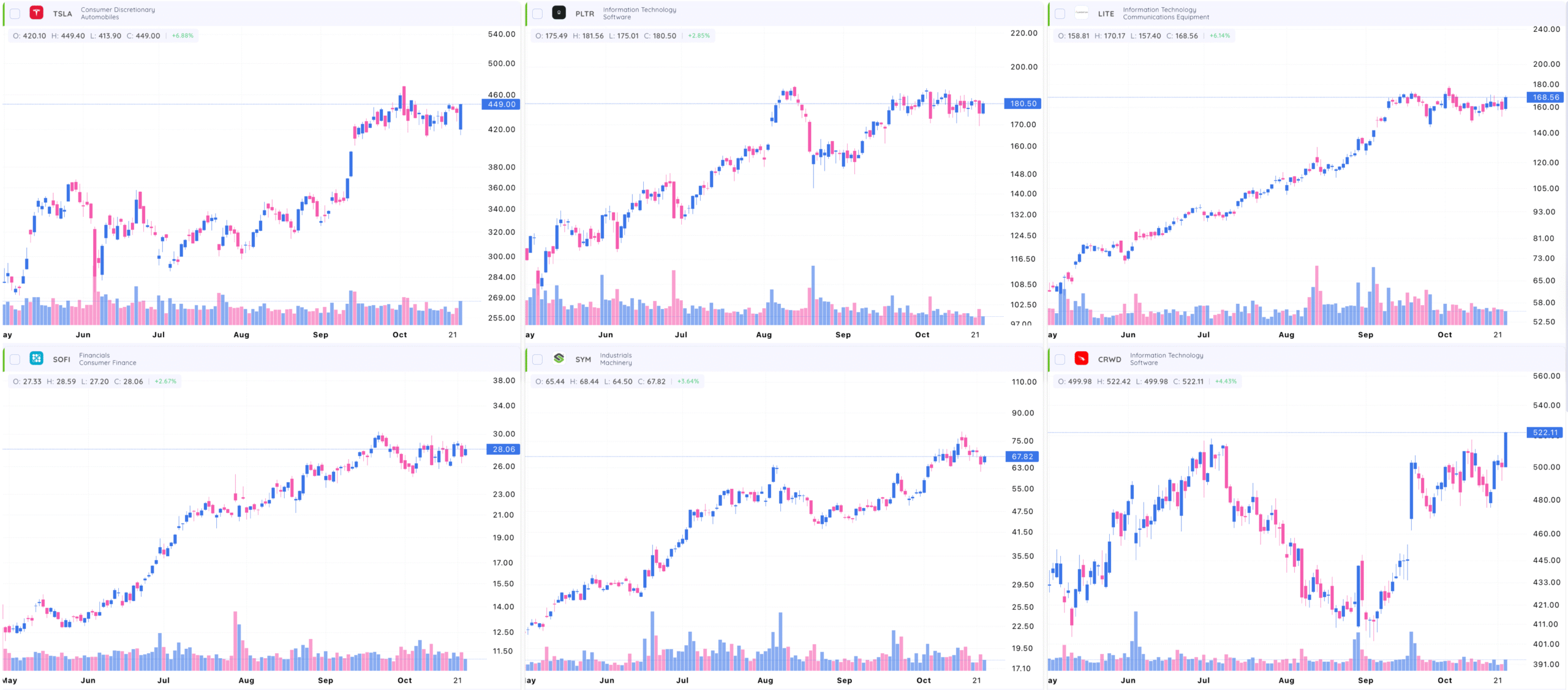
Mini charts let you view several charts all at once, so you can compare data without switching screens. Here’s what you can do with them:

  • View multiple symbols on one screen – Track different stocks and ETFs from your watchlist all in one place.
  • Use various time frames – View intraday, daily, and weekly charts to get the view you need.
  • Mix symbols and time frames – Compare how different assets perform across multiple time periods.
  • Add moving averages – Spot trends faster by layering moving averages on each mini chart.
  • Change time frames easily – Adjust your time frames with just a click to see short- or long-term trends.

To access Mini Charts, click the icon in the top right of the screen.
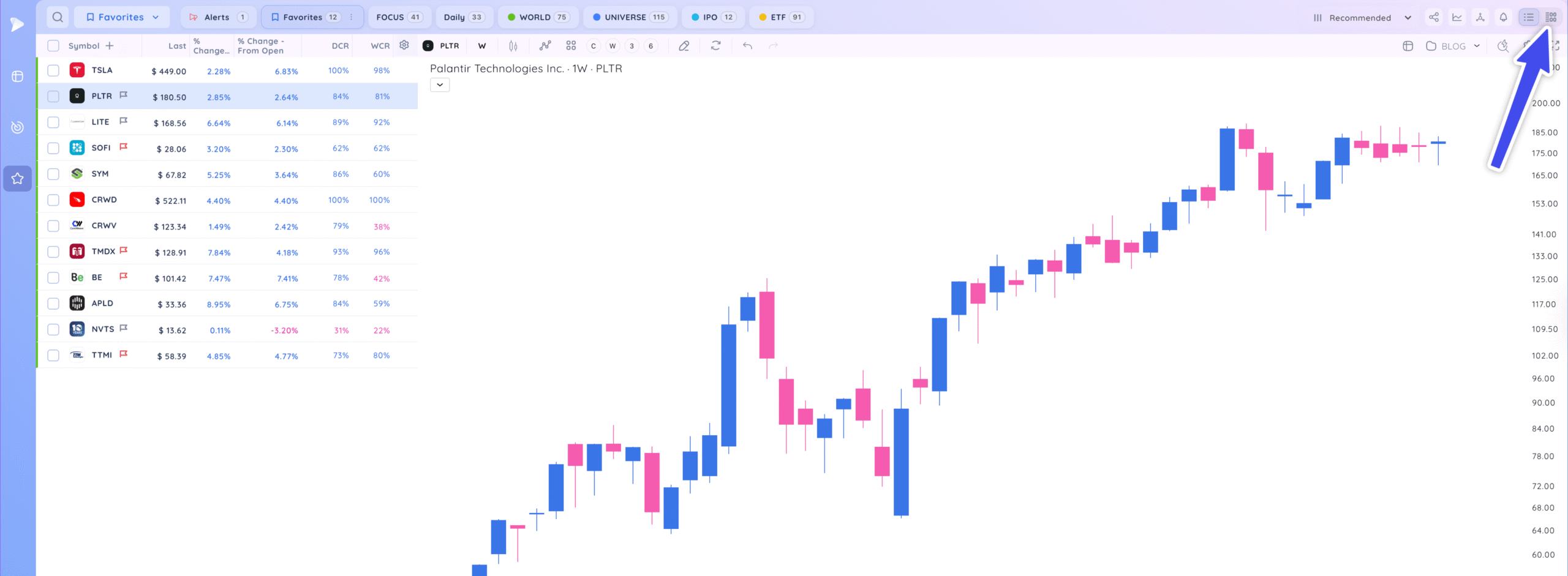
Image 5 Scaled
Image 4

Charts will now be in mini-chart view. You can view any screener or watchlist in this view to quickly view multiple charts at once.
mini charts

Mini Chart Settings #

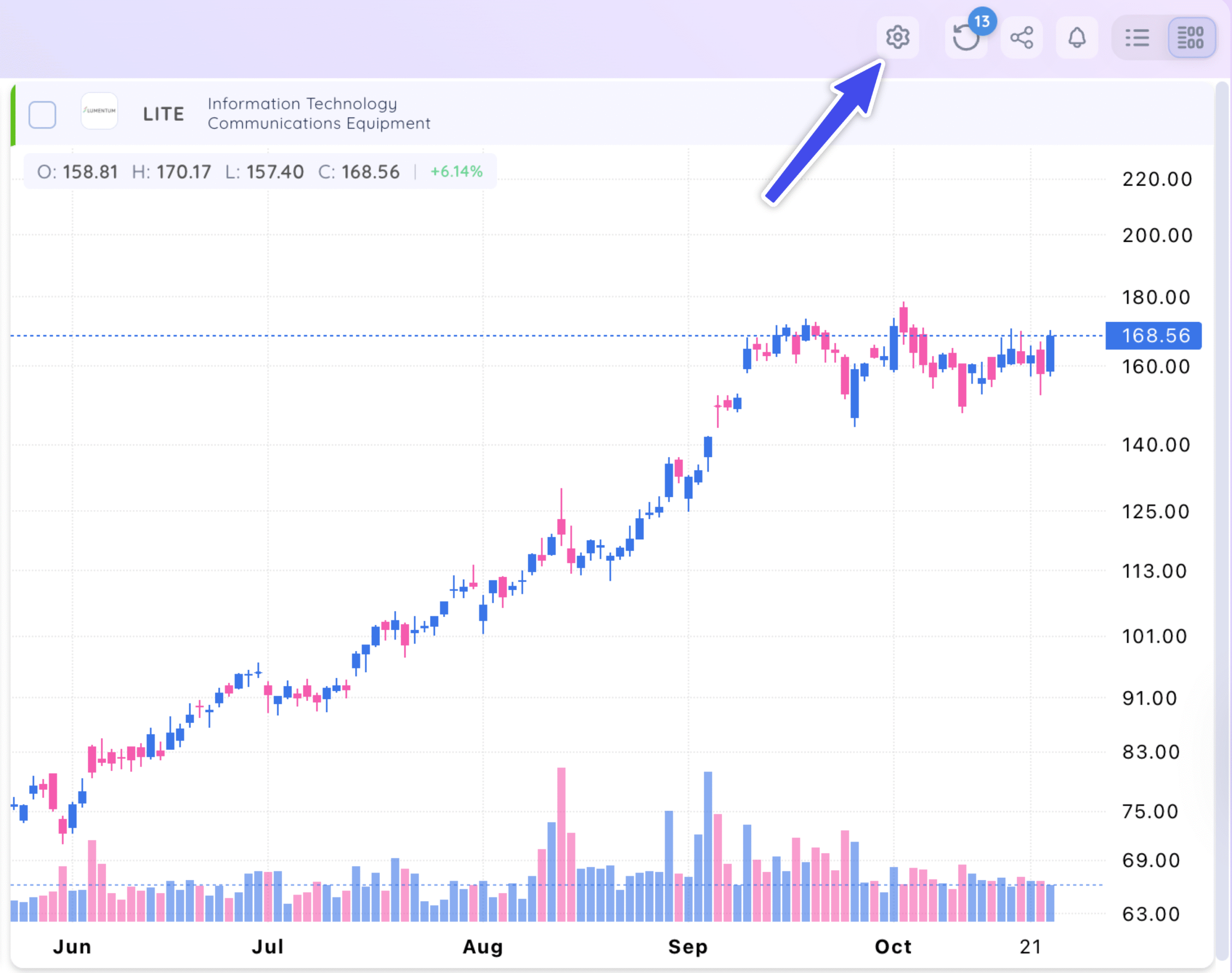
Click on the settings icon on the top navigation bar.
Mssettings Scaled

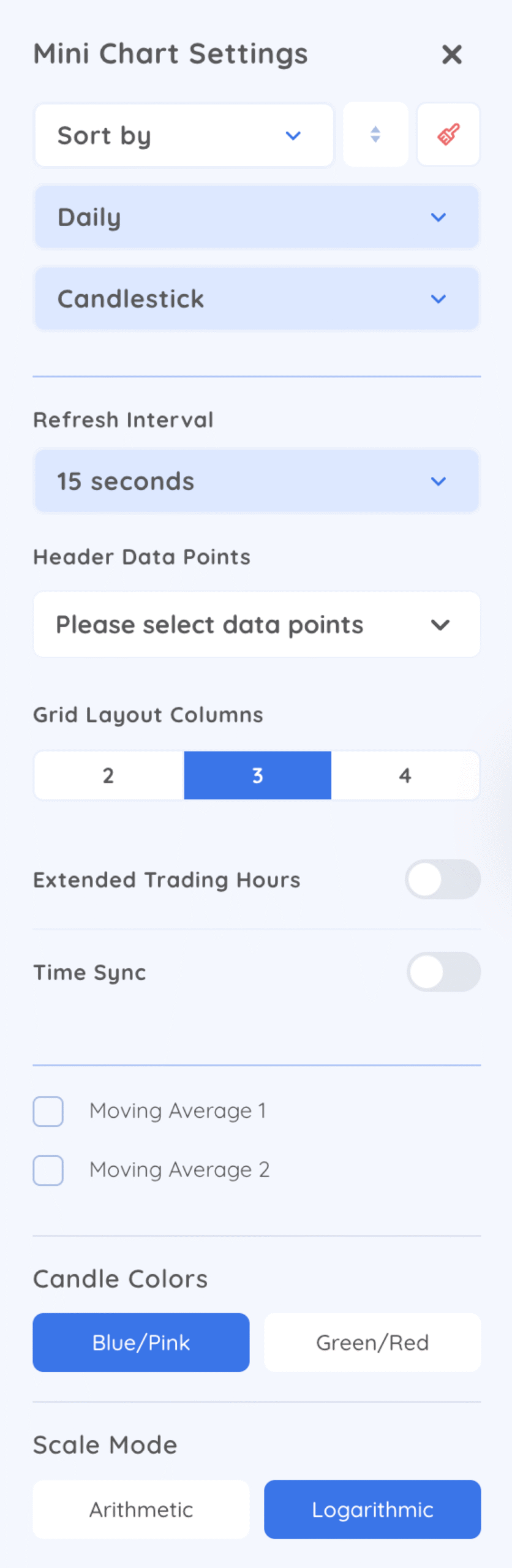
Click the drop-down arrows to change to your desired settings:

  • Change what you sort by: Pick how you want to sort your data — by symbol, price action, fundamentals, or any other metrics already built into the system.
  • Choose your timeframe: Select the timeframe that fits your trading style – intraday, daily, weekly, or monthly.
  • Pick your chart type: Choose how you want your charts to look. You can go with candlestick, bar, or line charts depending on what you’re most comfortable with.
  • Adjust the grid layout: Decide how many charts you want to see side by side. Set your layout to 2, 3, or 4 charts wide to match your workflow.
  • Select your color scheme: Pick the colors that are easiest on your eyes. Choose between a blue/pink or green/red theme for your charts.
  • Set the scale type: Choose how your price scale is displayed. Go with arithmetic for a standard view, or logarithmic if you’re comparing large price changes over time.
  • Extended Trading Hours: Select this to see pre- and post-market hours on your intraday charts.
Mcsettings2 Scaled
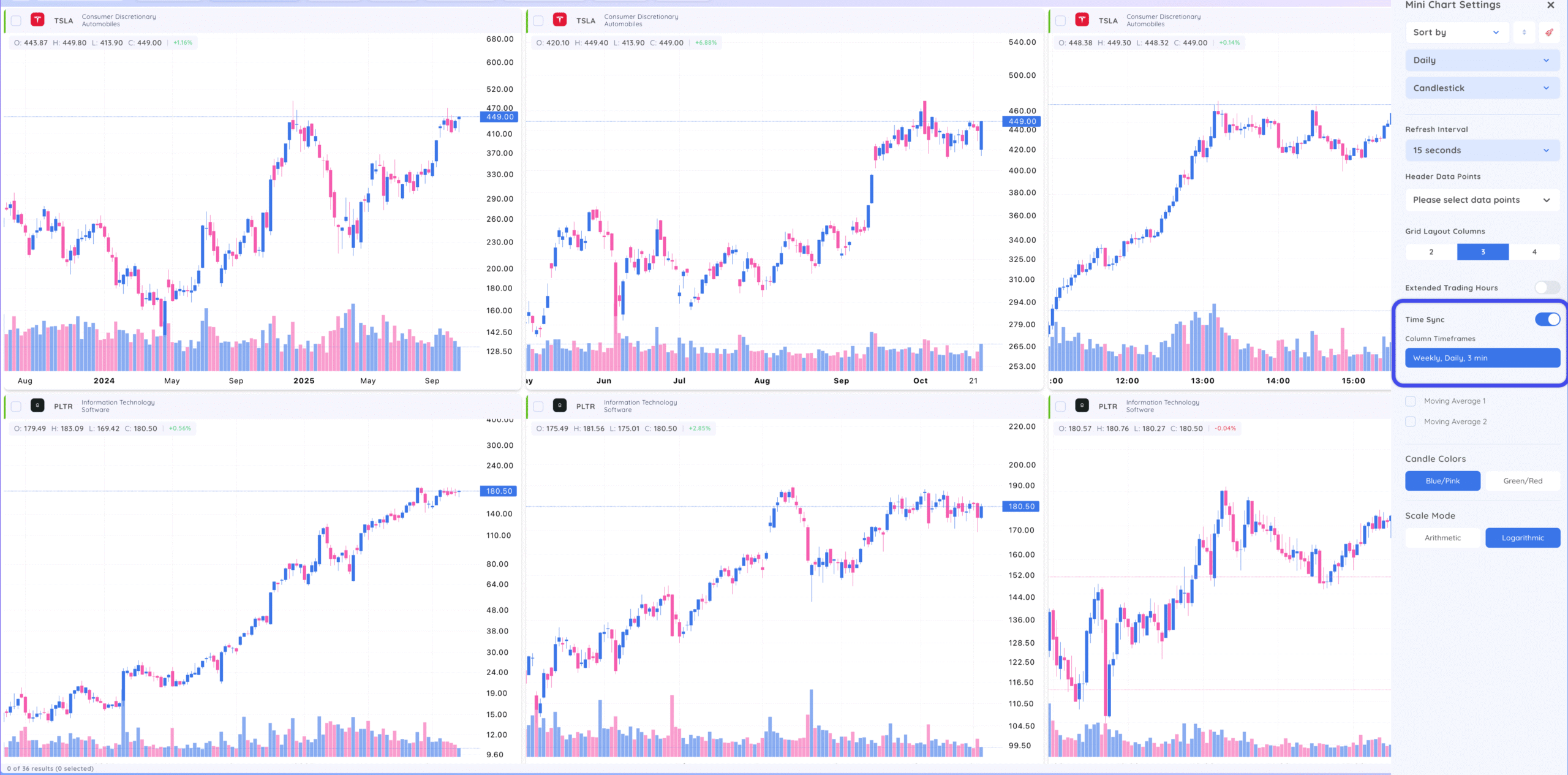
  • Time Sync: Select this setting to see multiple timeframes at the same time. Change the various columns to your desired timeframes – You will now see one symbol per column in multiple timeframes.
Mctimesync Scaled
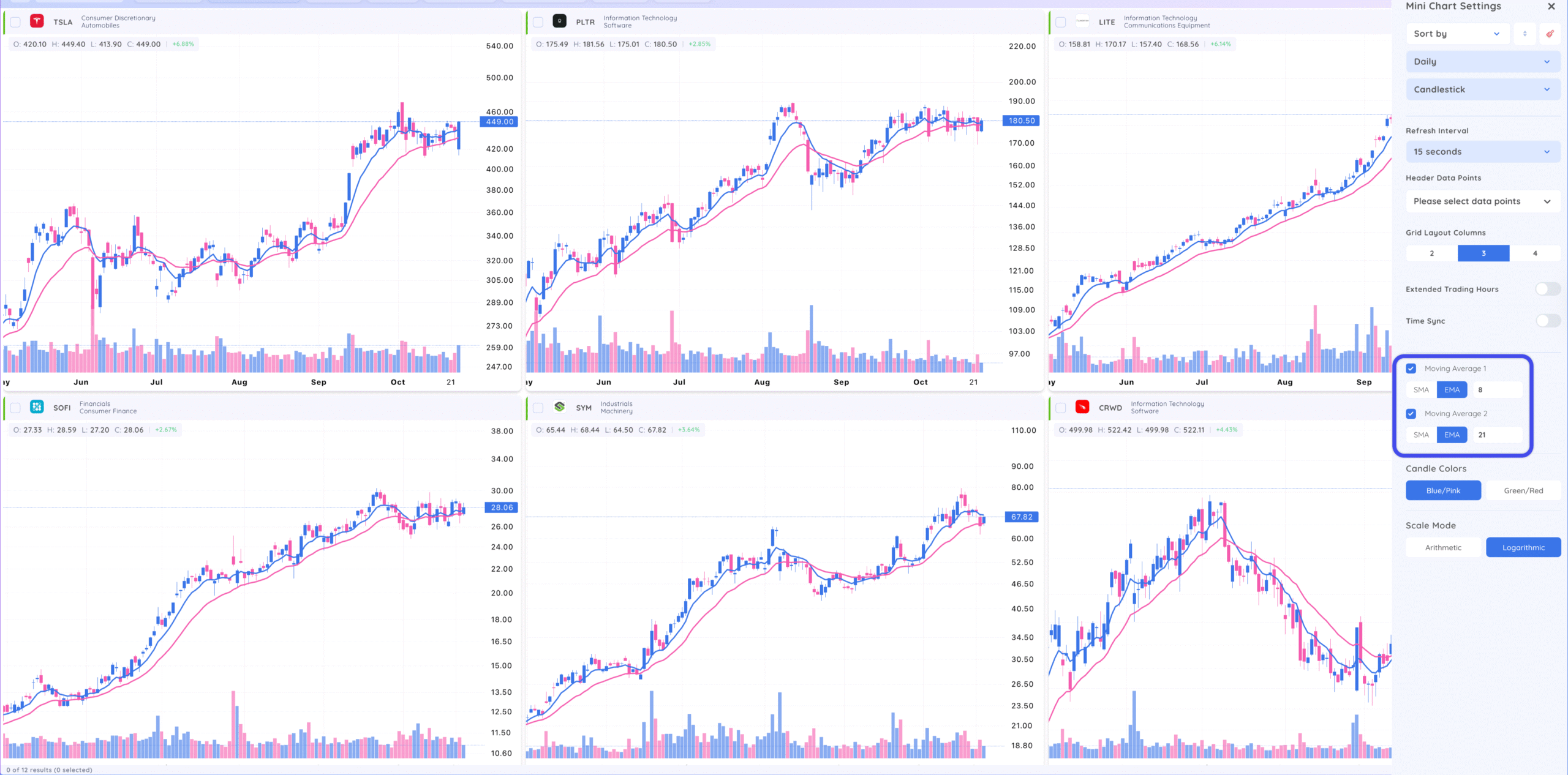
  • Moving Averages: Toggle up to two moving averages. Select the value and simple or exponential.
Mcmas Scaled

To return to single chart view, click the single chart icon.

Mcsingle

Related Video #

Did this article help?
Updated on October 23, 2025
Multi Timeframe LayoutsPre & Post Market Data for Charts
Table of Contents
  • Mini Chart Settings
  • Related Video
Deepvue Deepvue

The modern research platform for technical traders. Charts, screener, watchlists, and an AI terminal — built for traders who read the tape.

Platform

  • Charts
  • Screener
  • Watchlist
  • AI Terminal
  • Knowledge Base
  • Reviews

Ratings

  • RS Rating
  • EPS Rating
  • AS Rating

Apps

  • Chrome Extension
  • iOS App
  • Android App

Company

  • About
  • Contact
  • Partner Program
  • Careers

Resources

  • Blog
  • Screening Guide

© 2026 Deepvue LLC. All rights reserved.

  • Terms of Use
  • Privacy Policy
  • Status