1. Accessing the Alert Widget
- Go to the Dashboard.
- Click on ‘Add Widget’.
2. Adding the Alert Widget 0:16
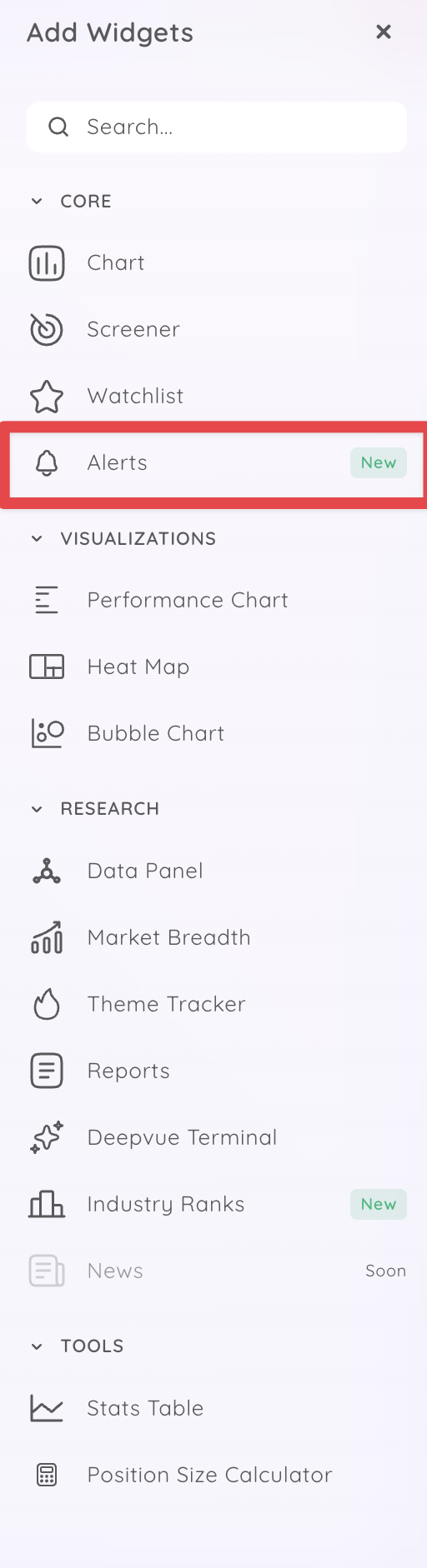
- Click on ‘Alerts’ (highlighted as new).
- Drag the Alerts widget to your dashboard.
3. Understanding the Alert Widget Layout
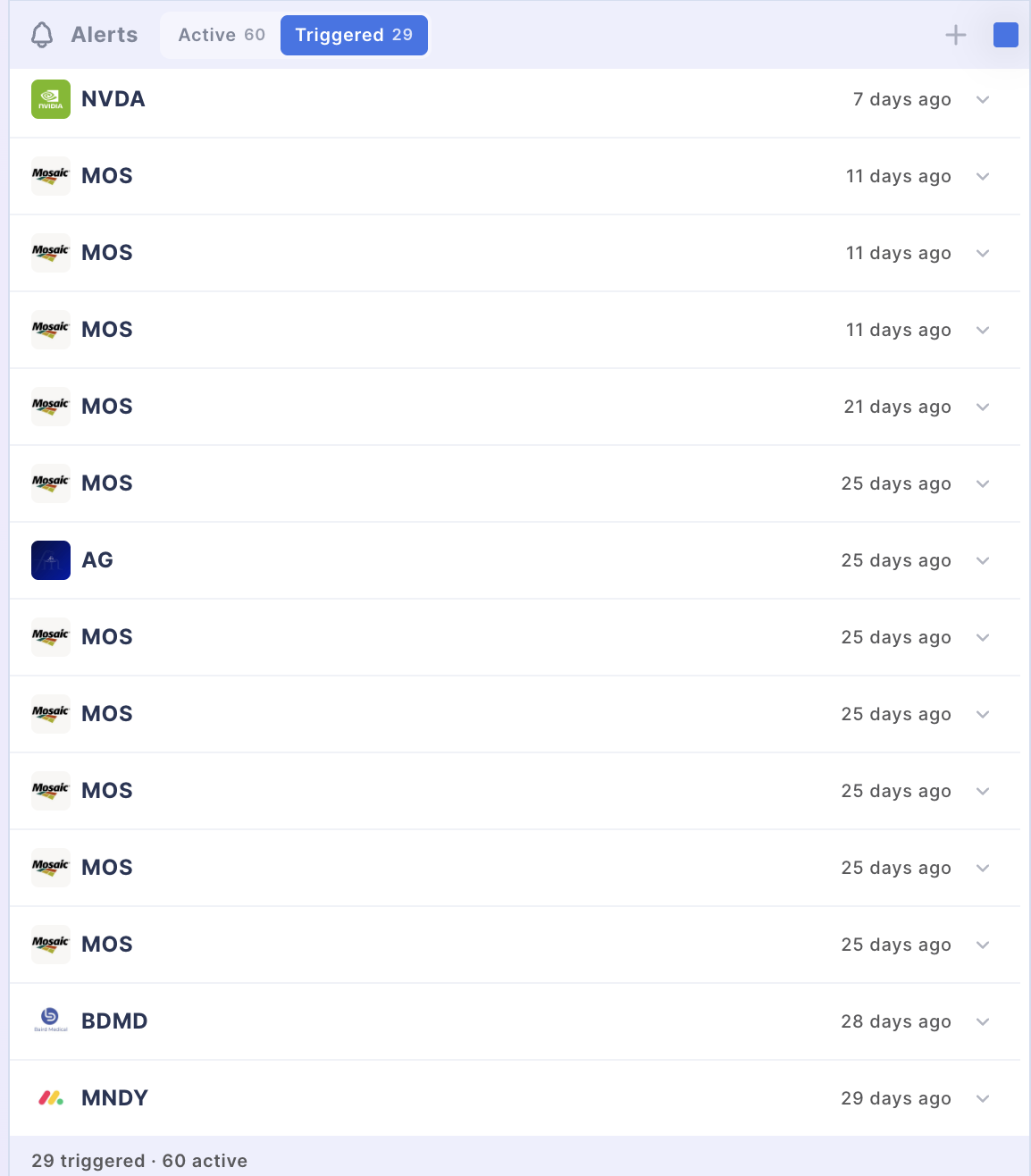
- The widget contains two main tabs:
- Active Alerts: Displays all your active alerts.
- Triggered Alerts: Shows all alerts that have been triggered.
4. Managing Active Alerts
- In the Active Alerts tab, you can:
- Edit an Active Alert.
- Delete an Active Alert.
- Turn off an Active Alert directly.
- An icon indicates whether the alert is a Trendline Alert or a Price Alert.
5. Viewing Alert Statistics 1:01
- At the bottom of the Active Alerts tab, you will see:
- Total Triggered Alerts: 26
- Total Active Alerts: 60.
6. Creating a New Alert
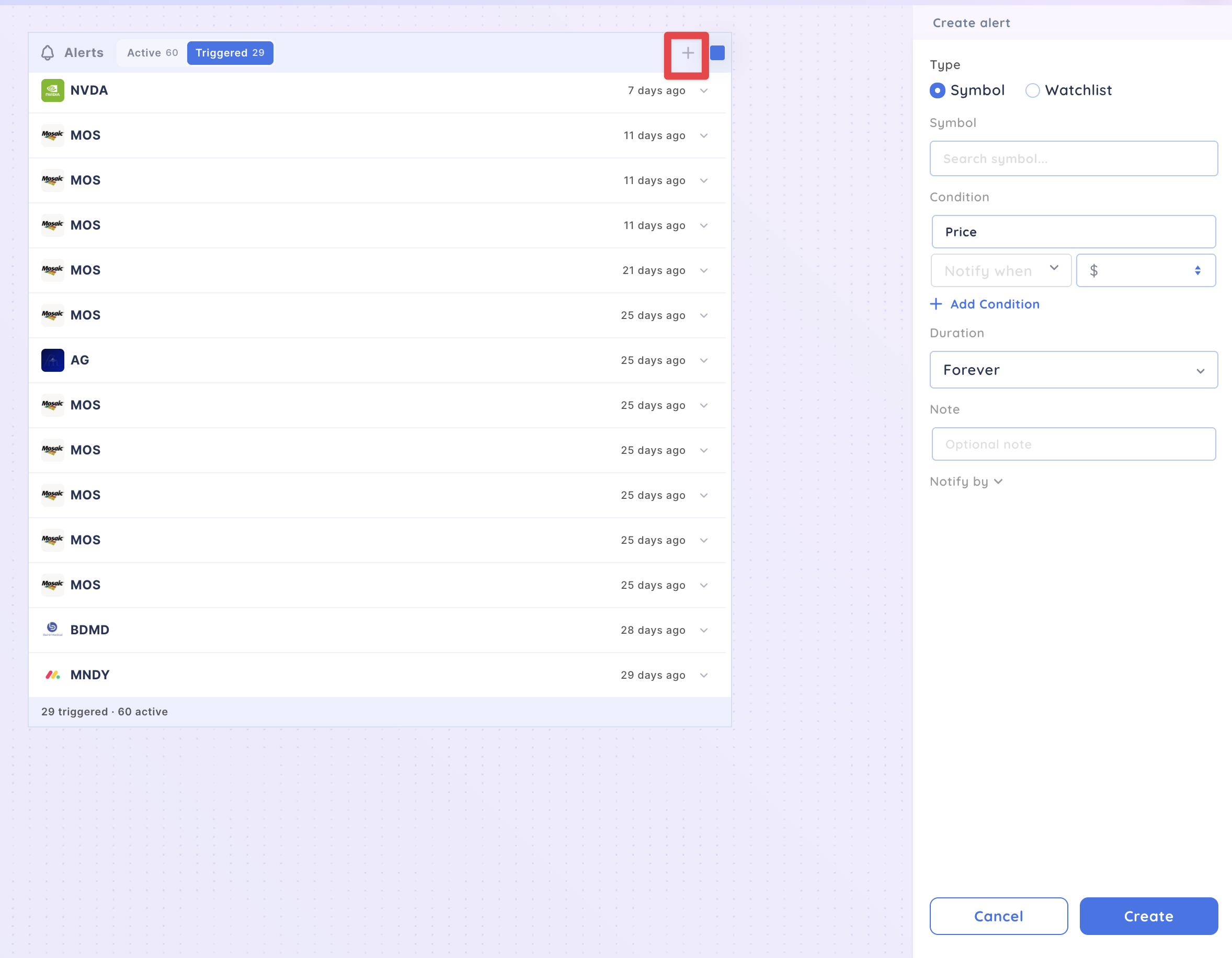
- In the Triggered Alerts tab, click the plus icon in the top right corner.
- This will open the ‘Create Alert’ modal.