How to Use the Deepvue Trading Journal: The Complete Guide
Connect your broker, add your stops, tag and review every trade, then let your stats and the Journal Agent show you what works, on desktop and mobile.
To use the Deepvue Trading Journal, connect your broker or import a CSV, add a stop to every trade, tag it with a playbook, tags and an emotion, then review it from the Trades tab. Your Dashboard and the Journal Agent show you what is working.
Knowing how to use a trading journal is what turns a pile of fills into a playbook. The Deepvue Trading Journal does the record keeping for you, syncing trades from your broker and calculating every stat, so journaling trades comes down to a few quick inputs and a regular review. Learning how to use the Deepvue Trading Journal takes ten steps, from your first login to your first Journal Agent review, on desktop and mobile.
Watch how to get started with the Deepvue Trading Journal, from first sync to first review, here.
Connect once. Journal every trade.
Get 2 months for the price of 1. Connect your broker under All Accounts and, for most brokers, your trade history is ready to tag within 24 hours.
How to Use a Trading Journal: What to Record on Every Trade
Trading journaling works when every trade carries the same few facts, recorded the same way every time. Here is how to journal trades so the stats mean something: your broker supplies the numbers, and you add the context only you know.
| What to record | Why it matters | Where it goes in Deepvue |
|---|---|---|
| Entry, exit, size and fees | The raw result of the trade | Synced from your broker automatically |
| Stop | Turns every result into R and measures your heat | The Stop column in the Trades tab |
| Setup | Shows which patterns pay you | The playbook on the trade |
| Reasons and rules | Explains why the trade should work | Tags like volume support or relative strength |
| Emotion | Links your state of mind to your results | The emotion on the trade |
| Plan and lesson | Captures your thinking before and after | Pre trade and post trade notes |
Simple inputs beat long forms. A playbook, a few tags and one emotion take seconds per trade, which is exactly how to journal your trades consistently enough for the stats to mean something.
How to Use the Deepvue Trading Journal in 10 Steps
Learning how to use the Deepvue Trading Journal is a one time setup followed by a quick habit: steps 1 to 4 set up your journal, and steps 5 to 8 repeat after every session.
1. Explore the demo →
Learn the layout with demo trades.
2. Connect your broker →
Sync your full trade history.
3. Import or add trades →
CSV from any broker, or by hand.
4. Build your Dashboard →
Add the apps you want to watch.
5. Add your stops →
Unlock R, heat and expectancy.
6. Tag every trade →
Playbook, tags and an emotion.
Step 1: Open the Journal and Explore the Demo
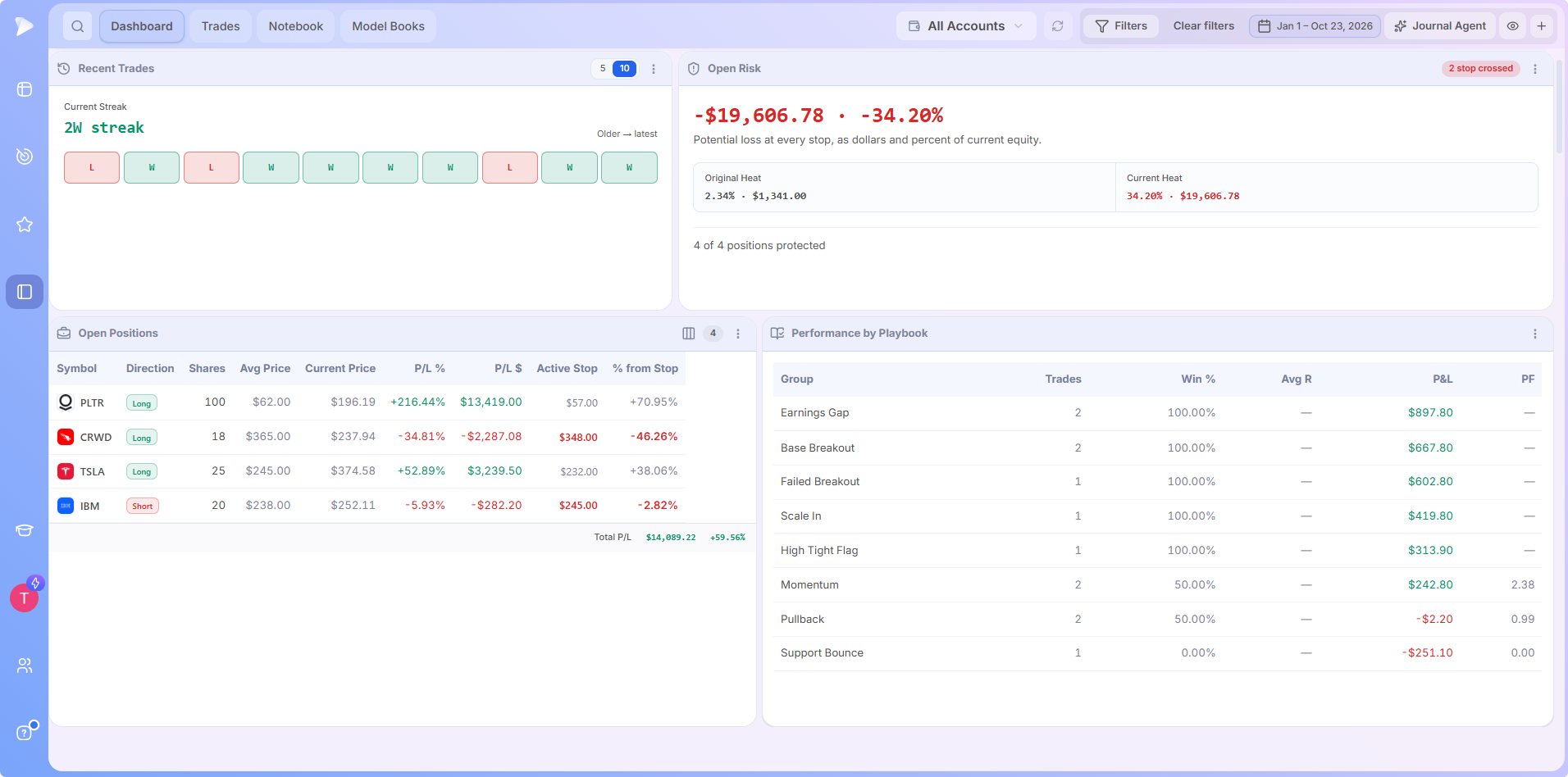
Open the journaling module from the left navigation in Deepvue. The Dashboard, Trades, Notebook and Model Books tabs run across the top, with the Journal Agent button on the right.
A new journal starts with demo data, so every app, filter and review screen can be explored before your own trades arrive. Click Erase Demo Data when you’re ready to start fresh.
Step 2: Connect Your Broker
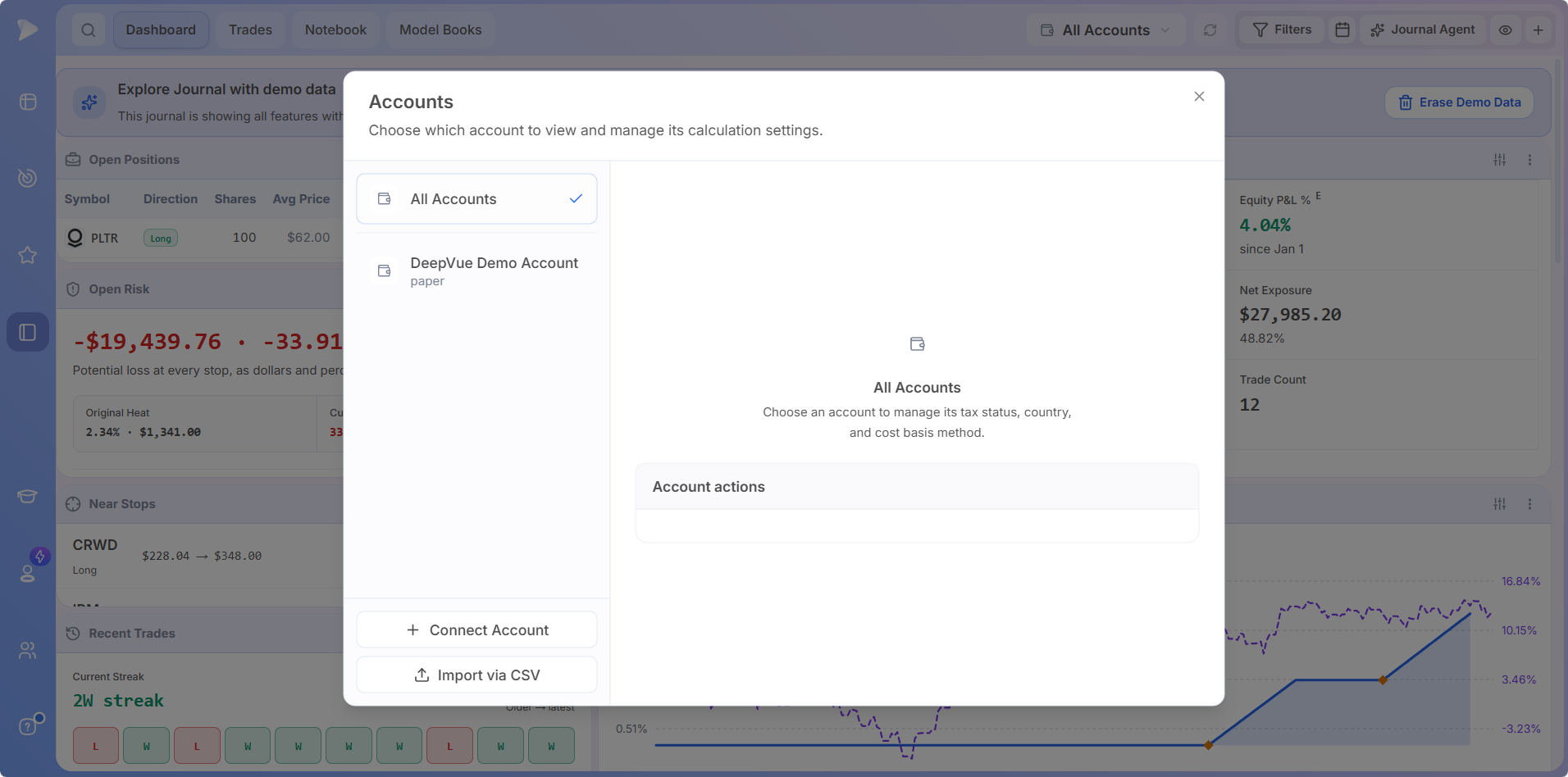
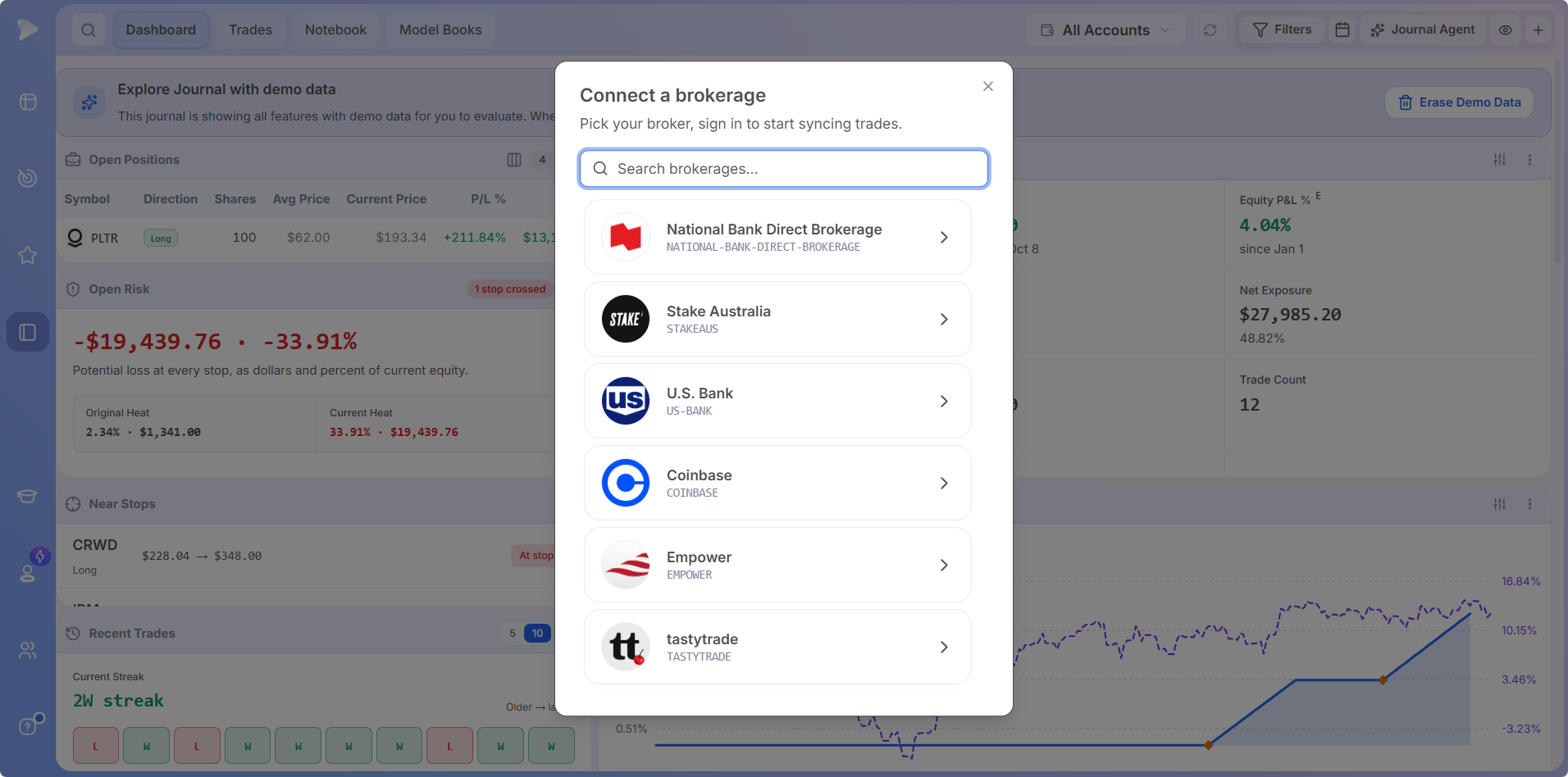
Connecting a broker is the fastest way to journal trades, because every fill, deposit and withdrawal arrives on its own. Click All Accounts at the top of the journal to open the Accounts window, then click Connect Account. In Connect a brokerage, search for your broker, pick it and sign in to start syncing trades.
Finding Your Broker and Sync Times
Connect a brokerage lists a wide range of brokers and banks, from Fidelity, Robinhood, Charles Schwab, Webull, Interactive Brokers, tastytrade and Questrade to U.S. Bank, National Bank Direct Brokerage and Stake Australia. Type a name into Search brokerages to find yours.
| Sync stage | Timing |
|---|---|
| First full history sync, most brokers | Within 24 hours |
| First full history sync, Interactive Brokers | 24 to 48 hours |
| New trades after the first sync | Real time or within the hour, depending on the broker |
Deposits, withdrawals and interest from your broker ledger come across as well, so returns and percentages calculate correctly.
For setup steps on each broker, head to Deepvue Trading Journal Broker Integrations.
Managing Multiple Accounts
Connect as many brokerage accounts as you trade. The Accounts window lists All Accounts, for stats across every account combined and calculated on the fly, plus each account on its own. Select an account to manage its calculation settings, including tax status, country and cost basis method, and to find the disconnect and delete buttons under Account actions.
How Broker Connections Stay Secure
✓ No passwords shared
You approve the connection on your broker’s site, so Deepvue never receives your broker username or password.
✓ Encrypted end to end
Synced trade data is encrypted at the server level and at the endpoint.
✓ Three day deletion
After you disconnect, Deepvue holds the data for three days and then wipes it completely.
For any other broker, Import via CSV in step 3 brings your history in today, and Help in the bottom left of Deepvue sends a broker request to the team.
Step 3: Import a CSV or Log Trades Manually
Import a CSV From Any Broker
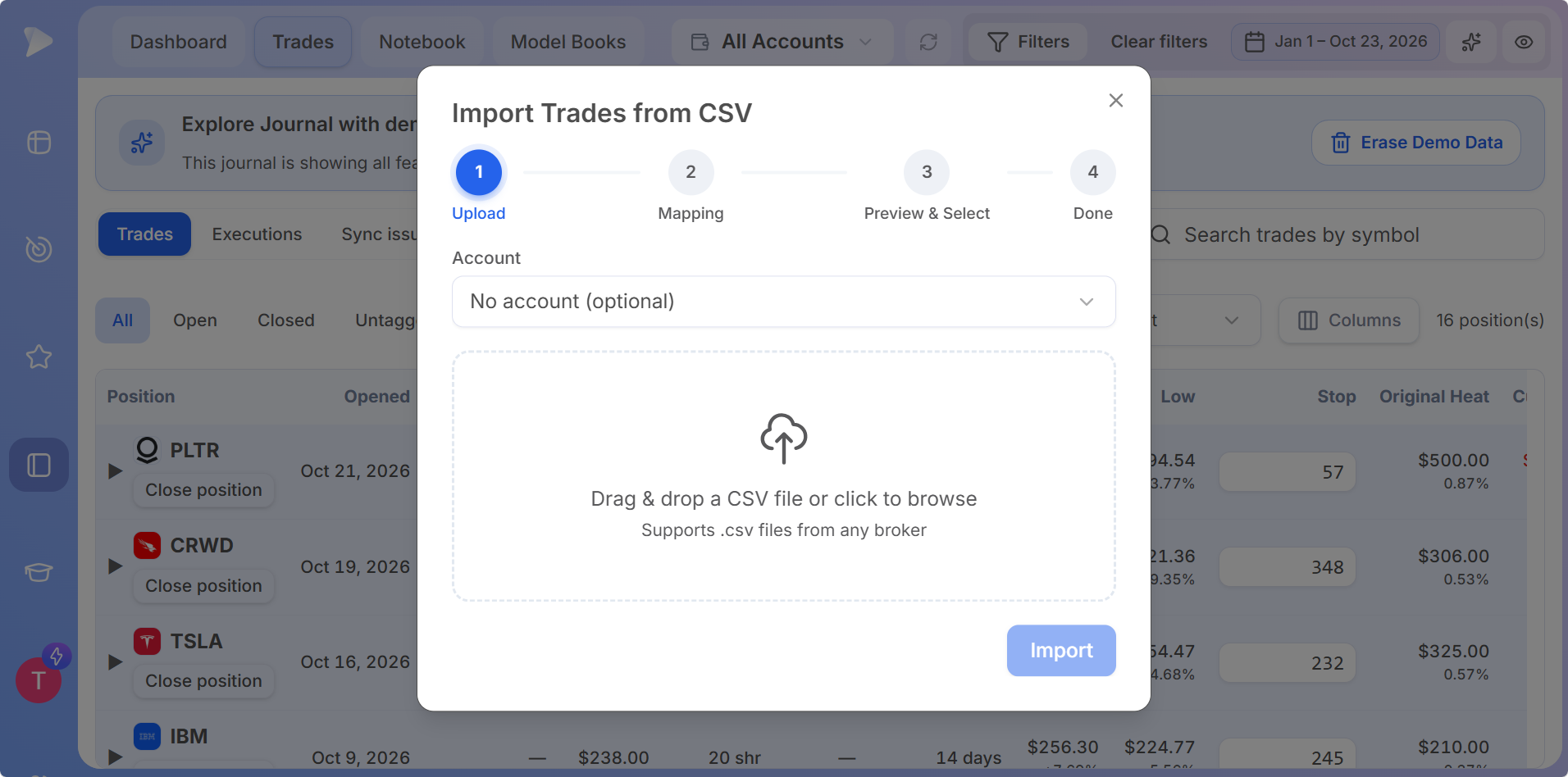
Export your trade history from your broker as a CSV file. Then click All Accounts and choose Import via CSV, or use the Import CSV button in Trades > Executions. Import Trades from CSV runs in four steps: Upload, Mapping, Preview & Select and Done.
On the Upload step, choose an account (it is optional), then drag and drop the file or click to browse. Deepvue reads any CSV format and maps the columns for you, and a CSV import is also how you set up a manual account.
Add a Trade Manually
Go to Trades > Executions > Add Trade. Enter the account, buy or sell, date, time and quantity, then add a playbook, emotion, description, tag or notes in the same form.
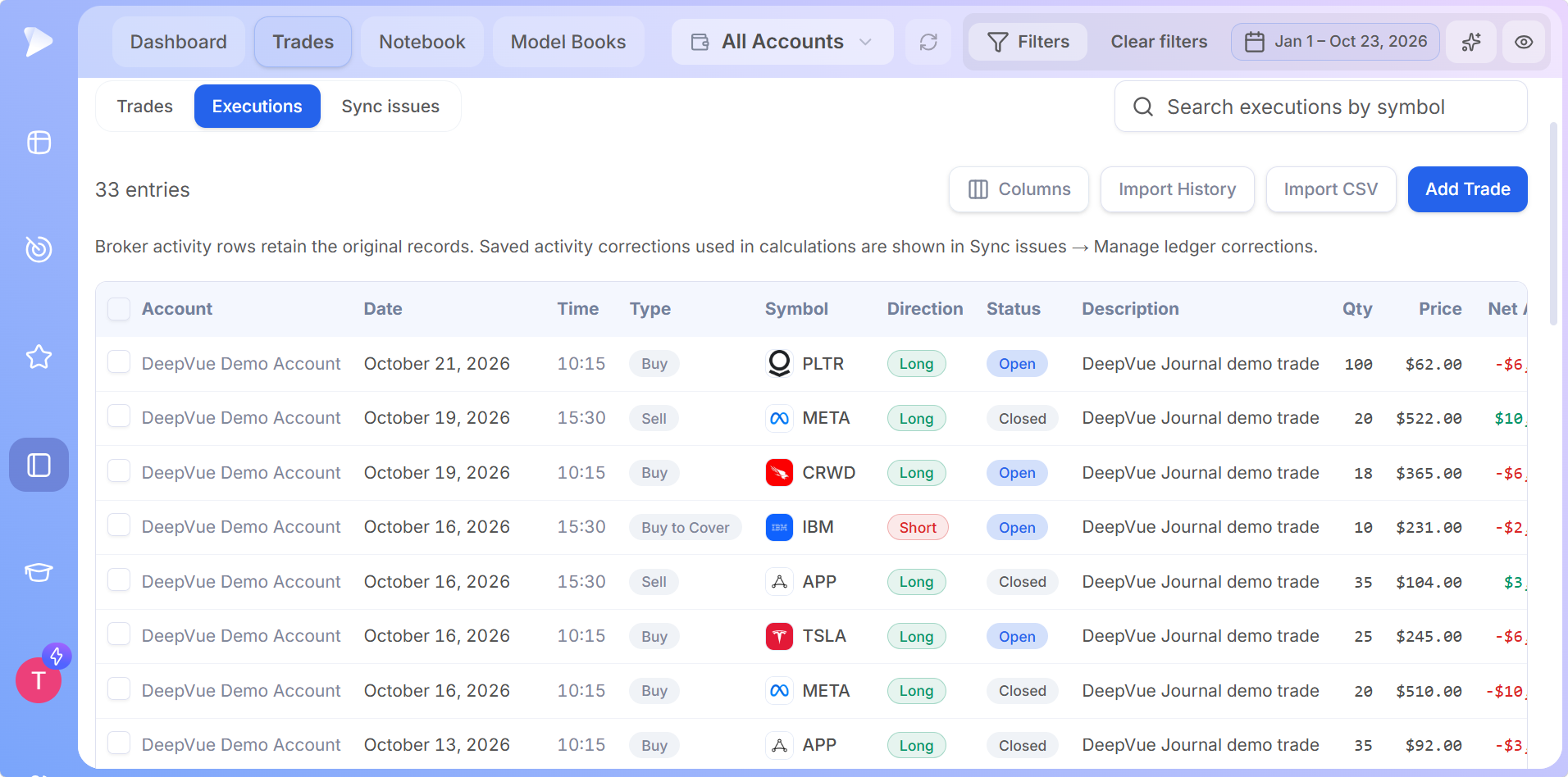
Check the Ledger Behind Your Stats
The Executions view is your full broker ledger, so you can see exactly which records drive each stat. Columns, Import History, Import CSV and Add Trade sit above it, original broker activity rows stay untouched, and Sync issues is where you repair any import yourself.
Step 4: Build Your Dashboard
The Dashboard opens with a standard layout that you can make your own. Click Add Apps, then click any Portfolio, Performance or Analytics app to add it, and remove any app you don’t need. It works the same way as every customizable dashboard in Deepvue.
- •Set up each app. Show or hide columns and data points, and switch between dollars, percent or both.
- •Hover for definitions. Each stat tells you what it measures and how it is worked out.
- •Filter everything at once. Pick accounts, a date range or tags, and every app recalculates; Clear filters resets the view.
- •Search one symbol. Global search narrows every stat to a single ticker.
- •Switch on privacy mode. The eye icon swaps dollar amounts for percentages when you share your screen.
Step 5: Add a Stop to Every Trade
Stops power the most useful numbers in the journal. Once a trade has a stop, the Deepvue Trading Journal works out its R multiple, its heat and its share of your expectancy.
Open the Trades tab and click the Needs Stop filter. Each position without a stop shows an Add stop field in the Stop column, and R updates the moment you enter a price.
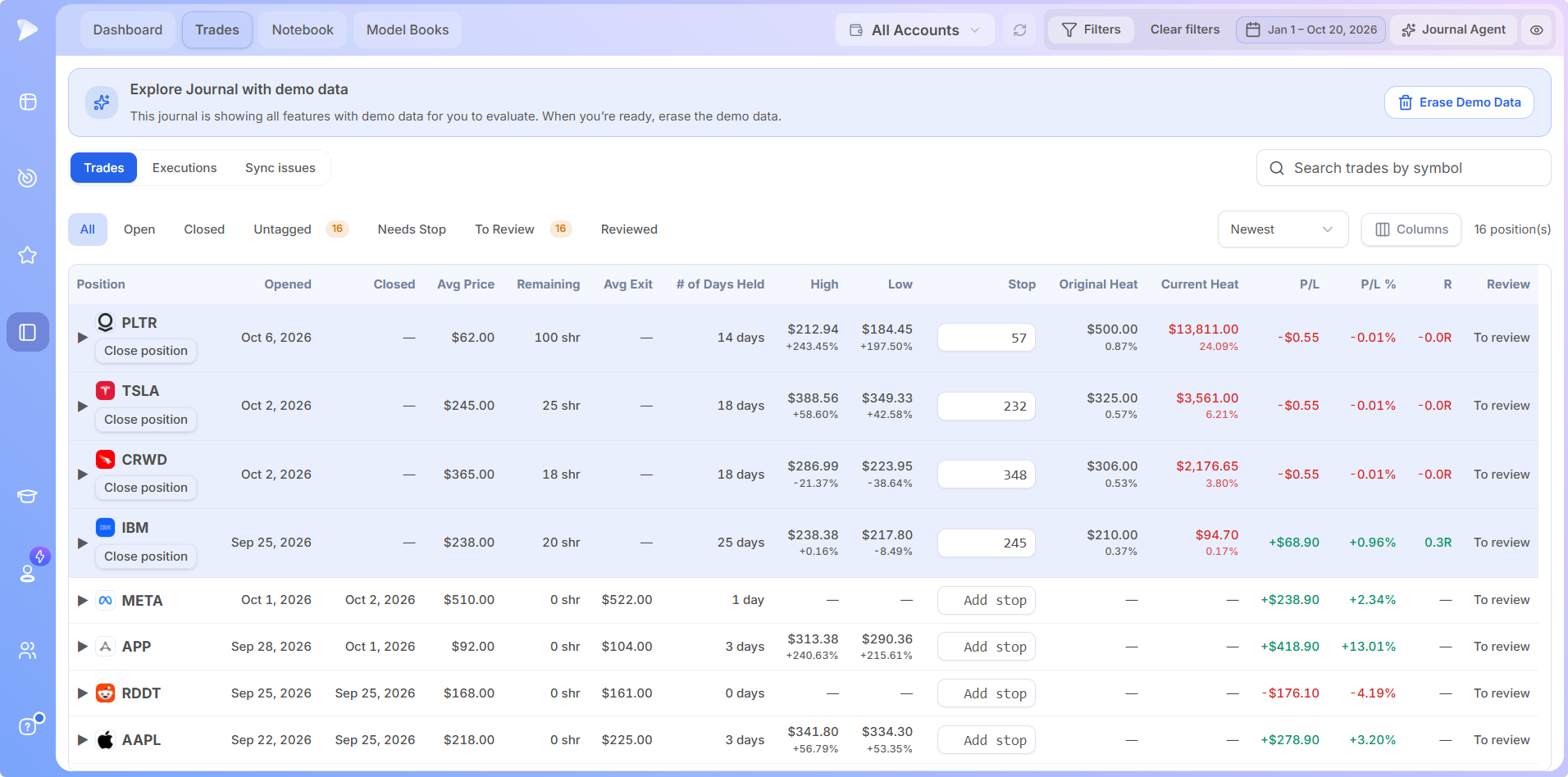
On the Dashboard, Open Risk compares your original heat, the risk you planned, with your current heat after any stop changes. The Position Size Calculator sizes your next trade from the same stop, so planning and journaling run on one number.
Add your stops. Unlock your R.
Get 2 months for the price of 1, click the Needs Stop filter and watch R, heat and expectancy fill in.
Step 6: Tag Each Trade With a Playbook, Tags and an Emotion
Three quick inputs turn your trade history into answers. Add them while reviewing a trade, or right away on your phone.
- •Playbook. The setup you traded, such as a base breakout, an earnings gap or a high tight flag. Performance by Playbook ranks each one.
- •Tags. The reasons and rules behind the trade, such as relative strength, volume support or the sell rule you used. You create your own tags, as broad or as granular as you like, and Performance by Tag scores each one.
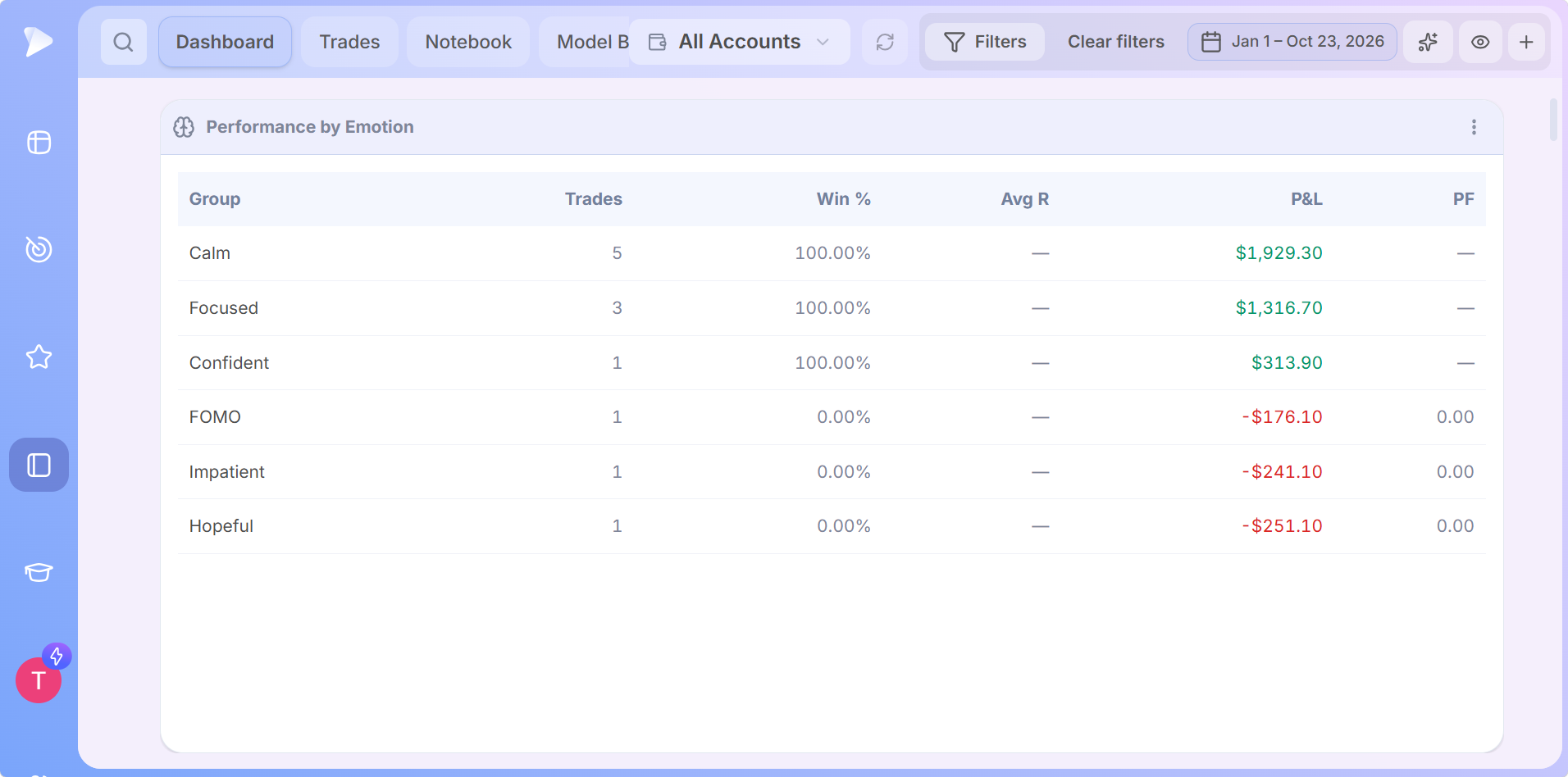
- •Emotion. How you felt going in, like calm, confident or focused. Performance by Emotion shows how each state of mind trades.
Filter the Trades tab by Untagged to find every trade still waiting for its inputs.
Step 7: Review Each Trade on the Chart
Filter the Trades tab by To Review and click any trade to open its review.
- •The chart. Your executions plot on a Deepvue chart in the workspace you choose, with green markers for buys and red for sells, each showing which account, when, how many shares and at what price.
- •The executions list. Clicking any fill below the chart jumps straight to it.
- •The numbers. P&L, P&L %, average price and average exit appear in the review.
- •Your notes. Write the plan in pre trade notes and the lesson in post trade notes.
- •Save and next. Saving marks the trade Reviewed and moves on to the next one, and the arrow skips ahead.
For a fast pass, sort the Trades tab by P/L % and review your biggest winners first, then work down the list.
Step 8: Read Your Stats on the Dashboard
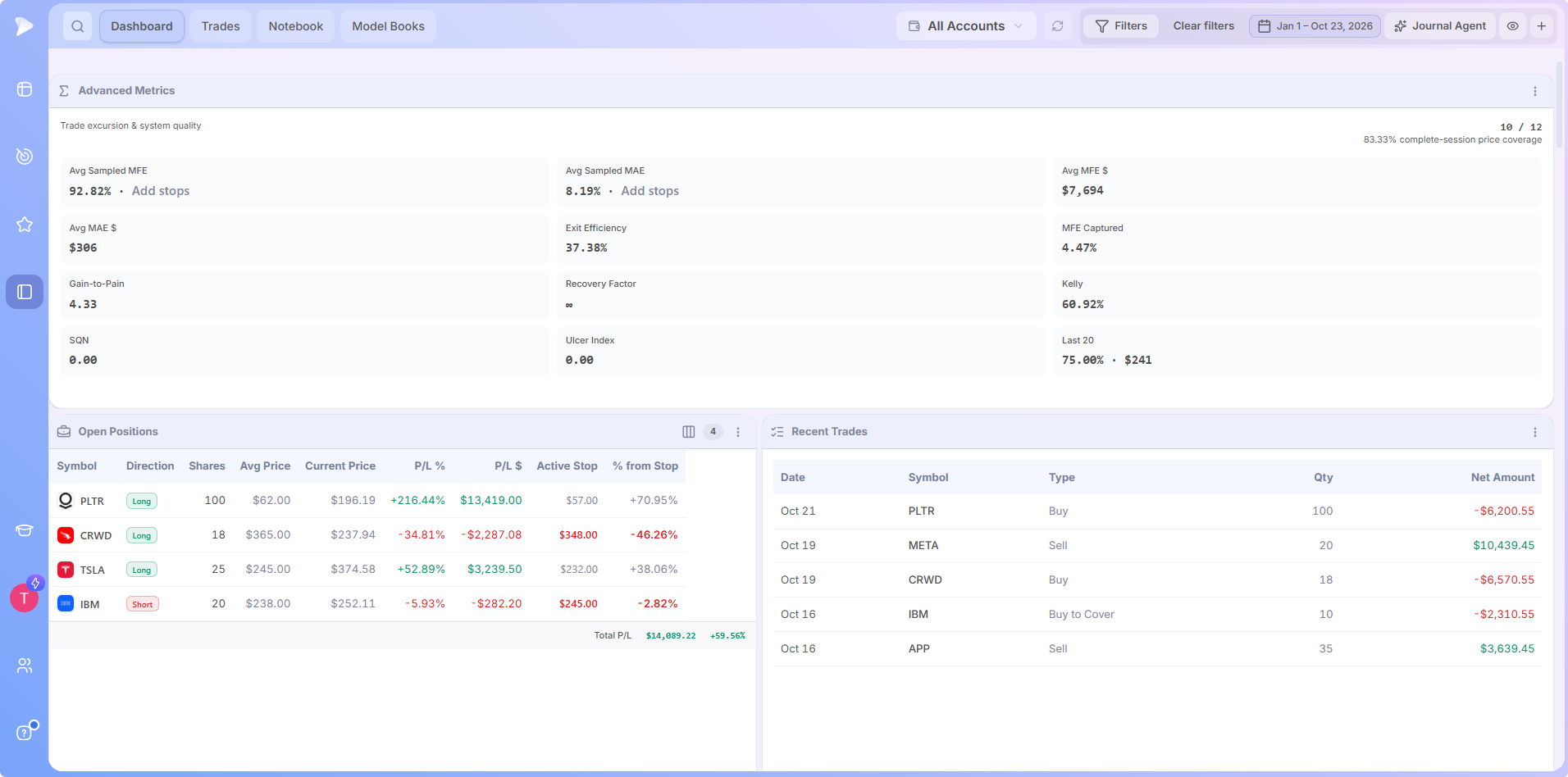
Reading your stats is the payoff of learning how to use a trading journal. With trades tagged and reviewed, the Dashboard answers the questions that move your results. Set the date range to a week, a month or year to date, and hover over any stat for its definition.
| The question | Where to look |
|---|---|
| Am I growing faster than the market? | Equity Curve, plotted against SPY |
| What does my average trade make? | Trading Edge, with expectancy in dollars and R |
| How often do I win, and how big are my winners? | Performance Overview and Win / Loss Profile |
| How steady are my results? | Risk & Consistency and Advanced Metrics |
| Which setups and tags pay me most? | Performance by Playbook and Performance by Tag |
| When and how do I trade best? | Calendar, Performance by Day of Week and Performance by Emotion |
| How are my results spread in R? | R-Multiple Distribution |
Batting average counts winners, losers and breakevens, and a trade that closes within half a percent either way counts as a breakeven. Each app is covered in Deepvue Trading Journal features.
Let your stats pick your next setup.
Get 2 months for the price of 1 and tag enough trades to see which playbook your Dashboard ranks first.
Step 9: Plan and Reflect in the Notebook
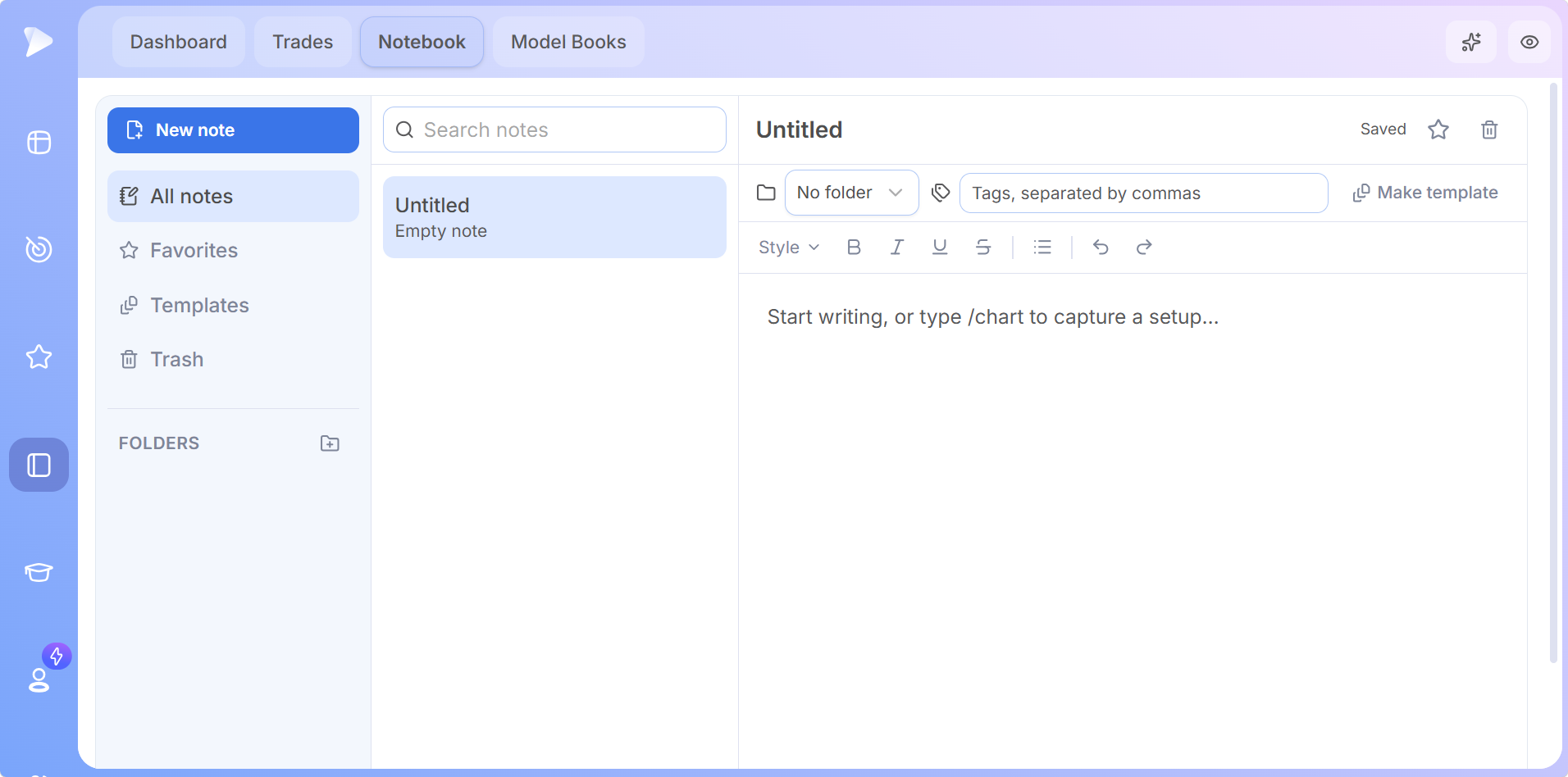
The Notebook holds the thinking around your trades. Click New note, give it a title and file it in a folder such as Daily review or Weekend routine.
- •Charts in notes. Type /chart, pick a symbol, timeframe and workspace, and a chart snapshot appears in the note.
- •Templates. Make template turns any note into a reusable layout for premarket plans or weekly reviews.
- •Find it fast. Search, tags and Favorites bring any note back in seconds.
Model Books are in the journal too, so you can study historical examples of a setup and then check how your own trades of that setup performed.
Step 10: Ask the Journal Agent
Click Journal Agent at the top right to open the panel. Start with a suggested prompt like Review my recent trading performance, or type your own question, for example which setup is your best, and voice input lets you say it out loud instead.
New Chat starts a fresh topic, Chat history reopens past reviews and Add context brings more information into the conversation. Answers lead with the one thing most worth your attention, then back it up with the numbers from your record.
Beyond your own trades, the Journal Agent answers research questions too, such as which stocks are similar to one you trade, and its Prompt Library adds market, theme and stock prompts from the Deepvue AI Terminal. Using the Journal Agent is optional, and it only ever sees anonymized trade data, which goes to an AI provider that retains nothing.
How to Journal Trades Every Day, Week and Month
Knowing how to journal trades is half the job, and a simple routine is the other half. Each part of this routine maps to one place in Deepvue, which makes journaling trades automatic.
| When | What to do in the Deepvue Trading Journal |
|---|---|
| After each session | Check your new trades, add stops under Needs Stop, tag anything Untagged and add a quick line to your daily review note. |
| End of the week | Clear the To Review filter, check the Calendar and Performance by Playbook, write your weekend routine note and have the Journal Agent sum up your week. |
| End of the month | Compare your Equity Curve with SPY, check expectancy in Trading Edge and drawdown in Risk & Consistency, then update your playbooks around what’s working. |
Tip: trading journaling sticks when the daily part takes minutes. Tag the playbook and emotion as soon as a trade closes, and save the deeper review for the weekend.
How to Journal Your Trades on Desktop and Mobile
You can journal trades on desktop and mobile with the Deepvue Trading Journal, wherever you are. Download or update the Deepvue app for iOS or Android, and the full journal, from Dashboard apps and trade review to your Notebook and Journal Agent chats, opens on your phone.
Here is how to journal your trades on the go: tag the playbook and emotion on your phone right after a trade, then finish the review on your desktop chart later. Everything you enter syncs between devices, and the Deepvue features hub shows the rest of the platform.
Join Deepvue from your mobile browser to claim 2 months for the price of 1, then download the Deepvue app on iOS or Android and the whole journal is in your pocket.
Start Journaling Trades for $49 a Month
New member offer: Two months for the price of one, so $49 covers your first two full months. The Deepvue Trading Journal comes with the single Deepvue plan at $49 a month, with a discounted annual option.
The $49 Deepvue plan covers:
- •The Deepvue Trading Journal, with broker import, every Dashboard app, the Notebook, Model Books and the Journal Agent, on desktop and mobile.
- •The screener, with 1,152 data points and 169 presets.
- •Charts, watchlists and alerts, all of them unrestricted.
- •The AI Terminal, Theme Tracker and Market Brief, with no cap on usage.
New Deepvue subscribers get a one on one onboarding session, an onboarding email series and weekly live webinars that each go deep on one part of the platform.
2 MONTHS FOR THE PRICE OF 1
Journal Your First Trade Today
Connect your broker, add your stops and tag your first trade, on desktop and mobile, with 2 months for $49.
$98 $49 for 2 Full Months
Frequently Asked Questions
How do you use the Deepvue Trading Journal?
Here is how to use the Deepvue Trading Journal: connect your broker or import a CSV, add a stop to each trade, tag it with a playbook, tags and an emotion, and review it from the Trades tab. From there, your Dashboard and the Journal Agent reveal which setups and habits drive your results.
How do you journal trades?
You journal trades by recording each trade’s entry, exit, size, stop, setup, reasons and emotion, then reviewing the results on a schedule. The Deepvue Trading Journal syncs the numbers from your broker, so trading journaling only takes a playbook, a few tags, an emotion and short notes.
What should you write in a trading journal?
Every trading journal entry should hold your plan before the trade, your lesson after it, the setup, the reasons you took it and how you felt. In the Deepvue Trading Journal, those go into pre trade and post trade notes, the playbook, tags and the emotion on each trade.
How often should you review your trading journal?
A good rhythm for reviewing a trading journal is a quick pass after each session and a deeper review every weekend, and that rhythm is most of how to use a trading journal well. In the Deepvue Trading Journal, the To Review filter tracks which trades still need a look, and the Journal Agent can summarize a week of trades on request.
How do I connect my broker to the Deepvue Trading Journal?
To connect your broker to the Deepvue Trading Journal, click All Accounts, choose Connect Account, search for your broker in Connect a brokerage and sign in to start syncing trades. Most brokers then finish importing your complete history inside 24 hours.
Which brokers work with the Deepvue Trading Journal?
Brokers that work with the Deepvue Trading Journal include Interactive Brokers, Charles Schwab, Fidelity, Robinhood, Webull, Questrade and tastytrade, and Connect a brokerage lists many more, with a search box to find yours. Trades from any other broker come in through a CSV import or can be added by hand.
How long does a broker sync take in the Deepvue Trading Journal?
A broker sync in the Deepvue Trading Journal brings in your complete trade history inside 24 hours for most brokers, and inside 24 to 48 hours for Interactive Brokers. After that first import, new trades arrive in real time or within the hour, depending on the broker.
Can I connect more than one brokerage account to the Deepvue Trading Journal?
Yes, you can connect more than one brokerage account to the Deepvue Trading Journal. All Accounts combines the stats of every connected account, and selecting a single account recalculates the whole journal for that account alone.
How do I import trades from a CSV into the Deepvue Trading Journal?
To import trades from a CSV into the Deepvue Trading Journal, choose Import via CSV in the Accounts window or Import CSV in Trades > Executions, upload the file, check the mapping, preview and select the trades, then finish. The import accepts any CSV format from any broker.
How do I add a trade manually in the Deepvue Trading Journal?
To add a trade manually in the Deepvue Trading Journal, go to Trades > Executions > Add Trade and enter the account, buy or sell, date, time and quantity. A playbook, emotion, description, tag and notes can go in the same form.
How do I disconnect a broker from the Deepvue Trading Journal?
To disconnect a broker from the Deepvue Trading Journal, click All Accounts, select the account and choose disconnect or delete under Account actions. Deepvue keeps disconnected data for three days and then deletes it from its servers.
How do I use the Journal Agent in the Deepvue Trading Journal?
To use the Journal Agent in the Deepvue Trading Journal, click Journal Agent at the top right, then pick a suggested prompt or type or speak your own question. The Journal Agent only runs when you choose to use it, and it works with anonymized trade data.
Can you journal your trades on mobile?
Yes, you can journal your trades on mobile with Deepvue’s iOS and Android apps, which carry the full Deepvue Trading Journal. Tags, notes and reviews entered on your phone sync with the desktop version automatically.