Deepvue AI Terminal: The AI Stock Trading Platform That Already Knows Your Watchlists and Screens
The Deepvue AI Terminal is an AI stock terminal built into the platform. It runs as a sidebar beside your screener, watchlist and charts, or as a widget on any dashboard, and it already has your context: tag any watchlist, screener or data panel with @ and it sees every symbol, filter and value inside it.
It ships with 50+ prebuilt, symbol aware prompts, builds executable screeners from plain English, routes each question to the strongest model for it, and comes with unbounded usage on the one plan.
and the AI Terminal is available the moment you log in.
The AI stock research assistant, in numbers:
Key Takeaways
Most traders already use AI somewhere in their research. The workflow is the problem.
You spot a gap, open a new tab, paste a ticker into a general chatbot, explain again what you are looking at, then copy the answer back into your process. Context in one place, analysis in another, and the seams cost you minutes on every stock.
The AI Terminal closes that gap. It is the AI stock research assistant built into the place where the work already happens, with your lists, filters, data points and charts one keystroke away.
- ✓Your context is built in. Tag any watchlist, screener or data panel with @ and the AI sees its symbols, filters and values without a single copy and paste.
- ✓50+ prebuilt prompts across 10+ categories, all symbol aware, so the stock you are viewing fills into the prompt automatically.
- ✓An AI stock screener built in. Describe a screen in plain English and the Terminal builds an executable one inside the Screener module with the filters applied.
- ✓Smart routing sends each question to the model strongest on it, so you never have to pick one or pay for several.
- ✓Every ticker is a button. Open the chart, add all mentioned names to a watchlist in one click, or save a reply as a reusable prompt.
- ✓Unbounded usage on the one plan. Get started with Deepvue here.
AI Terminal at a Glance
- Where it runs
- A side panel in the Screener and Watchlist modules, or a widget on any dashboard
- Context tagging
- Type @ or use Add context to hand it a watchlist, screener preset, saved screen or data panel
- Prompt library
- 50+ system prompts across 10+ categories, plus your own under My Prompts
- Suggested follow ups
- Symbol aware next questions offered beneath the latest answer
- Screener building
- Describe a screen in plain English and get an executable one with filters applied
- Model handling
- Smart routing per question, with no model picker to manage
- Response actions
- Symbol chips, one click watchlist capture, save as prompt, and copy clean
- Chat history
- Previous chats titled automatically, searchable and resumable
- Where to find it
- Listed as Deepvue AI Terminal under Core in Add Apps
- Cost
- On the standard plan, with no credits and no per query meter
What Is the Deepvue AI Terminal?
The Deepvue AI stock terminal is the platform’s AI stock research assistant and its AI assisted stock trading layer. It answers questions about stocks, themes, earnings, catalysts and market conditions, and it acts on the platform around it: opening charts, building watchlists, creating screeners from a description.
Two things separate it from a chat window bolted onto a trading app. Context: it knows which symbol you are viewing, recognizes 11K+ tickers with name disambiguation, and can be pointed at any of your lists on demand. Actions: every ticker it recognizes becomes a button that opens a chart, adds to a watchlist, sets an alert, or launches a screener.
It is built by the same active traders behind the rest of the platform, which is why the prompt library follows how growth traders think: Market, Theme, Stock, Technical, Fundamental, Risk, Sentiment, Earnings and Comparison.
The interface stays minimal: starter prompts and a link into the full library, a New Chat button, a searchable chat history, an Add context button for tagging your lists, and a prompt box that also takes voice input. A line beneath it reminds you the Terminal can make mistakes and is for information purposes only.
How It Differs From a General Purpose AI Chatbot
Generic assistants need every prompt to start with a preamble: here is my watchlist, here is what I am looking at, here is what I care about. The Terminal starts with that already loaded.
| Deepvue AI Terminal | General purpose AI chatbot | |
|---|---|---|
| Context | Knows the symbol on screen; tag any list with @ to hand it filters and values | You paste in tickers and describe your setup every time |
| Data | Draws on Deepvue’s own platform data alongside live research | Whatever the model can reach on the open web |
| Prompts | 50+ built by traders, symbol aware, one keystroke away | You write and rewrite your own each session |
| Actions | Tickers become chips: chart, watchlist, alert, screener | Text output only; you move the results by hand |
| Model choice | Smart routing picks the strongest model per question | One model for everything, or you switch manually |
| Cost | Included in the one plan with unbounded usage | A separate subscription on top of your platform bill |
The underlying models are not magic. The gain is that the distance between a question and an action collapses when the AI is built into the tool holding your data.
Who the AI Terminal Is For
AI for traders works best where a routine already exists. If your day involves flipping through a screen, spotting a gap, asking why it moved, checking whether a theme is real and building a focus list, this is aimed at you. AI for traders without a process just produces faster confusion.
- ✓Swing traders who need a catalyst explained in seconds rather than after ten minutes of searching.
- ✓Position traders checking whether the story behind a multi month hold is still intact.
- ✓Breakout traders who want theme breakdowns of a screen or watchlist to see where money is flowing.
- ✓CANSLIM® traders who want earnings reports summarized rather than read line by line.
- ✓Traders with full time jobs, where the difference between a 45 minute routine and a 15 minute one decides whether the routine happens at all.
Browse the Deepvue for hub to see the workflow that matches how you trade.
What the AI Terminal Does
Seven capabilities, each removing a specific piece of manual work from a routine.
| Capability | What it does | What it saves you |
|---|---|---|
| Context tagging with @ | Tag any watchlist, screener or data panel and the AI sees its symbols, filters and values | Copying tickers and explaining your setup again |
| Slash prompts | 50+ prebuilt, symbol aware prompts across 10+ categories | Writing and rewriting prompts from scratch |
| Plain English screeners | Describe a screen and get an executable one with filters applied | Building multi filter screens by hand |
| Smart model routing | Each prompt routes to the model strongest on that type of question | Guessing which model to use, or paying for several |
| Actionable responses | Every recognized ticker becomes a chip, plus one click list capture | Manually transferring names between tools |
| Prompt library | Save, categorize and share your own prompts via a unique link | Keeping prompts in a separate doc and pasting them in |
| Chat history | Previous chats titled automatically, searchable and resumable | Losing the thread of research you already ran |
Tag Your Lists With @
Type @ in the prompt box, or click Add context, and a dropdown lists everything the Terminal can pull in: your watchlists, Deepvue’s presets, your saved screeners, the screener presets, and your data panels.
- •Mention a watchlist and the AI sees every symbol in it, which is how you get a theme breakdown of your own positions.
- •Mention a screener and it sees every stock currently matching the filters, so the analysis reflects today’s results rather than a stale copy and paste.
- •Mention a data panel, pick a symbol, and it gets every metric in that panel. Point it at a top trader’s data panel and you are analyzing a stock through that trader’s lens.
The highest value use is bottom up theme detection. Tag a screen of stocks up on volume, ask which themes are represented, and the answer maps where money is flowing that day. That pairs with the Theme Tracker, which answers the same question from the top down.
50+ Symbol Aware Prompts, One Keystroke Away
Press the slash key and the prompt library opens. Every prompt is symbol aware, so the placeholder fills with whatever stock you are viewing and the same prompt works on every name in a screen as you spacebar through it.
| Category | What the prompts cover |
|---|---|
| Market | What sectors are leading, the Fed and macro picture, what is happening premarket, situational awareness for today |
| Theme | What themes are hot right now, and theme breakdowns of any list you tag |
| Stock | What the company does, why it gapped, recent key news catalysts, main competitors |
| Earnings | How the last report went, a summary of it, and what to expect next |
| Technical and Fundamental | Moving average and relative strength analysis, valuation against sector and five year average |
| Risk, Sentiment, Comparison | Key risks right now, positioning, and peer comparisons |
The prompts look simple on purpose. Behind each short title is a much longer engineered prompt specifying the sections, the data to pull and the formatting a growth trader wants back. You get the output of a carefully built prompt without writing one.
The library also comes to you. Beneath the latest answer, the Terminal suggests symbol aware follow ups, such as recent news catalysts, similar stocks or main competitors, with a link to browse the full prompt library.
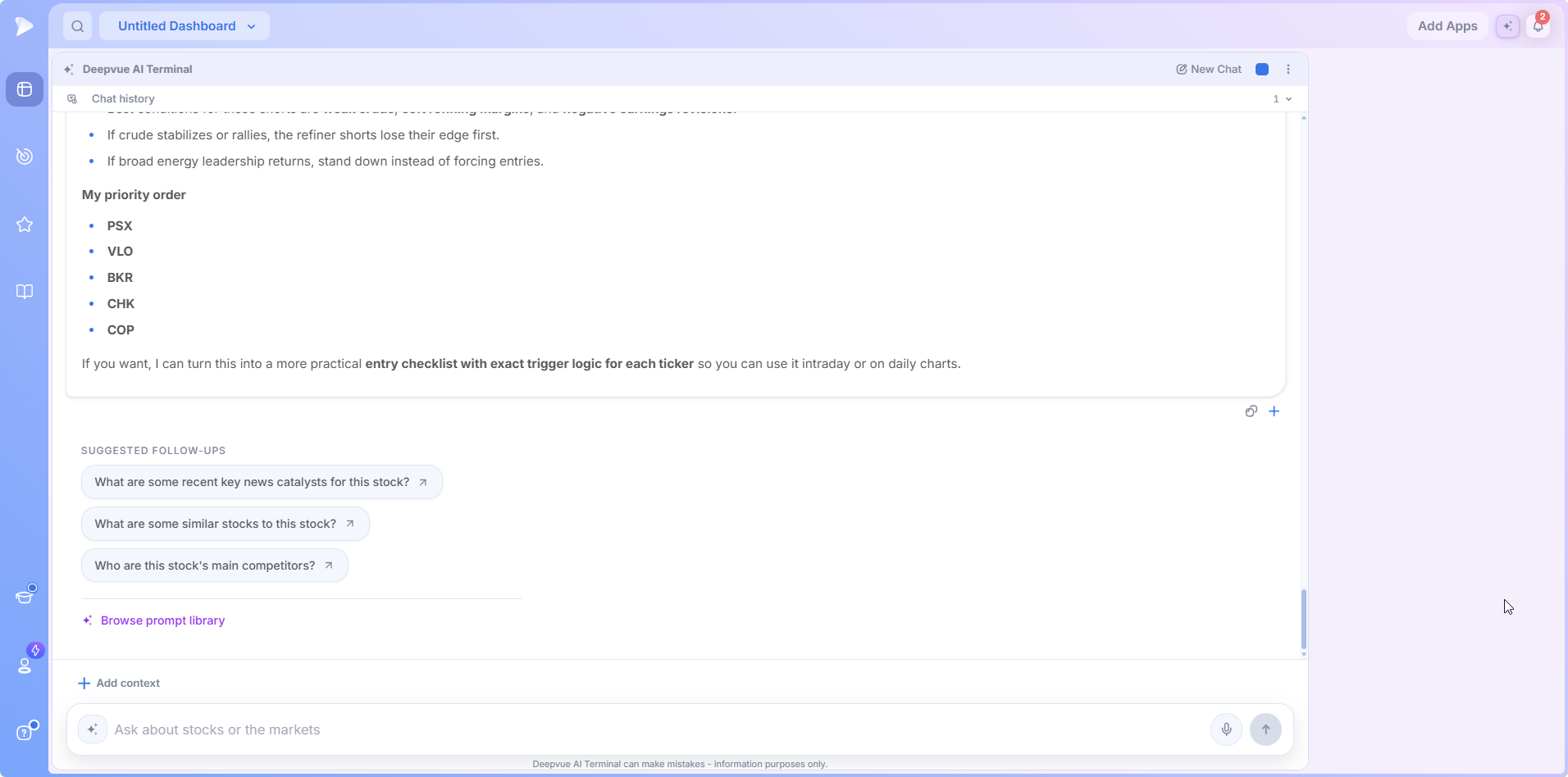
Build a Screener From a Plain English Description
This is what makes the Terminal a natural language stock screener. Describe the screen you want in ordinary language and it returns an actual, executable screen inside the Screener module with the filters already applied. Not a suggestion document, and not a list of tickers pasted into chat.
That returns a built screen with filters along the lines of dividend growth above a threshold, last price below the 50 day moving average, one week relative strength above four week, and a dollar volume floor. From there you open it, save it, rename it, adjust any filter by hand, and spacebar the results like any other screen.
Because it works from whatever data points exist in the platform, custom Deepvue indicators are fair game. Ask for tight contracting stocks with a low relative measured volatility reading, a three month absolute strength rating above 90, and the 50 day above the 200 day, and you get a matching screen without touching a filter menu.
Always review the filters your natural language stock screener request produced, since ordinary language can be ambiguous about which variant of an indicator you meant.
Smart Model Routing
Different questions have different shapes. Breaking news needs a model with live research, a long filing needs a long context reasoner, and a valuation comparison needs a model good with numbers.
Your prompt routes to whichever model is strongest for that question, and the Terminal does the picking. You get better answers than any single model gives across all of them, with no separate AI subscription alongside your platform bill.
Every Ticker Is a Button
Answers are interactive, which is the detail that changes the workflow most, because research never dead ends in a block of text.
- •Symbol chips with logos. Click one to load the chart, or right click for Quick Access: chart, watchlist, alert, screener.
- •One click list capture. When a response names five interesting stocks, one button collects all of them into an existing or brand new watchlist.
- •Save any reply as a prompt. Right click a response and choose Save as Prompt to turn a good result into a reusable one.
- •Copy clean. One click strips markdown and citation numbers so the text pastes straight into Slack, a spreadsheet or your trade journal.
Open a Deepvue account and ask it about the last stock that gapped on you.
Where to Find the AI Terminal
It is not a separate page you have to remember to open. It appears in four places: a right sidebar on every screener page, beside any watchlist, connected to charts through symbol chips, and as a dashboard widget.
In the Add Apps catalog it is listed as Deepvue AI Terminal in the Core group, alongside Chart, Screener, Watchlist and Alerts, which tells you how the platform ranks it.
How to Add It to a Dashboard
Open the Dashboard module in the left sidebar and create or open adashboard.
Click Add Apps and find Deepvue AI Terminal in the Core group, or use the search box.
Click it to add it, then size it. Give it real width if you plan to read long earnings breakdowns or tables inside it.
Set the color group from the square in the header so a symbol chip you click loads instantly in the chart beside it.
It loads straight onto its start screen, ready for a question, with a New Chat button whenever you want a clean thread.
Or Open It as a Side Panel
Working inside the Screener or Watchlist module? Click the AI icon at top right and the Terminal opens as a side panel in place of the data panel, or press Shift plus T to toggle it.
Two shortcuts worth learning. Shift plus question mark opens the full shortcut list. Shift plus spacebar selects the stock you are on while screening, so you can flip through a screen, tag the interesting names without reaching for the mouse, and add the selection to a watchlist at the end.
Dashboard Setups Worth Building
- •Terminal plus chart. Both in the same color group so a symbol chip you click loads instantly beside it.
- •Post market movers. A screen for post market gappers, a chart and the Terminal, so you can ask what is behind any move the moment you spot it. Top Movers works the same way with the catalyst already written.
- •Morning brief. The Market Brief beside the Terminal for follow up questions on anything in it.
- •Rotation. The Theme Tracker for the top down view and the Terminal for the bottom up, so you can cross check where rotation is showing up.
How to Use the AI Terminal
Setup is trivial. The value is in knowing which workflows to run.
Start With a Built In Prompt
Click one of the starter prompts on the home screen. They are grouped by intent: what sectors are leading, what the macro picture looks like, what themes are hot, how the current stock’s earnings went, what the company does. Each runs against the symbol you are viewing, so the same click produces a different answer on every name in a screen.
Situational awareness is the one to build a habit around. Run it premarket and it pulls together what is gapping, the key headlines and the market context you need before the open, in one output rather than five tabs.
Create and Save Your Own Prompts
When you write a prompt that works, save it. The Create Prompt dialog has two fields: a short label you click later, and an optional full instruction behind it. Use the symbol placeholder anywhere you want the current ticker inserted.
That structure is what makes the library powerful. The saved prompt can be a page of instructions on sections, tone, depth and formatting, while the thing you click is a four word label. Build a handful around your routine and you have a research playbook that runs on one keystroke.
Right Click a Gap to Ask Why It Moved
This is the workflow Deepvue’s own team uses most. See a gap or volume spike on a chart, right click the bar, choose Ask Deepvue AI, and seconds later you have the catalyst behind that specific move.
It works on historical bars too, which makes it a study tool as much as a live one. Working through a Model Book move from years ago, right clicking the gap day surfaces what drove it without hunting through old news archives.
Ask the Terminal About Deepvue Itself
The Terminal is trained on Deepvue’s knowledge base, so it explains the platform’s own concepts. Ask what an oops reversal is, or how relative measured volatility works, and you get a definition grounded in how Deepvue implements it rather than a generic web answer. For newer subscribers that shortens the learning curve considerably.
WatchDeepvue platform update: the AI Terminal, Industry Ranks, and the new dashboardOne Question to a Trading Sheet: A Worked Example
The best illustration is a real conversation, because the value compounds across turns. Each answer ends with an offer to go deeper, and saying yes builds progressively more concrete output.
Each capture below comes from an actual conversation, so what it shows belongs to that exchange on that day. Read them for how the Terminal behaves, never as a view on the names they mention.
It Starts by Refusing to Invent an Answer
The opening question was deliberately vague: what are the five best stocks to short right now. No sector, no criteria, no timeframe, which makes it a good test of whether a tool will tell you what you want to hear.
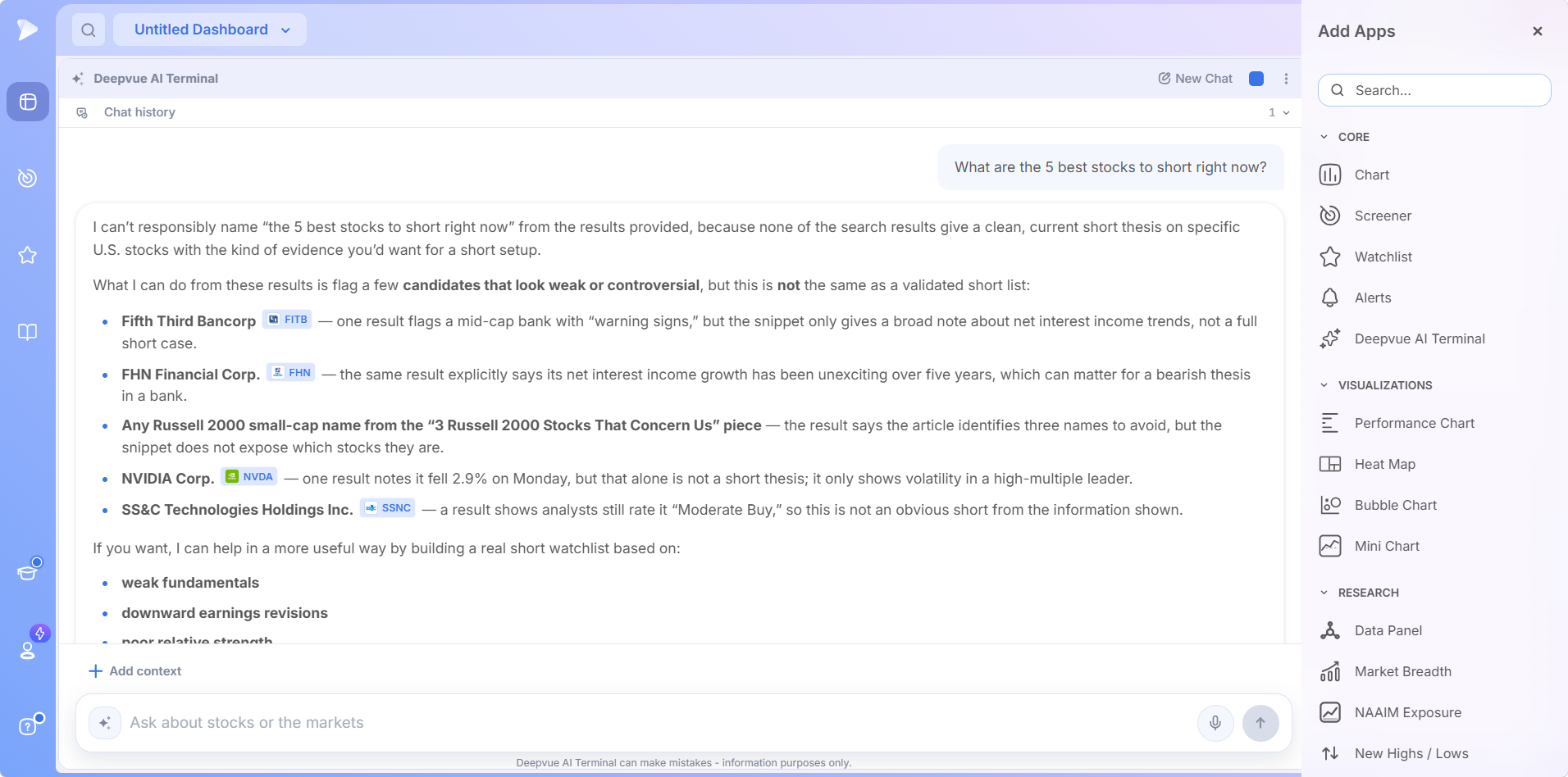
It declined to name a list. It explained that the available evidence did not support a clean short thesis, flagged a few names that merely looked weak while stating plainly this was not a validated list, and asked for the missing input.
It also proposed the framework it would use: weak fundamentals, downward earnings revisions, poor relative strength, broken charts, crowded long positioning. Then it asked for a sector, style or market cap range. For a research tool that behavior is the feature. An answer that admits what it cannot support beats a confident list assembled from nothing.
One Line of Context Changed Everything
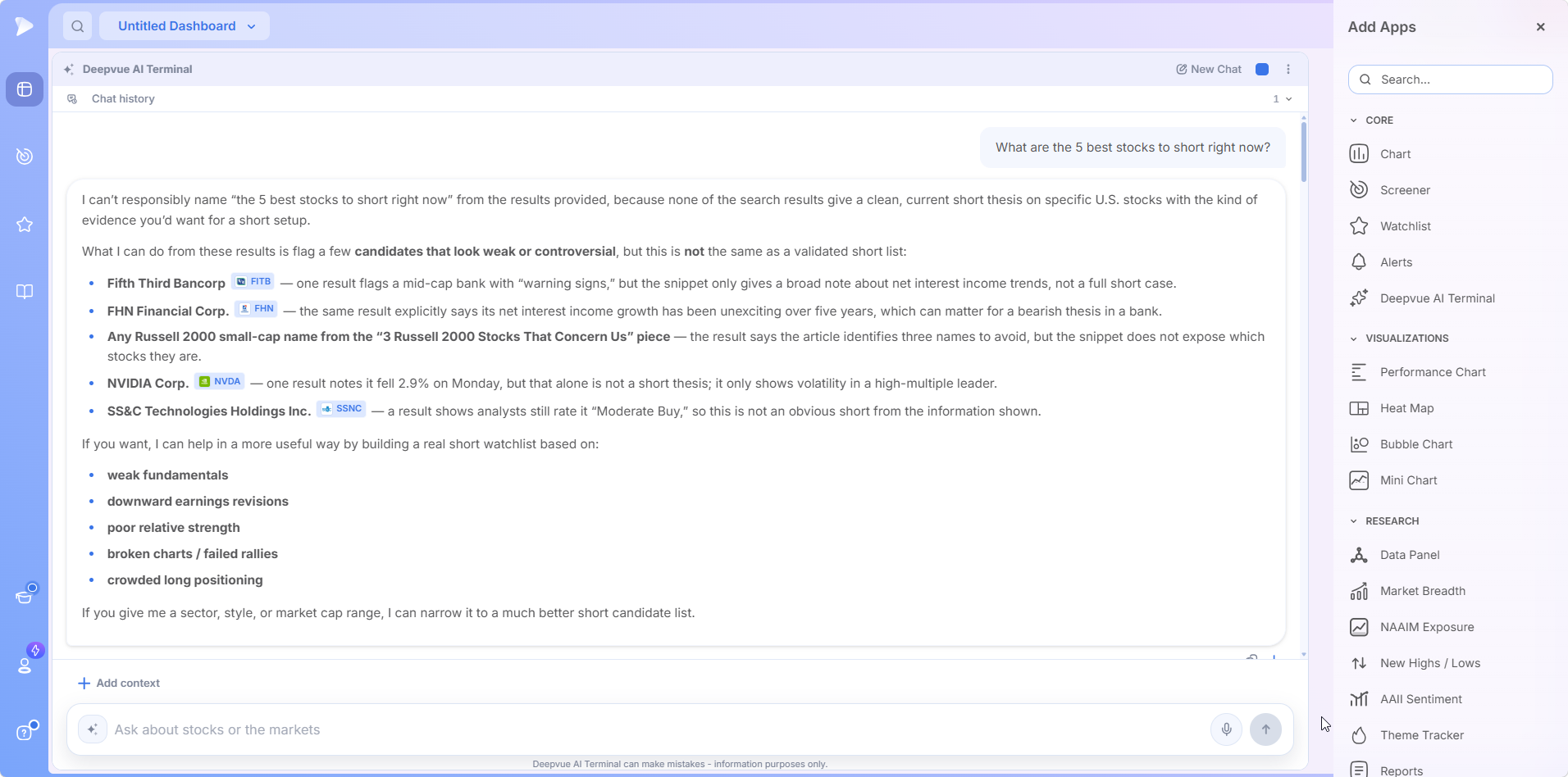
The follow up simply named a sector. That was enough. It returned five candidates, each with a one line reason grounded in a specific signal, added runners up, and separated positioning risk from fundamental pressure, noting where timing mattered most. Then it offered the next step.
Say Yes and You Get a Structured Sheet
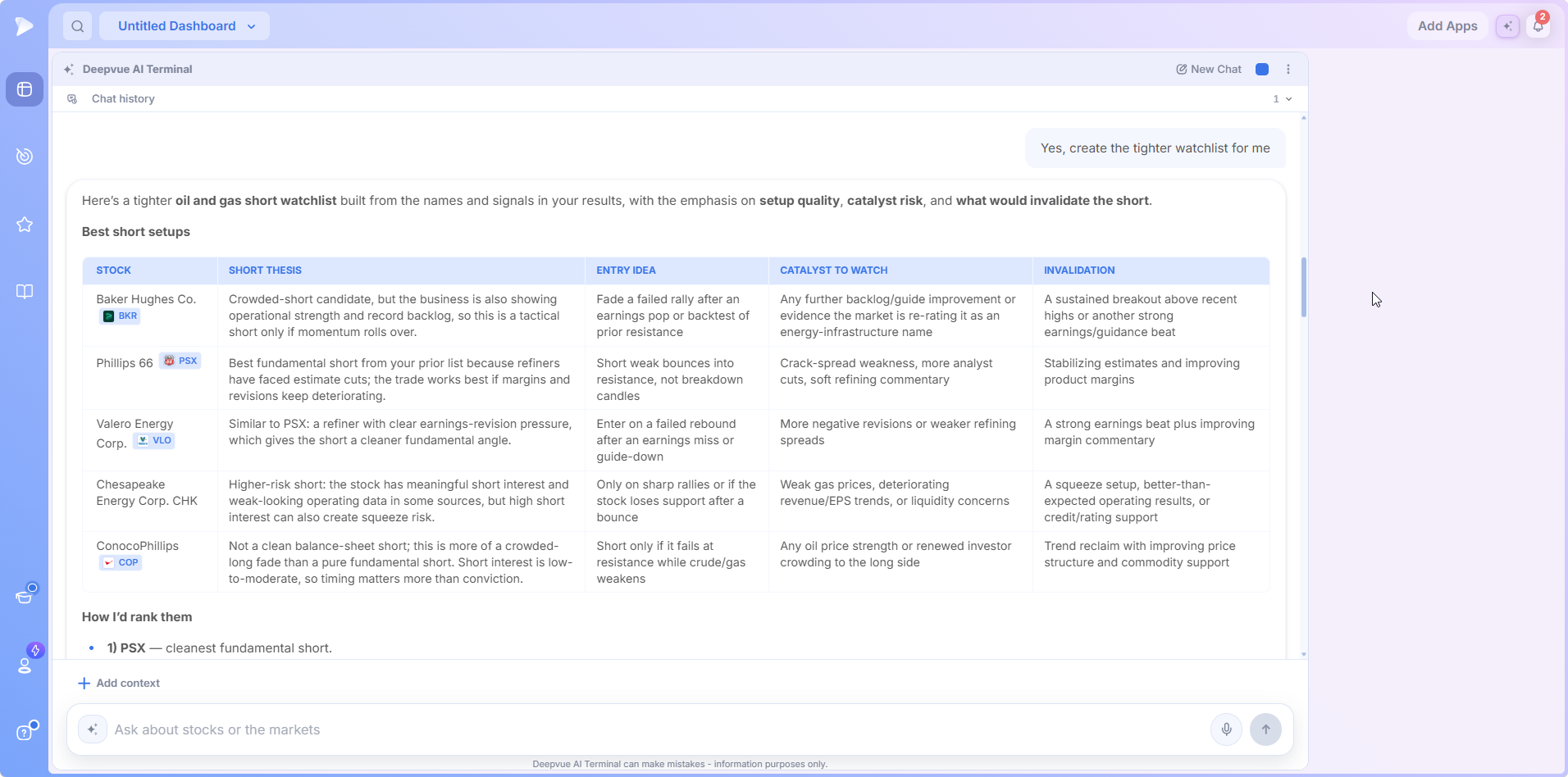
Accepting produced a table with columns that map to how a trader thinks: stock, thesis, entry idea, catalyst to watch, invalidation. The invalidation column is the important one. Every row states the condition that would prove the idea wrong, the part most AI output leaves out.
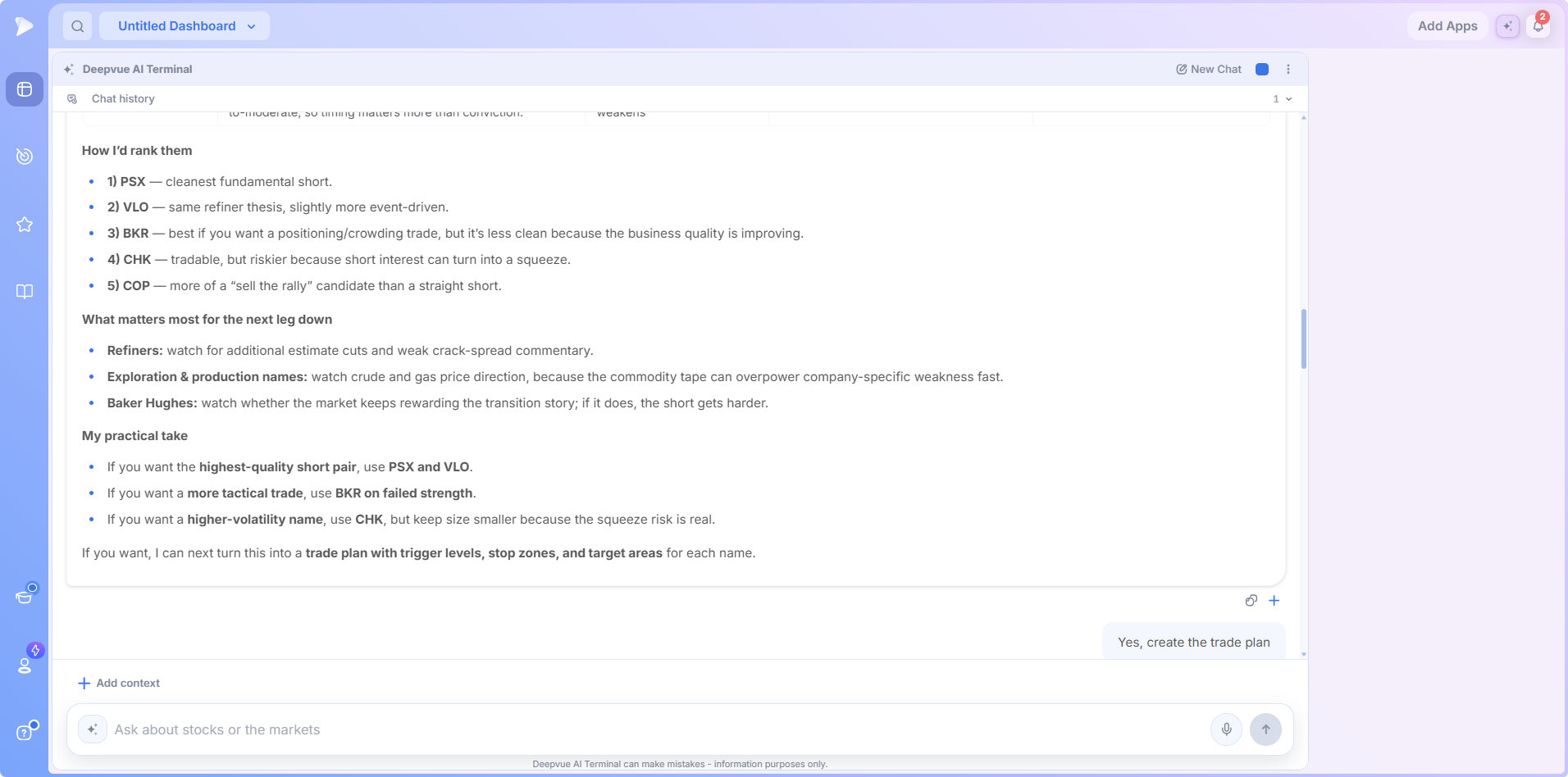
Then a Trade Plan and a One Page Sheet
The next turn produced a full trade plan per name, with setup, trigger, stop zone, target zone and best use for each.
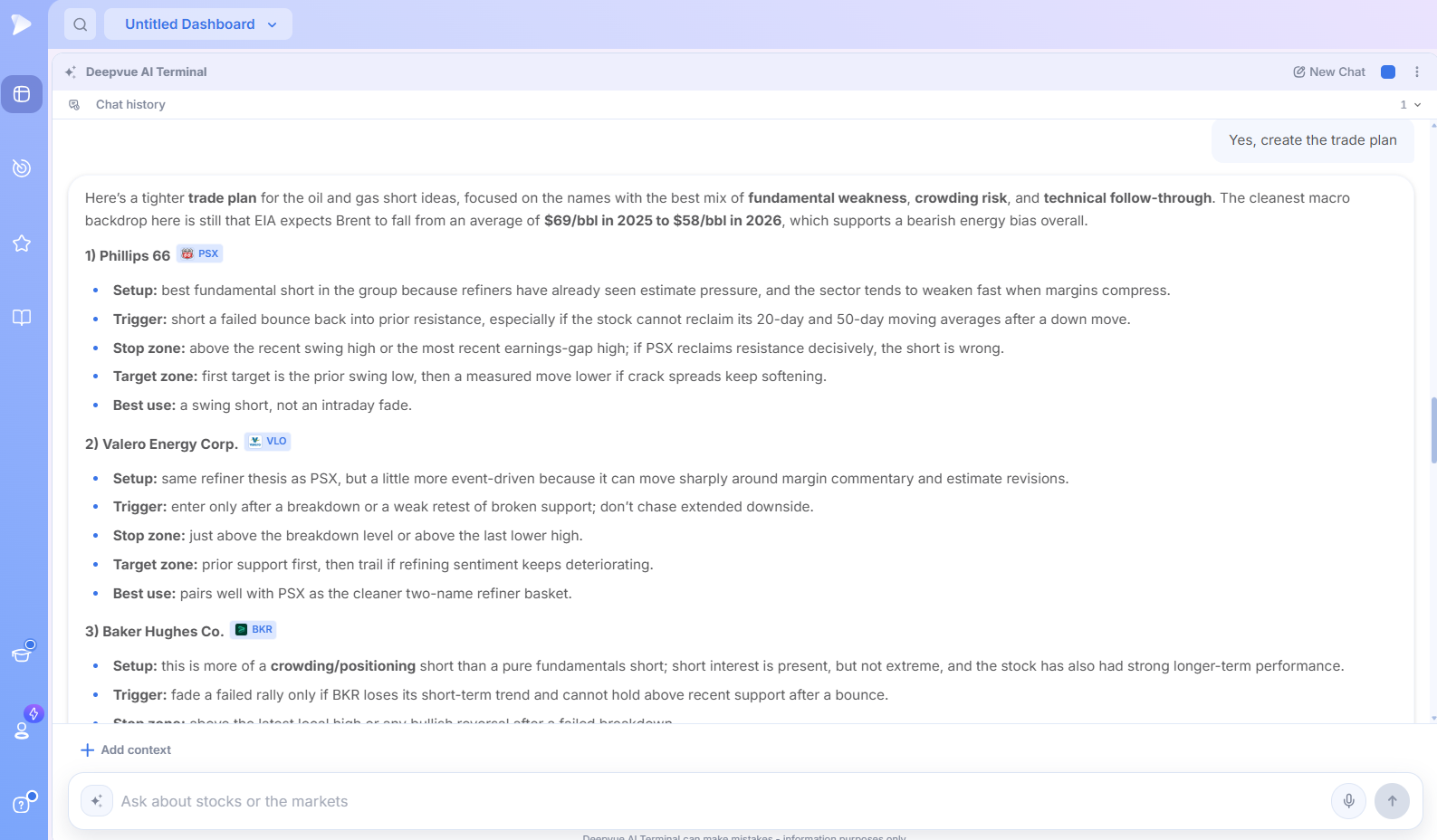
One more turn condensed it into a single reference sheet with entry trigger, stop, first and second targets and best use per name, followed by execution rules, sizing guidance and a priority order. Every recognized ticker is still a clickable chip, and one button drops the set into a watchlist.
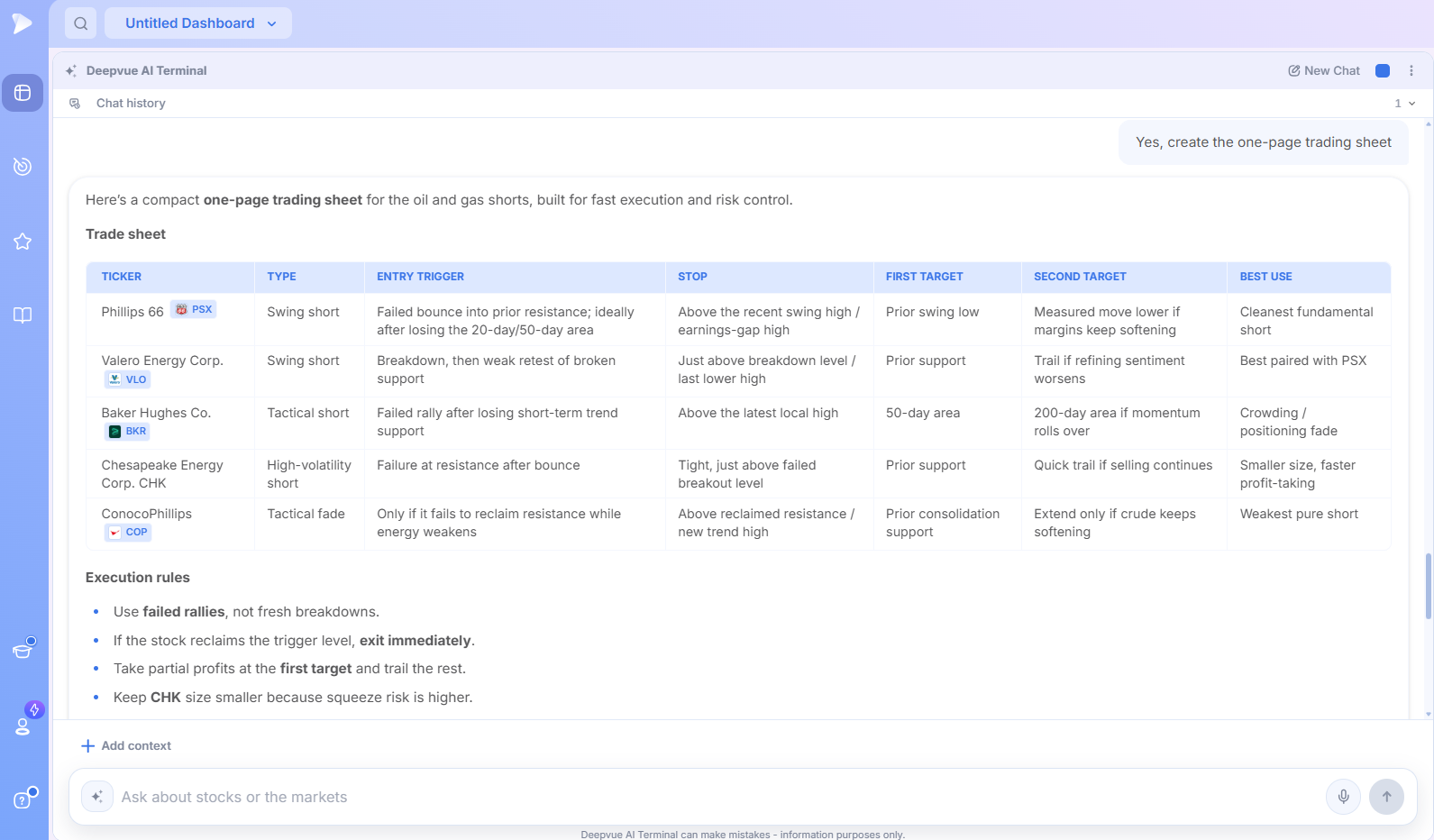
What That Chain Demonstrates
- ✓The follow ups do the work. Each answer ends with a concrete offer, so you get more structured output by saying yes rather than by writing better prompts.
- ✓Vague in, questions out. Rather than inventing an answer, it asked for the one input that would make a real answer possible.
- ✓Specificity compounds. One line of context turned a refusal into a ranked list, then a thesis table, then a trade plan, then an execution sheet.
- ✓You stay the decision maker. Every step is a proposal with stated invalidation conditions, not an instruction.
Try Deepvue and run your own version of that chain tonight.
How to Write Better AI Terminal Prompts
Output is only as good as input. The library removes most of the prompt engineering burden, but when you write your own, four things matter.
Be specific. Name the timeframe, the metrics and the comparison. Instead of asking whether earnings were good, ask for EPS growth against the year ago quarter, sales growth, guidance changes and any new product announcements.
Give it context. Tell it whether you are a swing or position trader, which criteria you care about, and any terminology with a specific meaning in your process.
Define the format. Ask for a four sentence summary first, then bullets, then a table. For a prompt you run every morning, formatting for a fast scan is worth more than depth.
Iterate, then save. Run it, adjust what did not land, run it again, and when it works save it to My Prompts with the symbol placeholder where the ticker belongs.
Prompt Patterns Worth Copying
- •Earnings deep dive. Four sentence summary, then EPS growth, sales growth, margins, guidance and new products, each in its own section.
- •Company story. What the company does in plain English, its primary themes, tailwinds, headwinds and what to watch. Ideal for an unfamiliar name off a screen.
- •Catalyst investigation. A ticker and a specific date, asking what drove the move, remembering the news often lands the evening before the gap.
- •Situational awareness. Ask it to act as a coach before the open: what the tape is doing, whether breakouts or pullbacks are working, and what would change that read.
- •Theme breakdown of a list. Tag a screen of stocks up on volume and ask which themes are represented and which names carry each one.
A Daily Routine Using the AI Terminal
Run this AI assisted stock trading routine in the hour before the open. It takes about ten minutes.
Read the Market Brief. Start with the aggregated news summary and sentiment read, so you enter the day with the headlines that can move price already condensed.
Run your situational awareness prompt. One keystroke gives you what is gapping, the key events on the calendar, and a read on whether the environment favors pressing or waiting.
Check leadership. Ask what themes are hot, then cross check against the Theme Tracker’s one month view for the top down picture.
Work your screen. Spacebar through it, and whenever something gaps or moves hard, right click the bar and ask why. Shift plus spacebar tags names as you go.
Deepen on the shortlist. For the survivors, run the company story or earnings prompt, then use one click capture to build the day’s focus watchlist.
None of those steps is new; every good trader already does them. The Terminal removes the tab switching, copying and searching between each one, which is where the time goes.
How the AI Terminal Fits With the Rest of Deepvue
- •With the screener. Build a screen from a description, or point the Terminal at one you already run. Deepvue ships 169 presets across nine categories, and it can analyze the output of any of them.
- •With charts and watchlists. Click any symbol chip and its chart opens, where the RS Line, Stage Analysis, Enhanced Volume and anchored VWAP let you judge the technical position immediately. Anything worth keeping goes into a watchlist in one click, or onto an alert.
- •With the Theme Tracker. The two answer the same question from opposite directions. The tracker ranks curated themes top down; the Terminal reads the constituents of a screen bottom up. When both point at the same theme, the signal is considerably stronger.
For setup specific scans, screener by pattern covers formations, screener by indicator covers relative strength and moving average signals, and the screener by strategy pages index every prebuilt approach. The Core Features hub covers the other four daily apps.
Why This Is the AI Stock Trading Platform Growth Traders Choose
For traders blending technical and fundamental work on US growth stocks, the case for this AI trading platform rests on specifics rather than adjectives.
- ✓Context, not copy and paste. Tagging watchlists, screeners and data panels with @ means the AI works from your actual setup.
- ✓Prompts built by traders. 50+ across 10+ categories, engineered for the questions growth traders ask.
- ✓Actions, not just answers. Symbol chips, one click watchlist capture and screener creation turn research into next steps.
- ✓No second subscription. Smart routing across the strongest models is included rather than billed separately, with unbounded usage.
- ✓One price covering the Terminal, the screener with its 1,152 data points, charts, watchlists, alerts and dashboards.
No platform is right for everyone, and the honest way to decide is a proper comparison. Our Deepvue comparisons hub sets Deepvue against MarketSurge, TradingView, TC2000, TrendSpider, and Finviz feature by feature, and the compare category collects every comparison article in one place.
What Traders Say About Deepvue
How outside reviewers describe the platform the Terminal is part of.
“Deepvue consolidates all my information streams into one centralized hub.”
From the testimonials Deepvue publishes on its site. See them
“Deepvue feels extremely well tailored to momentum trading and CANSLIM investing.”
Five stars from a verified G2 reviewer, April 2026. Read it on G2
“It’s really the best screener I’ve ever used.”
u/Trading_Intern987, r/CANSLIM subscriber update. Open that post
“Great team. Great product. Scanning and charts are great.”
Posted by u/patentgrinder on r/CANSLIM. View the discussion
Across Deepvue’s published reviews, more than 220 verified reviewers average 4.8, with 97 percent saying they would recommend it.
AI Terminal Pricing and What Is Included
The AI Terminal is included in Deepvue’s single plan at $49 per month, with monthly and annual options. There are no AI credits, no per query meter and no daily quota.
That one plan covers:
- •The screener and its 1,152 data points.
- •Charts, watchlists, and alerts, all of them unrestricted.
- •Fully customizable dashboards, with every app in the catalog.
- •The Theme Tracker, Market Brief, and AI Terminal, the last with unbounded usage.
Deepvue has one plan, so there are no tiers to compare. For reference, MarketSurge, the legacy platform in this niche, runs $149 per month.
New subscribers also get a one on one onboarding session with a Deepvue team member, an onboarding email series covering platform features and use cases, and weekly live webinars that each go deep on one part of the platform.
Start Using the Deepvue AI Terminal
AI does not change the research work. You still need to know why a stock moved, whether a theme is real, what the earnings said, and which names deserve a place on your focus list.
What changes is how long each answer takes, and how many tabs stand between the question and the action.
Join Deepvue and put the AI Terminal to work in your next session.
↑ Back to contentsFrequently Asked Questions
Quick answers to what traders ask most about AI for stock research and the Terminal.
Can AI pick stocks?
No, AI cannot reliably pick stocks on its own, but it can narrow the field. It reads filings, summarizes earnings and explains why a stock moved, yet it is poor at judging whether a setup deserves your capital. Deepvue’s AI Terminal is built to be that filter, not an oracle.
What is the difference between an AI research assistant and an AI trading bot?
The difference between an AI research assistant and an AI trading bot is who makes the decision. A bot decides and executes; an assistant analyzes and hands the decision back. Deepvue’s AI Terminal is an assistant: it summarizes reports, explains gaps and builds screens, but routes no orders and takes no positions.
Does AI beat the market?
No, AI does not reliably beat the market, and anyone promising otherwise is selling something. Models show an edge in some conditions and lose it when conditions shift. What AI does change is how long research takes, which is the gain Deepvue’s AI Terminal is built to deliver.
What should you not use AI for in trading?
You should not use AI in trading for anything where being confidently wrong is expensive, such as taking a price target, buy recommendation or risk assessment at face value. Use Deepvue’s AI Terminal to compress the reading and searching, then do your own judging on the chart.
Can AI summarize an earnings report?
Yes, AI can summarize an earnings report, and it is one of the strongest use cases. What a growth trader wants from a quarter, EPS and sales growth against the year ago quarter, margins, guidance changes and new products, is extractable in seconds, and Deepvue’s earnings prompts are built around exactly those fields.
Can AI replace a stock screener?
No, AI cannot replace a stock screener, but it can build one. In Deepvue, describing a screen in plain English produces an actual executable screen in the Screener module rather than a suggestion. The screener still does the filtering; the AI Terminal removes the setup work.
What is the Deepvue AI Terminal?
The Deepvue AI Terminal is an AI stock terminal built into the platform. It answers questions about stocks, themes, earnings, catalysts and market conditions using your own watchlists, screeners and data panels as context, and it can open charts, build watchlists and create screeners from a plain English description.
Can AI help with stock research?
Yes, AI can help with stock research by compressing the work you already do. Summarizing earnings, explaining a gap, breaking a list into themes and comparing peers are tasks Deepvue’s AI Terminal handles in seconds. Judging whether a setup is worth your capital stays with you.
What is the best AI tool for stock trading?
The best AI tool for stock trading is one that can see your actual work. A general assistant needs tickers and context pasted in every session, while Deepvue’s AI Terminal already knows the symbol you are viewing and can be handed a whole screen with one tag. That matters more than the underlying model.
Can AI build a stock screener?
Yes, AI can build a stock screener in Deepvue. The AI Terminal takes a plain English description and creates an executable screen in the Screener module with the filters applied, which you can open, save, rename, adjust and spacebar through. Review the filters, since plain language can be ambiguous about indicator variants.
How do I access the AI Terminal?
You access the AI Terminal in two ways. In the Screener or Watchlist module, click the AI icon at top right or press Shift plus T to open it as a side panel. On any Deepvue dashboard, click Add Apps and click Deepvue AI Terminal in the Core group to add it.
Which AI model does the Terminal use?
The AI Terminal uses several AI models rather than one. Smart routing sends each prompt to whichever model is strongest for that type of question, whether live research, long context reasoning, fast factual recall or math heavy comparison, so you never have to choose a model in Deepvue yourself.
Is there a usage limit on the AI Terminal?
No, there is no usage limit on the AI Terminal: no daily quota and no per query meter. Usage is unbounded within Deepvue’s standard plan, and the Terminal is scoped to finance and markets questions by design.
How is this different from using a general chatbot for stock research?
The AI Terminal differs from a general chatbot for stock research in context and actions. A chatbot needs tickers pasted in and returns text you move by hand. Deepvue’s Terminal already knows the symbol on screen, takes a full watchlist or screener with one tag, and turns tickers into clickable actions.
Can I save and share my own prompts?
Yes, you can save and share your own prompts in the AI Terminal. Save any prompt to My Prompts with an optional long form instruction behind a short label, use the symbol placeholder for the current ticker, and share it through a unique link teammates can preview and adopt in Deepvue.
Can the AI Terminal analyze my whole watchlist at once?
Yes, the AI Terminal can analyze your whole watchlist at once. Type @ in the prompt box and tag a watchlist, screener or data panel, and it sees every symbol with its filters and values, which is how you get theme breakdowns of a screen or an analysis of your Deepvue positions.
How do I find out why a stock gapped up?
You find out why a stock gapped up in Deepvue by right clicking the bar on the chart and choosing Ask Deepvue AI. The AI Terminal returns the catalyst behind that specific move in seconds, and it works on historical bars too, which makes it useful for studying past model book moves.
Is the AI Terminal suitable for day trading?
No, the AI Terminal is not designed for day trading. Deepvue is designed for traders holding positions for weeks to months, and the Terminal is a research tool for that horizon: understanding the catalysts, themes and fundamentals behind multi week moves rather than timing intraday entries.
Does the AI Terminal give financial advice?
No, the AI Terminal does not give financial advice. It is a research and analysis tool, its outputs are for information purposes only, and it can make mistakes. Deepvue is broker neutral and does not execute trades, so verify anything important against primary sources before acting.
Is the AI Terminal included in the standard Deepvue plan?
Yes, the AI Terminal is included in the standard Deepvue plan. Deepvue has a single plan at $49 per month that covers the AI Terminal, with unbounded usage, along with the screener, charts, watchlists, alerts, dashboards, the Theme Tracker and the Market Brief.
CAN SLIM® is a registered trademark of O’Neil Capital Management, Inc. (U.S. Reg. No. 3,081,940). Deepvue is not affiliated with, sponsored by, endorsed by, or licensed by O’Neil Capital Management, Inc., Investor’s Business Daily, MarketSurge, or their affiliates. Any reference to CAN SLIM® is for descriptive purposes only. Deepvue’s scores, ratings, and screeners are independently calculated by Deepvue and are not the proprietary ratings of MarketSurge or IBD.