Deepvue Watchlist: Build a Stock Watchlist You Can Actually Trade From
The Deepvue stock watchlist is a research surface rather than a list of tickers. You build lists four ways, split them into named sections, pull columns from a data point library in ten categories, and work every name beside a live chart, data panel and earnings table.
Any list shares as a link that loads straight into another trader’s account. It runs as its own module and as an app on any custom dashboard, and a library of preset lists ships with the platform.
and your first list takes about thirty seconds.
The Deepvue stock watchlist, in numbers:
Key Takeaways
Most platforms treat a stock watchlist as storage. Tickers go in, they gather dust, and somewhere past forty names the list quietly stops being read.
Nothing separates the stock you might buy tomorrow from the one you were curious about six weeks ago, so you stop opening it.
Deepvue takes the opposite view. A stock trading watchlist is where the daily routine happens, so the list needs structure, the columns need to say something, and everything you want to check about a name has to be one keystroke away.
- ✓Sections turn one list into a pipeline, with named groups you drag names between as a setup develops, and sorting that runs inside each group independently.
- ✓Four ways to add symbols: type one, paste a block, push names across from a screen in bulk, or capture them from an AI Terminal answer.
- ✓Columns draw on a ten category data point library, with drag to reorder, saved column sets and display toggles.
- ✓Preset lists in six folders, from named traders’ lists and theme baskets to ETF groups and annual Model Book Stocks.
- ✓Bulk actions on selected rows copy symbols to the clipboard, add them to another list, share, or delete with a confirmation step.
- ✓Included in the one plan. Get started with Deepvue here.
Watchlist at a Glance
- Where it runs
- Its own module from the sidebar, and as a Core app on any custom dashboard
- Adding symbols
- Type, paste a block, push from a screen, or capture from an AI Terminal answer
- Sections
- Named groups inside one list, with independent sorting and drag to move names
- Colored lists
- Seven color named lists in the saved watchlists panel for instant tagging
- Columns
- A data point library in ten categories, reorderable and saved as sets
- Bulk actions
- Copy symbols, add to another list, share, or delete with confirmation
- Presets
- Six folders: Top Traders, Themes, Winning Characteristics, Deepvue, Thematic ETFs, TraderLion Model Book Stocks
- Attached research
- Chart, data panel, earnings table, alerts, news and the AI Terminal on one screen
- Sharing
- Any list becomes a link that loads into another account
- Cost
- Covered by the standard plan
What Is the Deepvue Stock Watchlist?
A saved group of symbols you can view, sort, annotate with data columns and trade from. A Deepvue stock market watchlist covers the whole US listed universe rather than one fixed index. Internally the platform calls the module the deep list, and you will hear that in tutorials, but in the interface it is simply your watchlist.
What makes it a research surface rather than a container is everything around the symbols: configurable columns, the charting engine and an earnings table on the same screen, with the same sorting behavior as the screener. Reference is in the Watchlist Overview and Creating a Watchlist articles.
A note on the screenshots below: each was captured during a live session with a particular list loaded, so what they show belongs to that moment rather than to any list you will build.
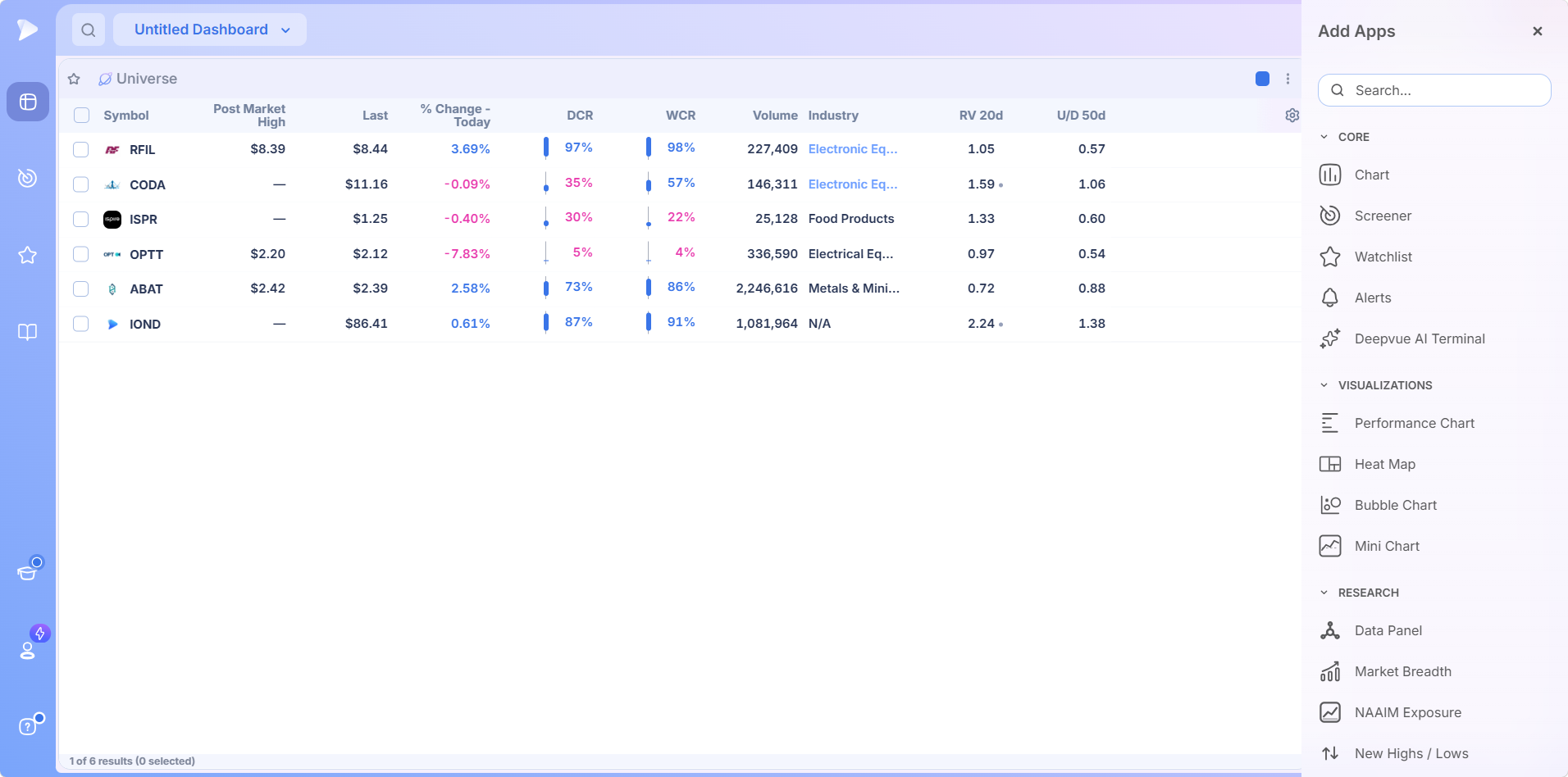
Where to Find Watchlists
- •The Watchlist module. The star icon in the left sidebar. Full screen, with the list, a chart and a data panel side by side.
- •The Watchlist dashboard app. Filed under Core in the app menu, beside Chart, Screener and Alerts. Add it to any custom dashboard and pair it with whatever else belongs on that screen.
Reading the Header
Every list carries the same controls: a star marking it a favorite, the list name doubling as the selector, a colored square setting the color group, and a three dot menu holding the rest, including sharing. A gear at the end of the column headers opens Column Settings. Two headers are abbreviated in the table and spelled out in settings: RV 20d is Relative Volume 20 Day, and U/D 50d is Up/Down 50 Day.
Who Gets the Most Out of Deepvue Watchlists
The design suits traders running a rolling pipeline of candidates rather than a static portfolio.
- ✓Swing traders moving names from a wide pool onto a short daily focus list as they tighten up.
- ✓Position traders tracking a small book of holdings alongside a bench of replacements.
- ✓Breakout traders who rebuild a top movers watchlist every session from that day’s strongest names.
- ✓CANSLIM traders studying model book stocks and past leadership cycles.
- ✓Traders who share ideas with a group and want lists to move between accounts without exporting anything.
The Deepvue for hub maps each trading style to the workflow that suits it.
What the Watchlist Will Not Do
- •It does not find stocks for you. A list holds whatever you or a screen put into it, so discovery belongs to the screener.
- •It places no trades, because Deepvue is analytical software and deliberately broker neutral.
- •US listings only, and although lists stream live, the platform is designed around trades that play out over weeks and months.
How to Create a Stock Watchlist in Deepvue
Start in the Watchlist module and click the current list name to open the selector. A panel appears with two tabs, Saved Watchlists and Watchlists Presets.
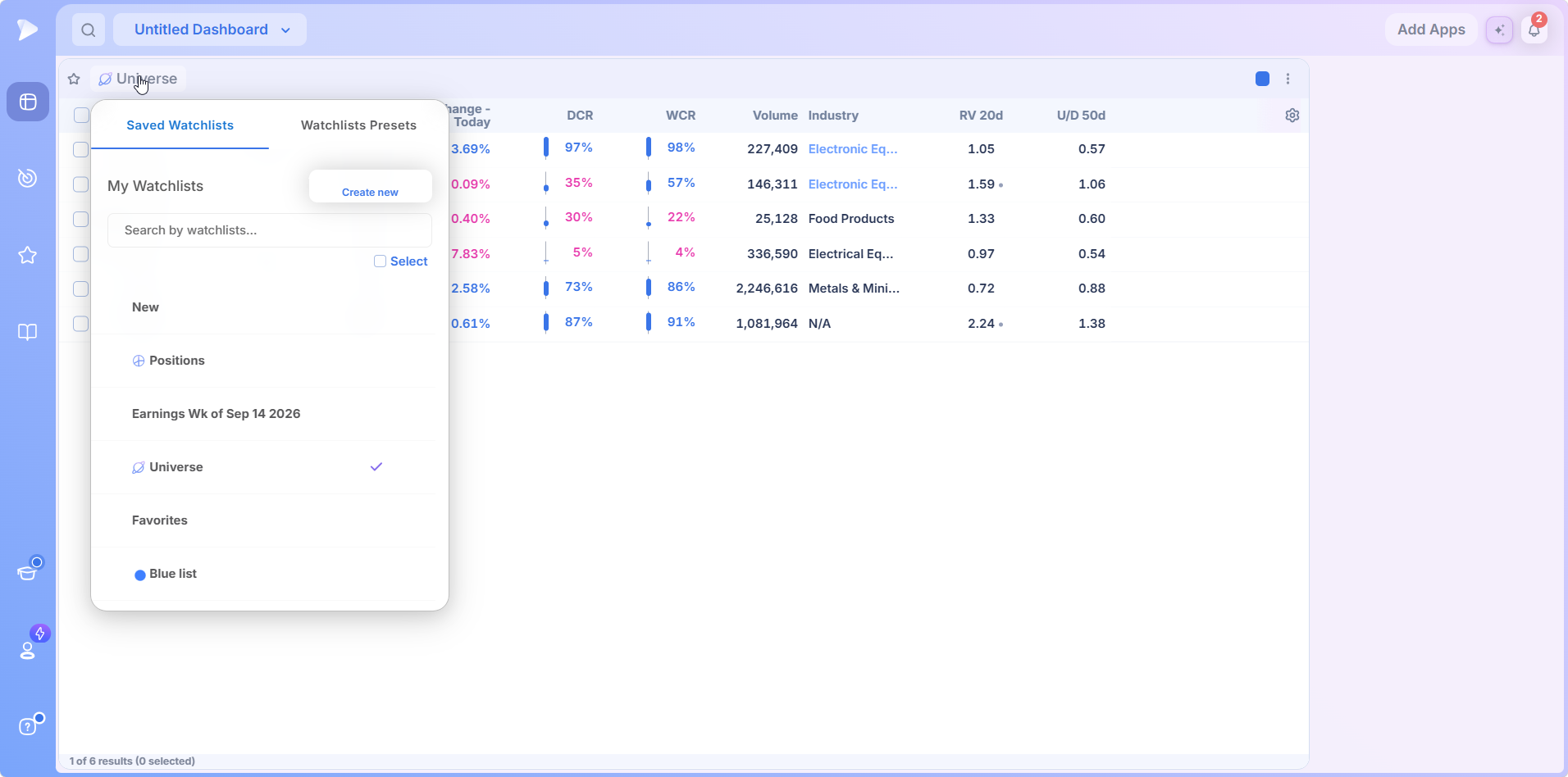
Click Create new at the top right of the Saved Watchlists tab to open the Create watchlist dialog.
Name it something you will recognize at speed, up to 75 characters.
Choose the optional extras: a folder (or a new one), the column set that should load with the list, and a short description of what the list is for.
Click Create. The empty list appears immediately and becomes the active one, ready for symbols.
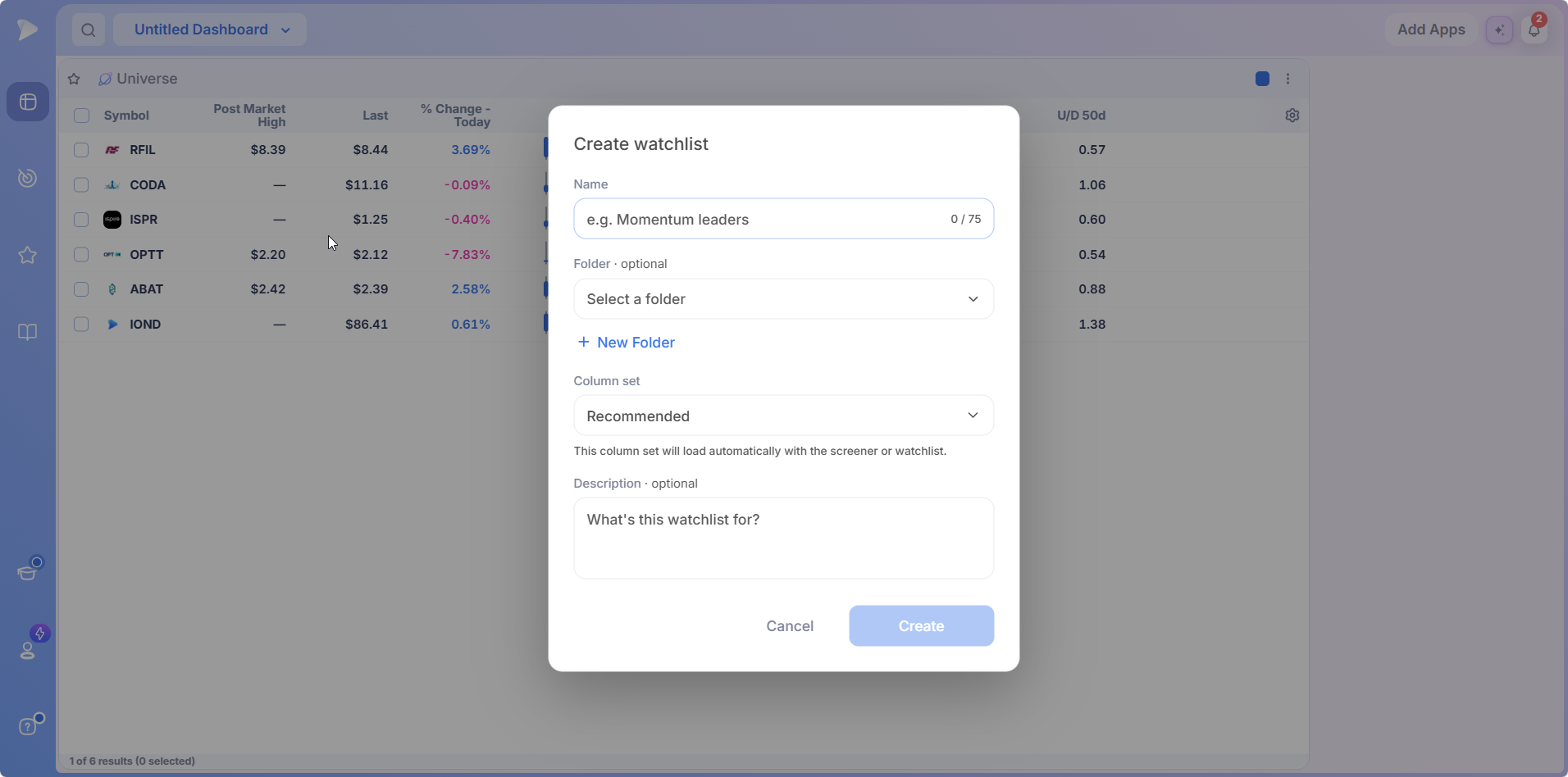
Picking the column set at creation is the detail worth using. A ready list and a context list want different data, and assigning the set up front means the list opens with the right columns every time. The selector’s search field lets you jump straight to any list once you are running twenty or thirty stock trading watchlists; Deepvue watchlists scale that way by design.
Four Ways to Add Symbols
Ideas arrive from different places, so adding names is deliberately flexible. All four routes end in the same list.
- •Type a ticker. Click the plus beside the Symbol column header, search, tick the result, add. The dialog stays open, so several names go in during one visit.
- •Paste a block of tickers. The fastest route and the one most people miss, covered below.
- •Push names across from a screen. Tick any set of rows in the screener and use the bulk add to control.
- •Capture names from an AI Terminal answer. When the AI Terminal names several tickers, one button sweeps every symbol out of that response into a list.
Importing a List by Pasting
Copy symbols from anywhere, a post on X, a spreadsheet column, a note, and paste them in. Deepvue parses the block, separated by commas, spaces or new lines, lists every symbol it recognizes and ticks them. Untick what you do not want and add the rest in one click. A forty name list takes about ten seconds.
Bulk Actions on a Selection
The checkbox at the start of each row is the entry point, and the footer counts how many are selected. Tick several rows and a small toolbar appears beside the list name.
- •Add to, which opens your watchlists, searchable, with an option to start a new one, so a selection moves into another list without retyping.
- •Copy symbols to clipboard, the fastest route out of the platform when you need tickers somewhere else, confirmed with a short notice.
- •Delete, which removes the selection from the current list after a dialog lists the symbols, because bulk deleting the wrong selection is an irritating mistake to undo.
Open a Deepvue account and paste your existing list in rather than rebuilding it.
Sections: Turning One List Into a Pipeline
Sections change how a watchlist behaves. Instead of maintaining four separate lists and clicking between them, you divide one list into named groups and move names down the funnel as they earn it.
Hover between any two symbols. A divider appears.
Left click the divider to create a section with a default name.
Double click the name to rename it, then press enter.
Drag the handle on a section header to move the whole block up or down.
Stocks drag freely between sections, which is the entire point. A name that starts on your wide list and begins tightening gets pulled into the ready list without leaving the screen.
A Section Structure That Works
| Section | What it holds | Why it goes there |
|---|---|---|
| Market Indexes and Gauges | A handful of index and sentiment proxies | Market context comes before everything else you look at |
| Leaders | The strongest names in the market right now | Whether or not you would buy them today, you want them in view |
| Wide List | Everything under consideration | The holding pen |
| Ready List | Names at or near an actionable point | The short daily focus list |
The benefit compounds. Instead of rebuilding a focus list every morning, you promote and demote inside a structure that persists, so the ready list at the open is several days of work rather than a rushed scan.
Sorting Works Inside Each Section
Click a column header and the list sorts within each section independently. Indexes stay at the top, leaders stay in the middle, and each block ranks itself.
Sorting also runs two levels deep, with or without sections. Sort by Industry to group the list, then apply a second sort on relative volume, and you get industry groupings with the heaviest activity floated to the top of each.
Colored Lists and Favorites
Beneath your own lists is a group of colored lists, each with a matching dot: Blue, Light Blue, Green, Yellow, Purple, Red and Orange.
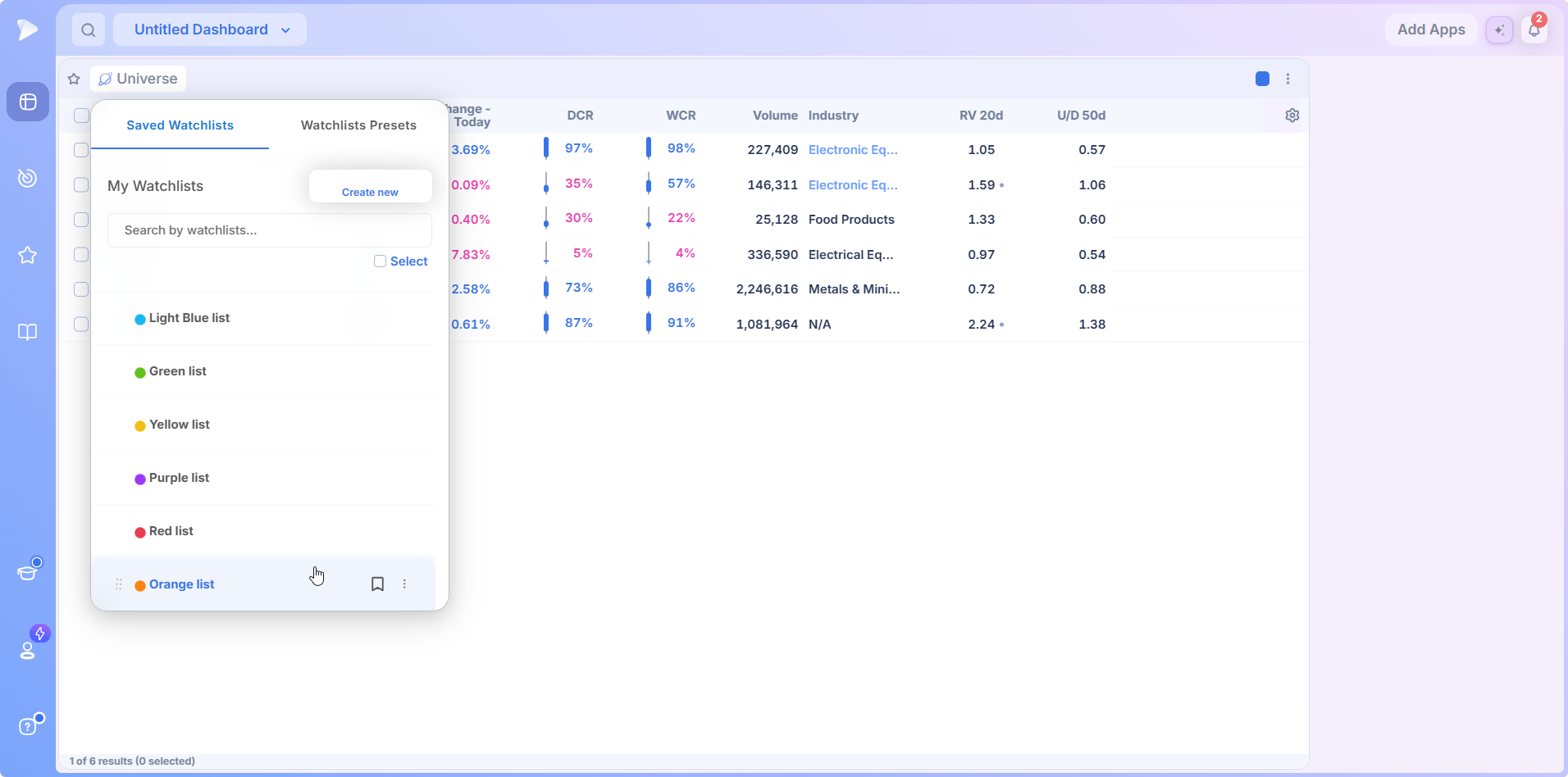
They behave like any other list, but because they stay in view they are always one click away, which makes them the natural target when you want to tag a name now rather than decide where it belongs. Assign meaning to each color: one for names on deck, one for names in a base, one for names you are studying rather than trading. Hover any list row for a drag handle, a bookmark and a three dot menu; the loaded list carries a tick.
The Preset Watchlist Library
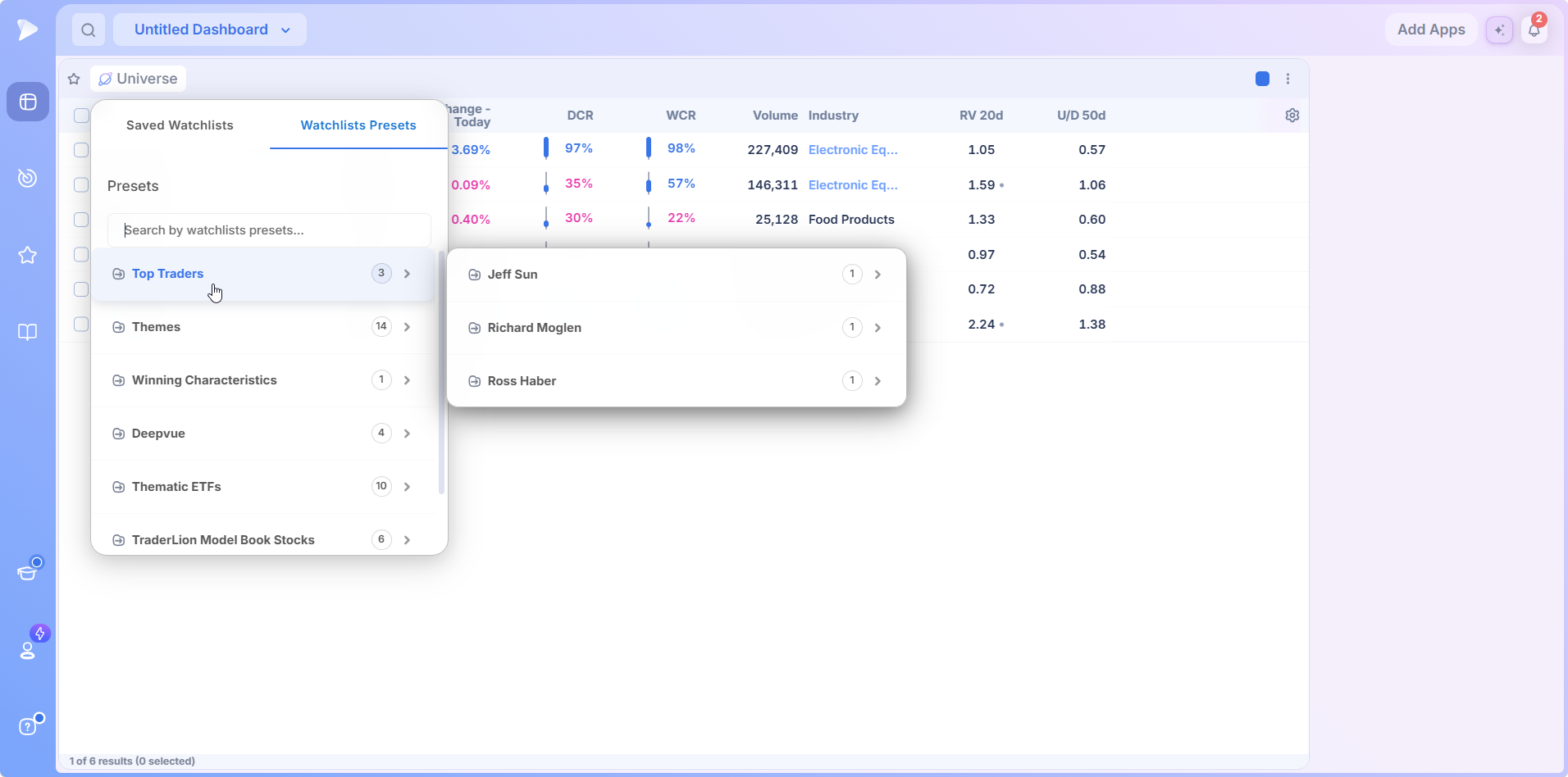
The second tab in the selector holds Deepvue’s own lists, organized into six folders with a count beside each and a search field across the top. None of them needs any setup: hover a folder and its lists open to the right.
| Folder | What it holds |
|---|---|
| Top Traders | Lists from named traders, including Jeff Sun, Richard Moglen and Ross Haber |
| Themes | Ready made baskets covering the pockets of the market that tend to run in groups |
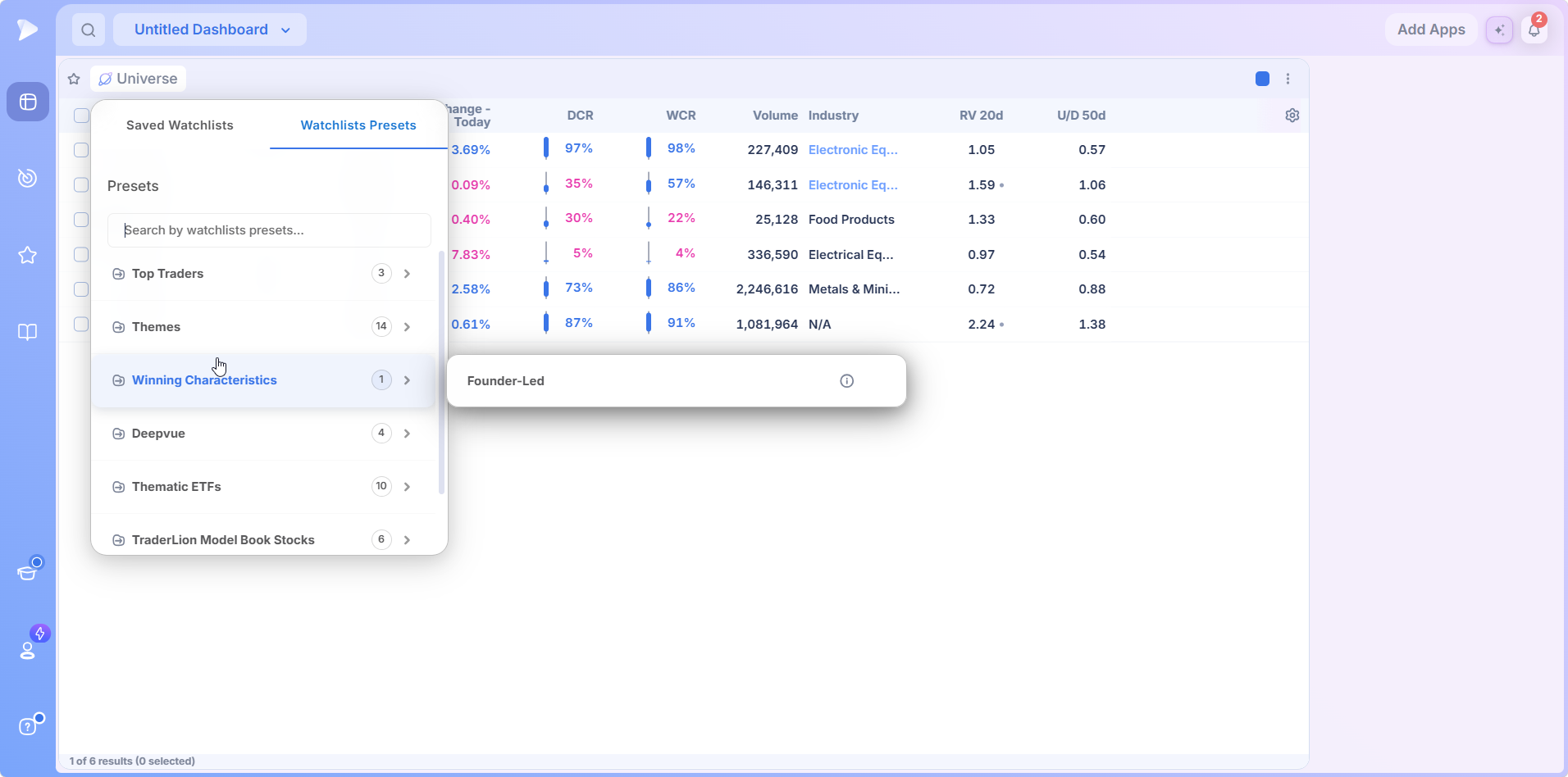
| Winning Characteristics | Founder-Led, built around companies still run by a founder |
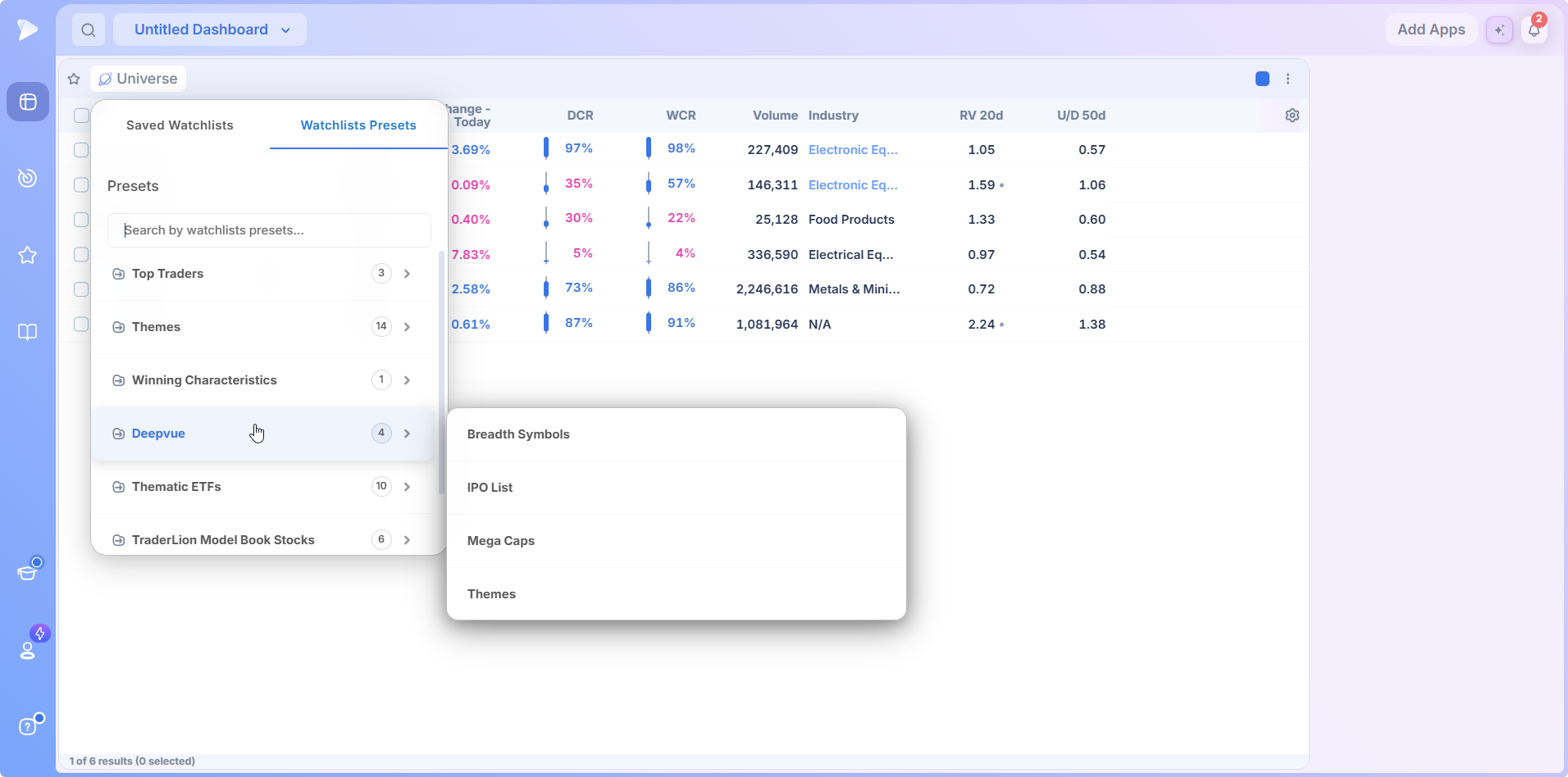
| Deepvue | House utility lists: Breadth Symbols, IPO List, Mega Caps and Themes |
| Thematic ETFs | ETF baskets including Bull & Bear, Commodity, Country, Crypto, Index and Industry ETFs |
| TraderLion Model Book Stocks | Annual lists of the biggest winners from past years |
Themes, and How They Relate to the Theme Tracker
The theme baskets run alphabetically from Aerospace through Space, covering artificial intelligence, Bitcoin miners, blockchain, casinos, cybersecurity, drones, genomics, home construction, nuclear, quantum, robotics and solar. Some carry an info icon beside the name.
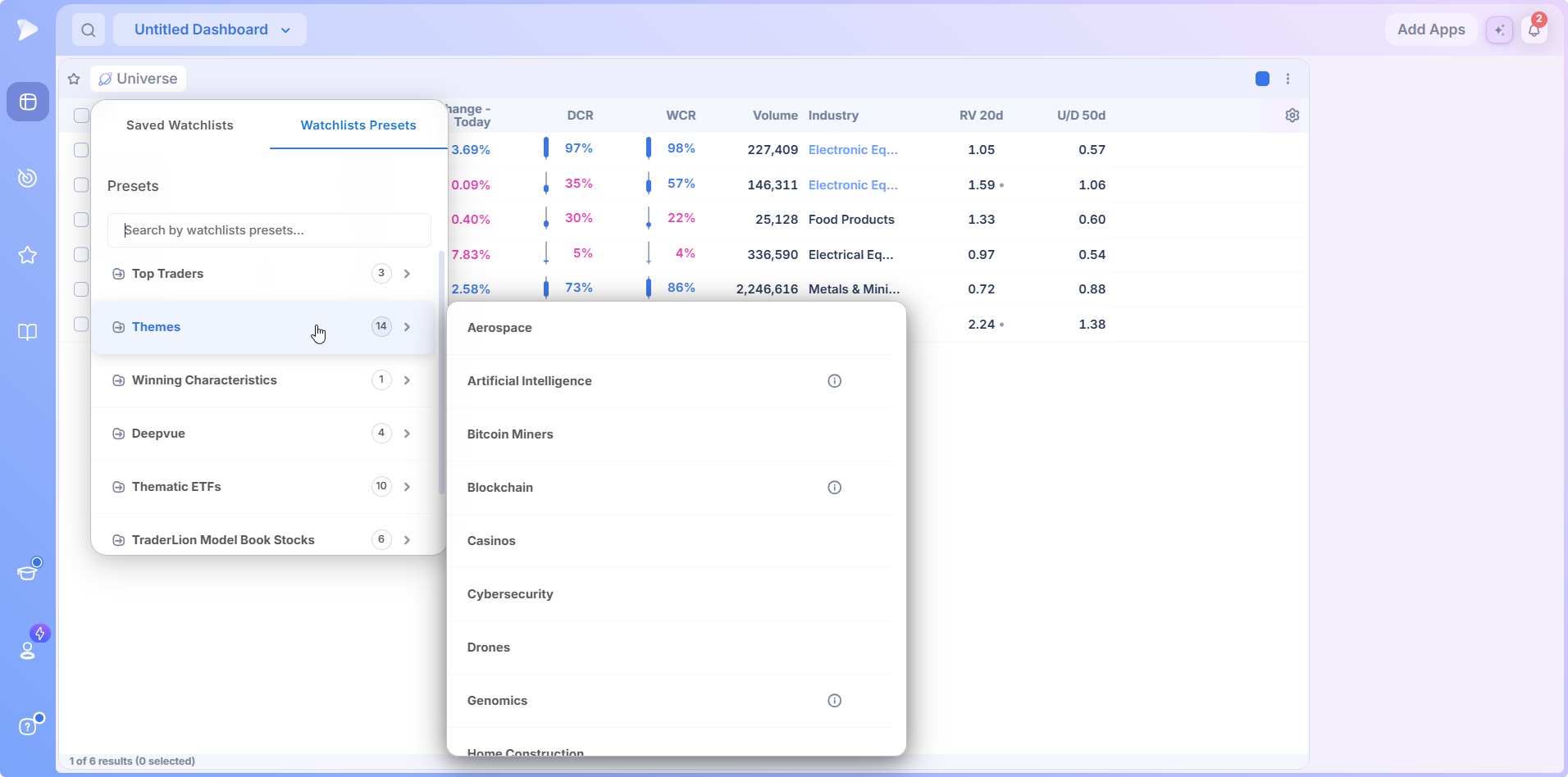
They overlap with, but are not identical to, the themes ranked by the Theme Tracker. When the tracker flags one as leading, load the matching list and go straight from a group level read to individual names. A few here have no counterpart in the tracker at all.
Founder-Led and the House Lists
Winning Characteristics holds Founder-Led, a list built around companies still run by their founder. The Deepvue folder carries the house utility lists: Breadth Symbols for market context, an IPO List for recent listings, Mega Caps, and a Themes list.
ETF Baskets and Model Book Years
The Thematic ETFs folder is what you reach for when you want the market’s shape rather than a trade, with baskets running from Bull & Bear and Commodity ETFs through Country, Crypto, Index and Industry ETFs. Pointing a Performance Chart at one of these baskets is one of the cleanest rotation reads on the platform, and it takes two clicks.
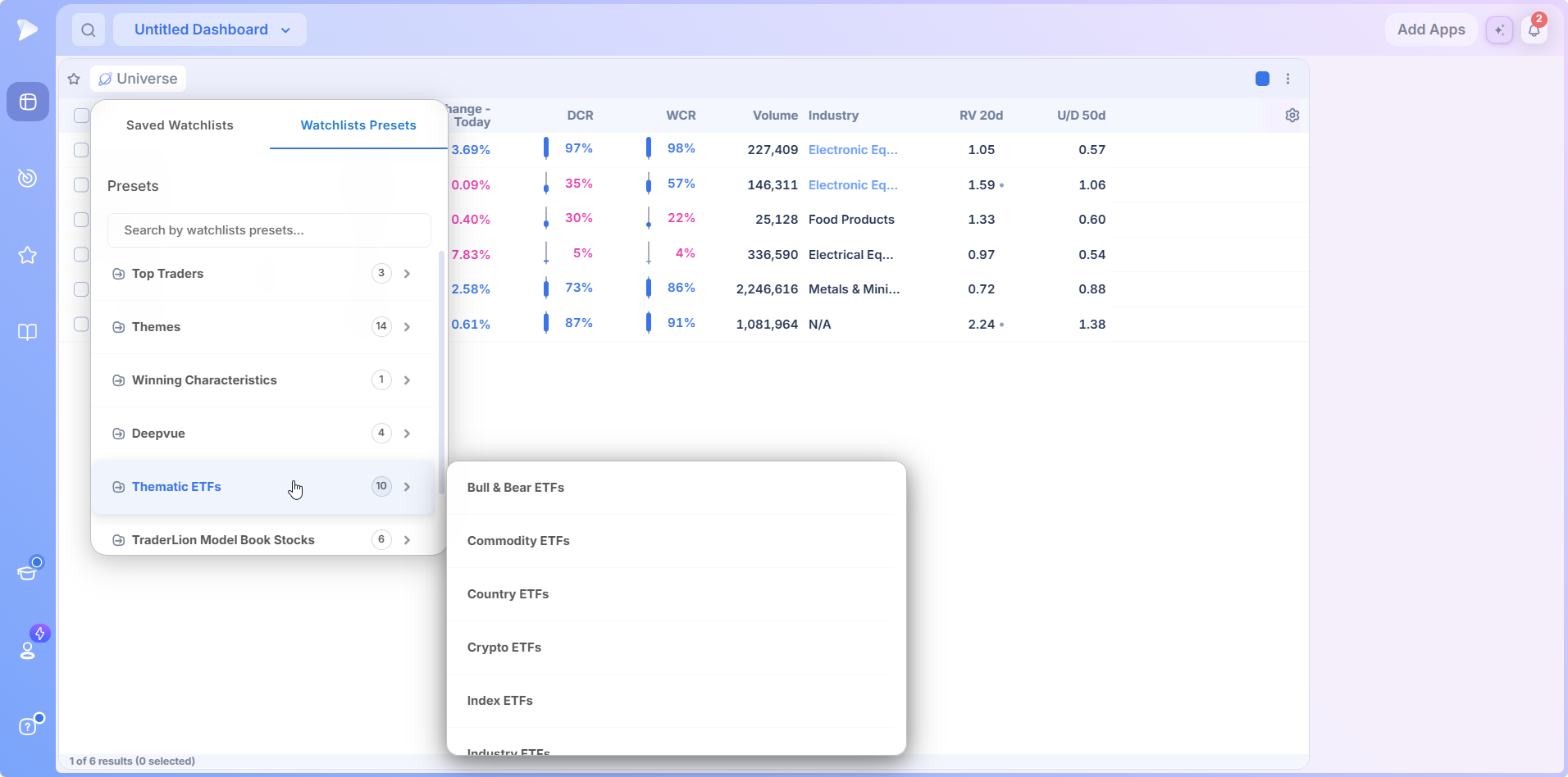
TraderLion Model Book Stocks holds annual lists of past winners. Having each year loadable means flipping through historical leaders with the same columns and charts you use on live names. The Model Book module takes the habit further, saving annotated chart snapshots rather than tickers.
Try Deepvue and load a model book year alongside today’s leaders.
Configuring Columns: Making the List Say Something
A stock market watchlist is only as useful as the columns beside the tickers. Click the gear and Column Settings opens on the right. Changes save automatically, so there is no apply step to forget.
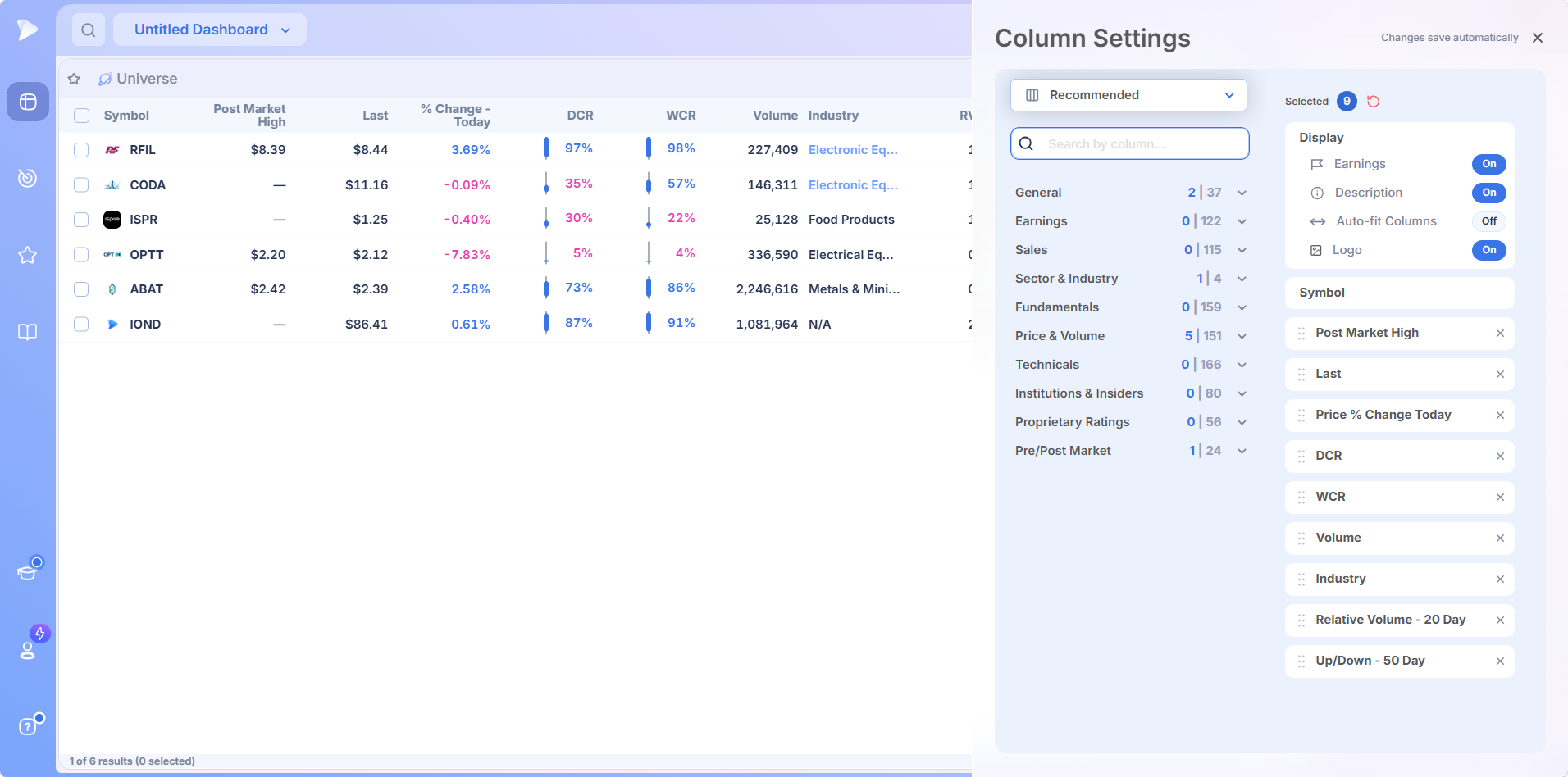
Columns come from a data point library in ten categories: General, Earnings, Sales, Sector and Industry, Fundamentals, Price and Volume, Technicals, Institutions and Insiders, Proprietary Ratings, and Pre/Post Market. Each shows two numbers, how many you have selected and how many exist inside it. The search field above them is the quickest way in: if you want the up down volume ratio, type it rather than opening Technicals and scrolling.
The right side shows what is on the list, with a selected count and a reset control. Four display toggles control the look rather than the data: an earnings flag, the company description, auto fit columns and logos. Below them every selected column is a chip with a drag handle, so reordering the table means dragging chips into the sequence you want.
Column Sets
Saved column sets appear in a dropdown at the top of the settings panel, and the same selector repeats in the module header, so switching sets never requires opening settings. You can also assign a set when you create a list, and it loads automatically with that watchlist.
Sets matter more than they first appear. Index proxies need almost nothing beside the ticker. A ready list wants closing ranges, relative volume and earnings dates. Saving each turns a context switch into one selection rather than fifteen changes.
Working a List: Chart, Data Panel and Earnings Table
Inside the module the list is only the left third of the screen. A chart occupies the middle, and a panel on the right carries four tabs: Data, Terminal, Alerts and News.
Press the spacebar to advance through names and everything moves with you: the chart reloads, the data panel repopulates, the earnings and sales table updates. Reviewing thirty names becomes thirty keystrokes rather than thirty navigations, the single biggest time saving in the module.
The Data tab is a saved layout with metrics in collapsible groups: company info, price and volume, momentum scores, EPS and growth, and fund and insider ownership. The Data Panel feature covers it in its own right.
The remaining tabs keep you where you are. Alerts lists what you have set on the current name, News is filtered to that symbol, and Terminal opens the AI Terminal already pointed at the selected stock, so a question about an unexplained move never costs a module switch.
Sharing a Watchlist as a Link
Any list can be handed to another trader as a URL, and the receiving side takes two clicks. The same mechanism works for screens, data panels and column sets.
Open the three dot menu on the list and choose share. A link copies to your clipboard automatically.
Paste it wherever the conversation is happening.
The recipient clicks the link, which opens Deepvue and prompts them to add the list.
They name it and save. It appears in their saved lists immediately.
For a trading group running a shared process this removes a whole category of friction. Nobody exports a spreadsheet, nobody retypes tickers, and the list arrives with its structure intact. It is also how stock trading watchlists spread through a community without anyone maintaining a master file.
Adding a Watchlist to a Custom Dashboard
On a dashboard, lists stop being a destination and become a component. Click Watchlist in the Core group and it auto-fits into the workspace; resize from the corners, and set its color group from the colored square in the header.
Apps sharing a color group talk to each other. Put a watchlist and a chart in one group and spacebarring the list drives the chart; put a screener in another and it keeps its own selection.
- •List and chart. The classic pairing, in one color group. Everything else is a variation on this.
- •List, chart and performance chart. Add a performance chart pointed at the same list to rank every constituent on a single data point at once.
- •Screen above, list below. Results on top, your ready list underneath, so promoting a name is a bulk action rather than a context switch.
- •Two lists side by side. Holdings in one, candidates in the other, each linked to its own chart through separate color groups.
Start a Deepvue subscription and build the list and chart pairing first.
Watchlist Workflows Worth Stealing
Build a Top Movers Watchlist Each Session
Run a screen for the day’s strongest names, or read them straight off Top Movers, tick what interests you, and bulk add to a dedicated list. Rebuilt daily it stays short and current, and the names reappearing across sessions are the ones worth promoting. That is a top movers watchlist in the practical sense: a rolling snapshot rather than an archive.
Run the Funnel Inside One List
Use the section structure above and work it in one direction. New ideas land in the wide list, names that tighten get dragged into the ready list overnight, and anything that breaks down or stalls goes back down or comes out entirely. The discipline is in the demotion, not the promotion.
Study Model Book Years Like Live Lists
Load one of the Model Book Stocks lists, apply the column set you run on live names, and spacebar through the year. Columns and chart behave exactly as they do on a current list, so the pattern recognition you build there transfers straight across. Of everything in the preset library this repays the most study and gets opened the least.
Keep a Context List Above Everything
As a section at the top of your main list or a small separate one, keep index and sentiment proxies where you see them before any individual name. The Breadth Symbols preset is a ready made start, and it pairs with the Market Brief and Theme Tracker in a top down routine.
Why Deepvue Watchlists Stand Apart
Every platform ships watchlists. The differences that actually reshape a routine are these:
- ✓Sections inside a single list, so one list carries a whole pipeline instead of four lists carrying fragments.
- ✓A ten category column library with saved sets, so the table answers questions instead of pointing at them.
- ✓A research panel attached to the list, with charts, fundamentals, earnings, alerts, news and AI on the same screen.
- ✓A preset library that includes lists from named traders, theme and ETF baskets, and years of model book stocks.
- ✓Link sharing that works for lists, screens, data panels and column sets alike.
- ✓Dashboard integration with color groups, so a list drives everything else on the layout.
No platform is right for everyone, and the honest way to decide is a proper comparison. Our Deepvue comparisons hub sets Deepvue against MarketSurge, TradingView, TC2000, TrendSpider, and Finviz feature by feature, and the compare category collects every comparison article in one place.
What Traders Say About Deepvue
Independent reviews of the platform these lists run inside.
“Deepvue consolidates all my information streams into one centralized hub.”
A customer testimonial published on deepvue.com. View it
“The interface is very well thought out and highly customizable.”
u/NeosDemocritus, r/CANSLIM. Open the thread
“Swipe mode for going through charts makes it great when on the go.”
Linutor, reviewing the iPad app in February 2026. Apple App Store
“One of the best trading tools out there and I can’t trade without it.”
Joshua Fong on Google Play, November 2025. See the Play Store listing
The Deepvue reviews page shows a 4.8 average from more than 220 verified reviewers, with 97 percent recommending the platform.
Where Watchlists Connect Across the Platform
Lists are the middle of almost every workflow, taking names from one place and feeding them to another.
- •The screener sends qualifying names into a list through bulk actions, and any list plots back as a heatmap or performance chart. Use screener by pattern for formation scans and screener by indicator for signal scans.
- •Charts swap in as you move down a list, with stage analysis, the RS Line, anchored VWAP and Enhanced Volume already available.
- •The AI Terminal can be pointed at an entire list to break it into themes, or used to capture tickers from an answer into a new list.
The screener by strategy pages collect the prebuilt approaches, the Ultimate Screening Guide helps decide which screens feed which lists, and the Knowledge Base documents every module. The Core Features hub rounds out the daily toolkit.
What Watchlists Cost
Lists, sections, colored lists, the preset library, column configuration and link sharing are included in Deepvue’s single plan at $49 per month, with monthly and annual options. None of it is held back for an upgrade.
That one plan covers:
- •The screener and its 1,152 data points.
- •Charts, watchlists, and alerts, all of them unrestricted.
- •Fully customizable dashboards, with every app in the catalog.
- •The Theme Tracker, Market Brief, and AI Terminal, the last with unbounded usage.
Deepvue has one plan, so there are no tiers to compare. For reference, MarketSurge, the legacy platform in this niche, runs $149 per month.
New subscribers also get a one on one onboarding session with a Deepvue team member, an onboarding email series covering platform features and use cases, and weekly live webinars that each go deep on one part of the platform.
Build a List That Earns Its Place on Your Screen
Forty tickers with no structure is a to do list nobody reads.
A Deepvue stock market watchlist divided into a pipeline, carrying the columns your method needs, next to a chart that follows your keystrokes, is where the work of trading happens.
Join Deepvue and build your first structured stock trading watchlist today.
↑ Back to contentsFrequently Asked Questions
The questions traders ask most often about building and running a stock watchlist.
What is a stock watchlist and why keep one?
A stock watchlist is a saved group of symbols you track so you can trade them deliberately rather than reactively. You keep one for familiarity: after two weeks watching a name and its levels, you act faster the day it sets up. In Deepvue, that list runs beside a live chart and data panel.
What criteria should a stock meet before it goes on a watchlist?
A stock should meet three criteria before it goes on a watchlist: enough liquidity to get in and out without fighting the spread, enough daily range to make the move worth taking, and a chart clean enough that support and resistance are obvious. It should also fit a setup you actually trade, which Deepvue’s columns help confirm.
How many stocks should be on a watchlist?
A watchlist should hold fewer stocks than most people keep, at least on the working list. Most active traders monitor 10 to 20 names closely with a wider universe behind them, and a focus list of five to fifteen is reviewable daily. Deepvue’s sections let the long list exist without diluting the short one.
Should I keep separate watchlists for different strategies?
Yes, you should keep separate watchlists for different strategies, or separate sections inside one Deepvue list. A breakout list and a pullback list want different columns and attention, and column sets make the separation cheap, since each list opens with the data that suits it.
How often should you review and clean a watchlist?
You should review and clean a watchlist daily for the focus list and weekly for everything else. The weekly pass is the one people skip: remove names whose setup triggered, whose thesis broke, or that went quiet. In Deepvue, bulk selection turns those removals into one sweep.
What columns should a stock watchlist show?
A stock watchlist should show only columns that change a decision: price and percent change, relative volume, where the close landed in the day’s range, and the next earnings date, plus a relative strength measure if you trade leadership. Deepvue’s saved column sets beat one permanent layout for exactly that reason.
How do I create a watchlist in Deepvue?
You create a watchlist in Deepvue by clicking the list name to open the selector, then Create new on the Saved Watchlists tab. Name it (up to 75 characters), optionally choose a folder, a column set and a description, and click Create. The empty list becomes active immediately.
How do you organize a stock watchlist?
You organize a stock watchlist most durably as a funnel: market context at the top, then leaders, then everything under consideration, then a short list of names at an actionable point. Deepvue’s sections keep all four groups inside one list, each sorting independently.
How many ways can I add stocks to a list?
You can add stocks to a Deepvue list in four ways: type a ticker into the Add New Symbol dialog, paste a block of symbols separated by commas, spaces or new lines, push names across from screener results with bulk actions, or capture every ticker in an AI Terminal answer with one button.
Can I import a list of tickers?
Yes, you can import a list of tickers into a Deepvue watchlist. The import dialog accepts symbols separated by commas, spaces or new lines, so a block copied from a spreadsheet, note or social post goes in at once, with every match ticked and ready to add.
What are watchlist sections?
Watchlist sections are named groups inside one Deepvue list, such as Leaders, Wide List and Ready List. Hover between two symbols and left click to create one, double click to rename it, and drag stocks between sections as setups develop. Sorting runs within each section independently.
Can I sort a watchlist by more than one column?
Yes, you can sort a Deepvue watchlist by more than one column. Sort by one column to group the list, Industry for example, then apply a second such as relative volume, and each group ranks itself by that second data point.
Can I select several stocks at once?
Yes, you can select several stocks at once in a Deepvue watchlist. Every row has a checkbox, and selecting rows brings up a toolbar to add them to another list, copy the symbols to your clipboard, or delete them, with deletion confirmed in a dialog that lists the symbols first.
What columns can I add to a watchlist?
You can add columns to a Deepvue watchlist from a data point library in ten categories: General, Earnings, Sales, Sector and Industry, Fundamentals, Price and Volume, Technicals, Institutions and Insiders, Proprietary Ratings, and Pre/Post Market. A search field finds any column by name, and changes save automatically.
Can I save different column layouts?
Yes, you can save different column layouts as column sets in Deepvue. Pick a set from the dropdown at the top of Column Settings, with Recommended loaded by default, or assign one when you create a list so it loads automatically with that watchlist.
What preset watchlists come with Deepvue?
The preset watchlists that come with Deepvue are organized in six folders: Top Traders, Themes, Winning Characteristics, Deepvue, Thematic ETFs and TraderLion Model Book Stocks. They range from named traders’ lists and theme baskets to ETF groups and annual lists of past market winners.
What are the colored lists?
The colored lists are seven Deepvue watchlists named for their colors, Blue, Light Blue, Green, Yellow, Purple, Red and Orange, in the saved watchlists panel. They work like any other list but stay in view, which makes them useful for tagging names quickly without deciding where they belong.
Can I share a watchlist with another trader?
Yes, you can share a watchlist with another trader. Open the three dot menu and choose share, which copies a link; anyone opening it is prompted to add the list to their own Deepvue account, name it and save. The same works for screens, data panels and column sets.
What can I see about a stock without leaving the list?
Without leaving the list, you can see a live chart, a data panel with company info, price and volume, momentum scores, EPS and sales figures and ownership, an earnings and sales table, plus alerts, news and the AI Terminal. In Deepvue, the spacebar advances the list and refreshes everything.
Are watchlists included in the standard plan?
Yes, watchlists are included in the standard Deepvue plan. There is one tier at $49 a month, covering watchlists together with every other module on the platform, from screening and charting to alerts, dashboards and the AI tools.