Deepvue Alerts: Stock Alerts That Only Fire When Your Conditions Agree
Deepvue stock alerts watch a symbol and tell you the moment your conditions are met. Each one pairs a price level with an optional second condition, pulled from the platform’s data point library and joined by an AND, so it only fires when both are true.
Create one from the Alerts app, from a trendline on a chart, or from a right click on any price level. Notifications reach you by email, push and pop up.
and your first alert is running before the next candle closes.
Deepvue alerts, in numbers:
Key Takeaways
Watching a level is the most expensive free activity in trading. You sit there, the stock does nothing, and the afternoon you could have spent on research is gone.
The fix is decades old: tell the platform the level and let it watch. Most systems stop there, which is the problem. A price on its own fires every time the stock ticks through your number, including the tick that reverses two seconds later. Set enough of those and you start ignoring all of them.
Deepvue asks a second question. An alert here carries a price level and a data point condition, so it stays quiet until the stock is through your number and the setup you wanted is actually in place. When your phone buzzes, it is worth looking at.
- ✓Alerts is a Core app in the dashboard catalog, alongside Chart, Screener, Watchlist and the AI Terminal.
- ✓Six decisions per alert: symbol, price condition, an optional AND condition, duration, a note, and how you want to be told.
- ✓Conditional alerts cut the noise. A breakout alert can demand the price level and the technical posture before it makes a sound.
- ✓Three notification channels run independently: email, push and pop up.
- ✓A fired alert arrives with context, including Price Surge, the move over roughly the last 15 minutes, plus relative volume and the day’s change.
- ✓No extra cost. Alerts are standard on the one plan. Get started with Deepvue here.
Stock Alerts at a Glance
- Where to find it
- Core group of the Add Apps catalog
- Price condition
- A direction, rise above or fall below, paired with a dollar level
- Second condition
- Optional, drawn from the data point library, joined by AND, set to Yes or No
- Duration
- Defaults to Forever; other options include One time and 1, 3, 6 or 9 months
- Note
- Optional line that travels with the notification
- Channels
- Email, push and pop up, each an independent toggle
- Creation routes
- The app’s plus button, a right clicked trendline, a right clicked price level, or Quick Access on any symbol
- Management
- Active and Triggered tabs, per row on and off toggles, and a sortable Alerts Manager
- Plan
- Part of the standard $49 per month plan
What Are Deepvue Alerts?
Deepvue Alerts is a stock alert app built into the platform rather than bolted on beside it. The catalog files it in the Core group, ahead of the AI Terminal, a signal that alerting is a primary tool here, not an accessory.
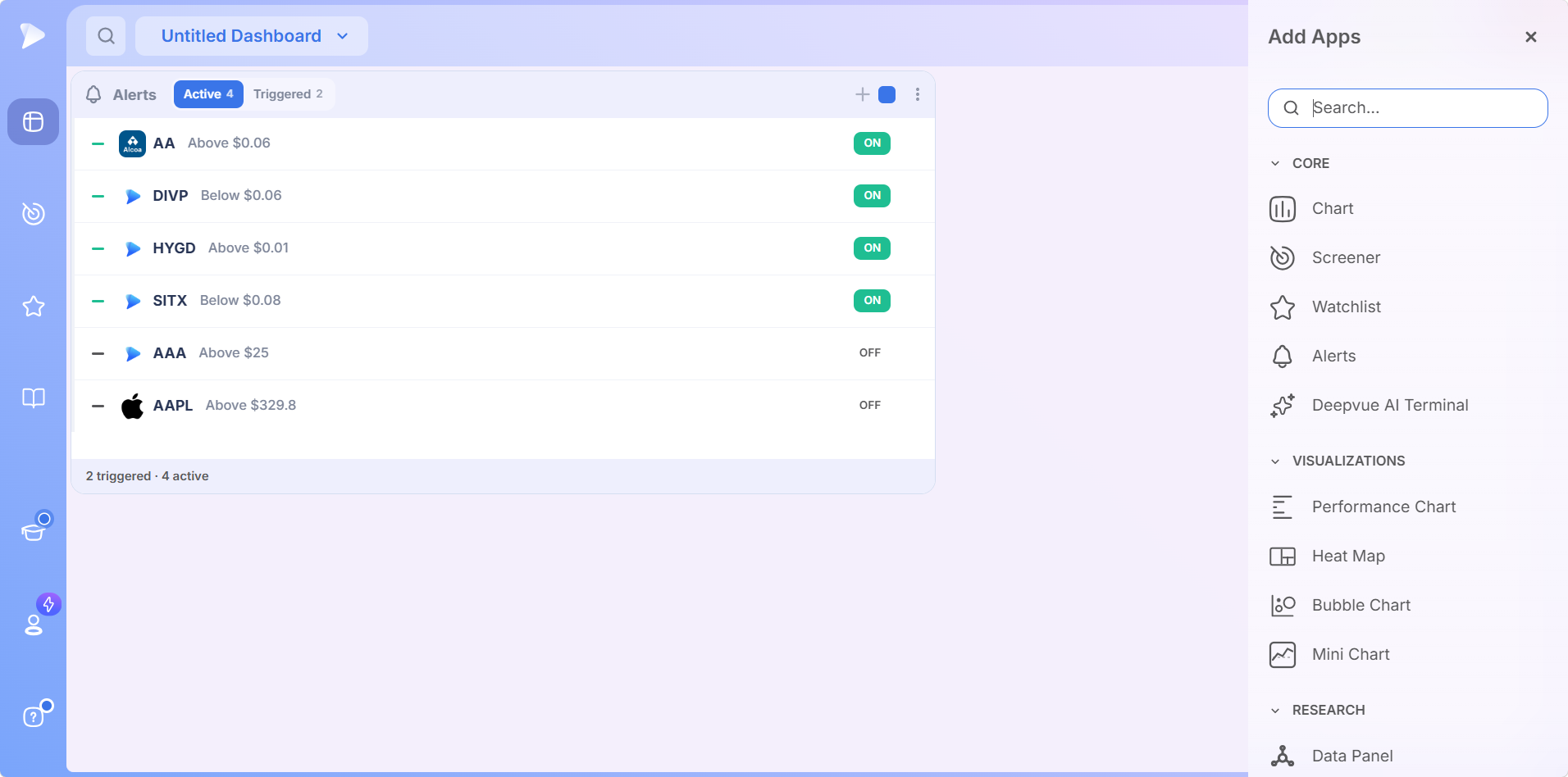
On a dashboard it is a compact ledger of everything you have asked the platform to watch. Every row carries a remove control, the logo and ticker, the condition in plain words, and an on and off toggle so an alert can go quiet without being rebuilt. The header pairs Active and Triggered tabs, each with a count, plus a plus button and the color group square.
Who Deepvue Alerts Are For
- ✓Swing traders with day jobs, who cannot watch a pivot form at 10:40 on a Tuesday.
- ✓Breakout traders using conditional stock alerts as a pre screen, so only moves with the right technical posture interrupt them.
- ✓Position traders guarding stops and add points on holds measured in months, where Forever duration means a level set in March still fires in June.
- ✓CANSLIM traders waiting on pivots from a base, where the alert is what turns a watchlist into a queue.
The Deepvue for hub writes each routine up in full.
How to Create a Stock Alert
The plus button opens the Create Alert panel, which is the whole feature in one column. It asks six things, and only the first two need much thought.
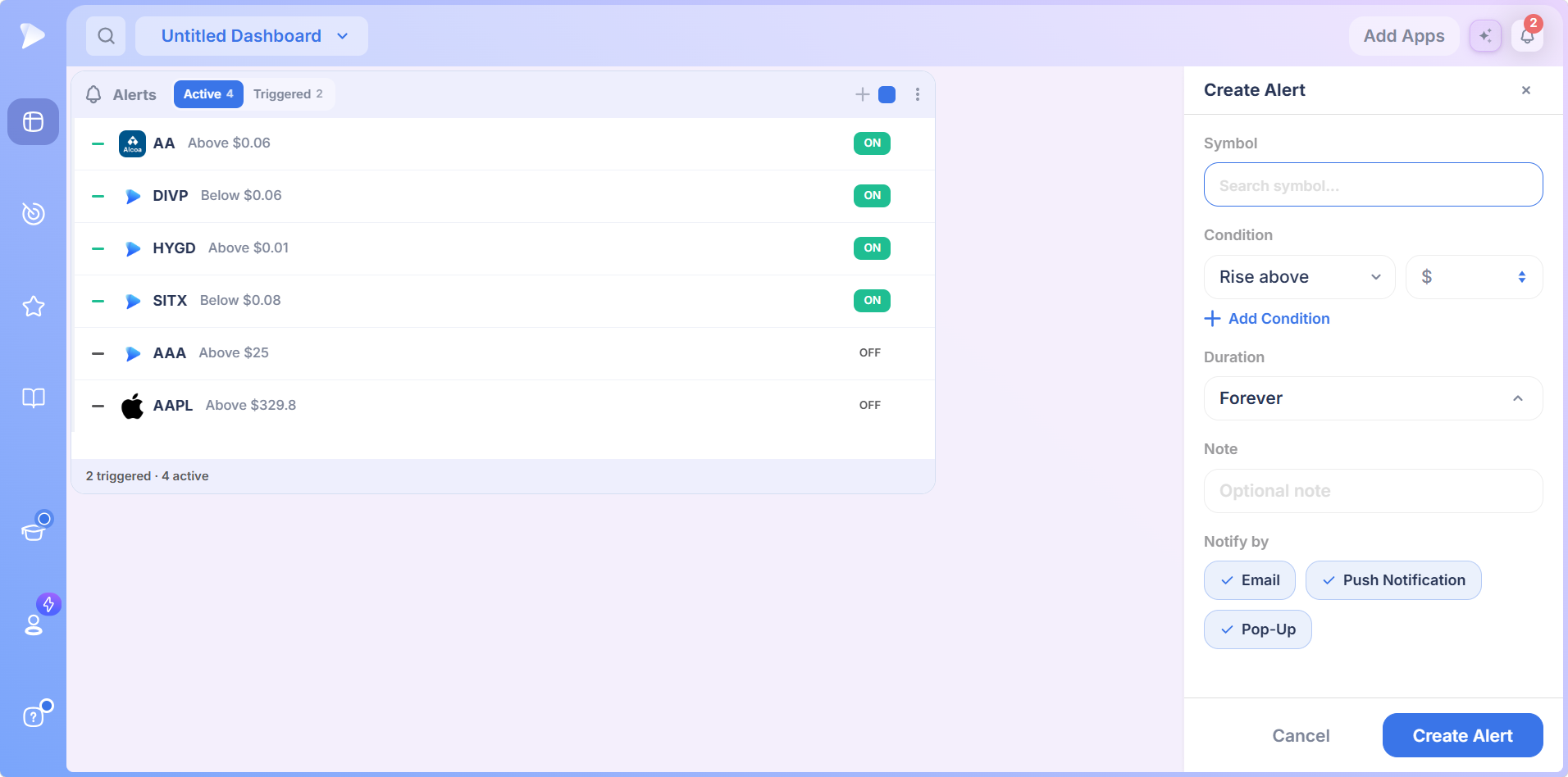
1. Pick the Symbol
Type into the symbol field and matches appear with the full company or fund name beside each ticker. Equities and exchange traded products share one list, so a code you half recognize gets identified before you commit.
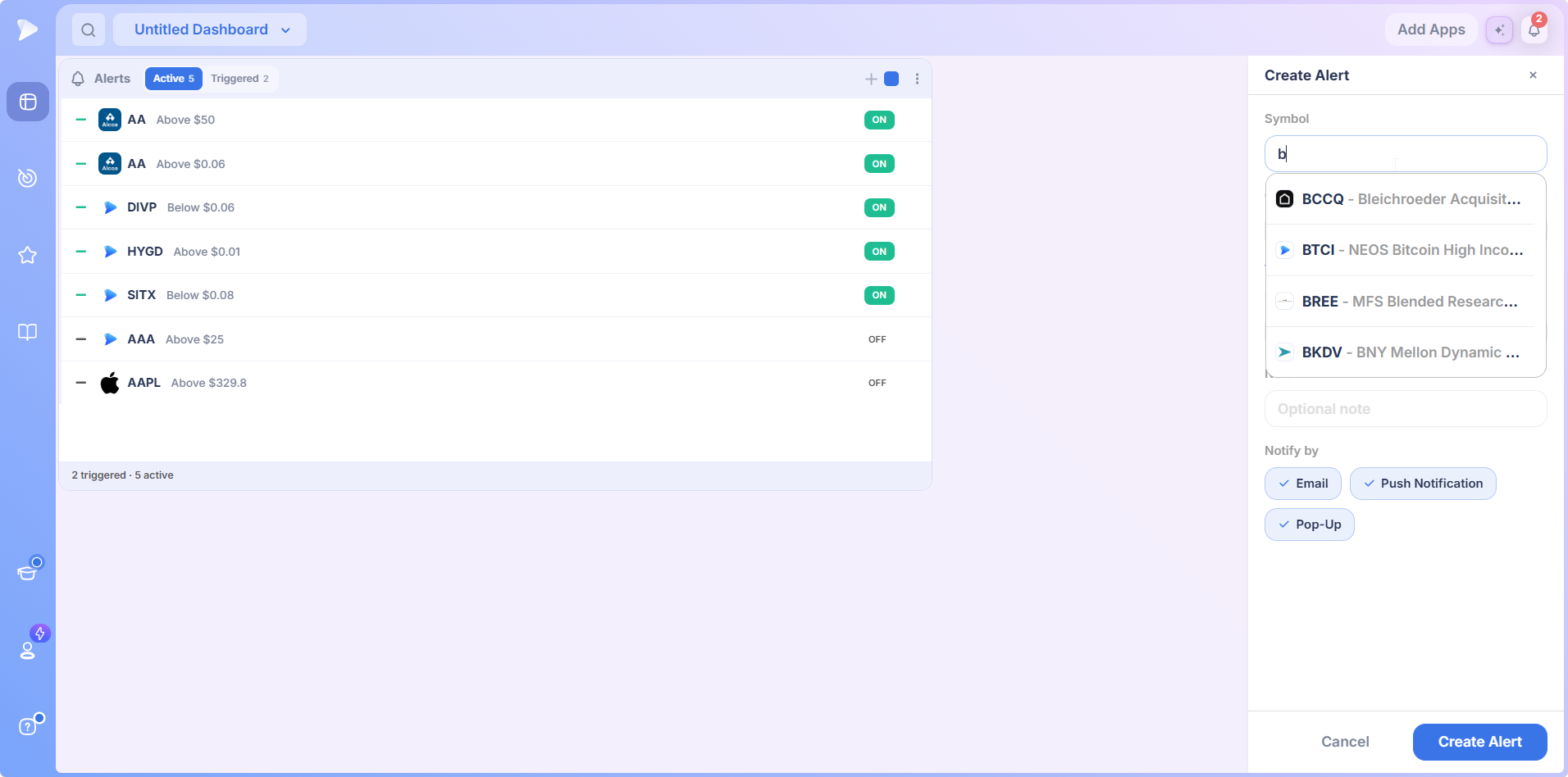
2. Set the Price Condition
This is where stock price alerts get defined: a direction dropdown paired with a dollar field. Rise above is the classic breakout setup. Fall below is what you want for a stop level or a breakdown you are waiting on. That pair alone is a complete alert, and for plenty of price alerts it is all the sophistication the job needs.
3. Duration, Note, and How You Hear About It
| Setting | What it does | Why it matters |
|---|---|---|
| Duration | Defaults to Forever; the dropdown also offers One time and 1, 3, 6 or 9 month horizons | A level you set in March still fires in June, which suits holds measured in months |
| Note | An optional line that travels with the alert into the pop up and the email | An alert firing in three weeks that reads pivot off the second base is a decision half made. A bare ticker and number is a puzzle |
| Notify by | Email, push and pop up, each an independent chip | Covers you away from the desk, phone in pocket, and at the screen |
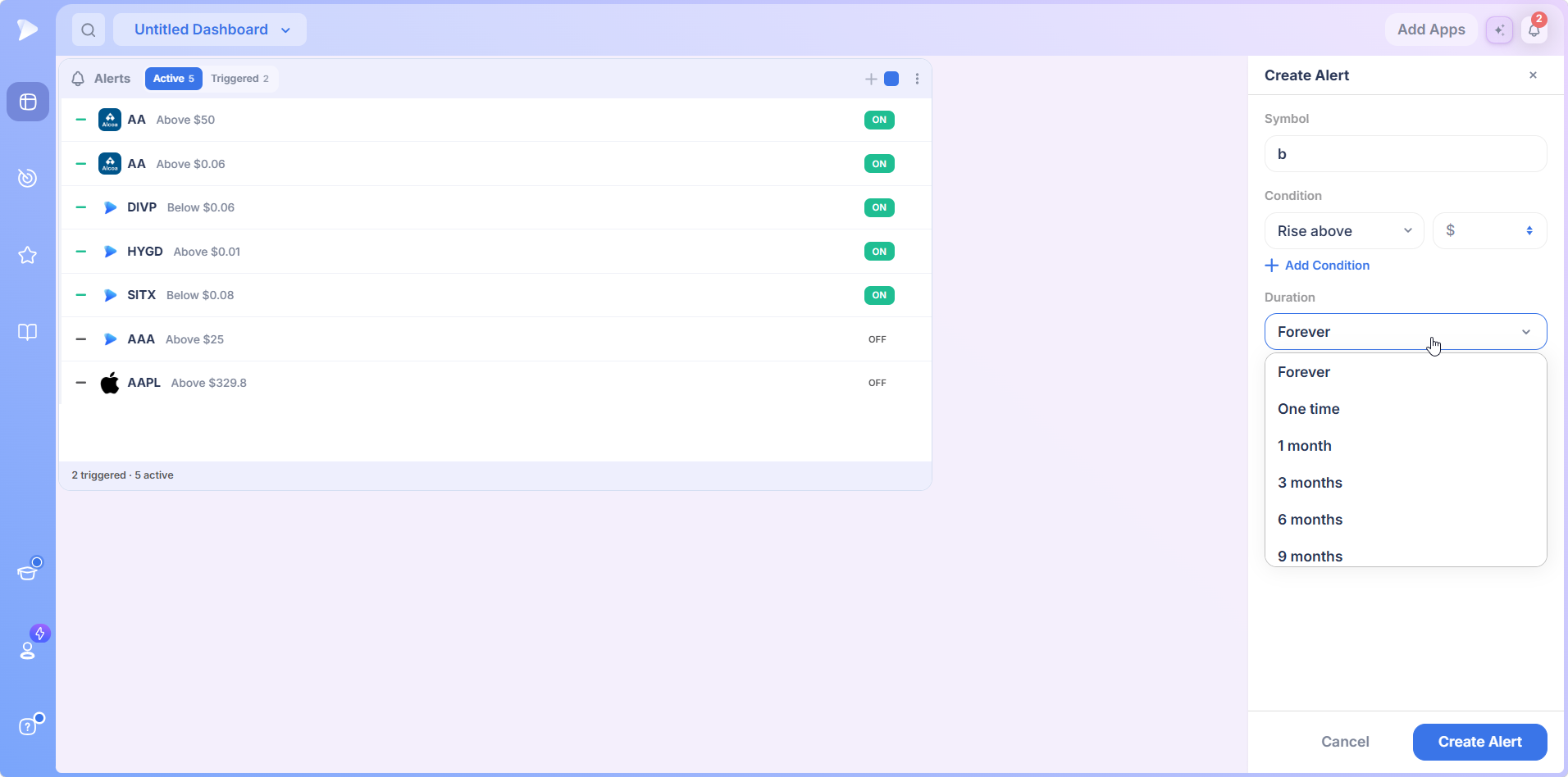
Press Create Alert and the new alert joins the top of the Active list, with the tab count and footer updating to match.
Open a Deepvue account and set your first price alert on a level you are already watching.
Conditional Stock Alerts: the AND That Kills False Alarms
Add Condition is where Deepvue alerts part company with the price alert everyone else ships. Click it and an AND divider drops in with a field labeled Search by data point, plus a Remove Condition control if you change your mind.
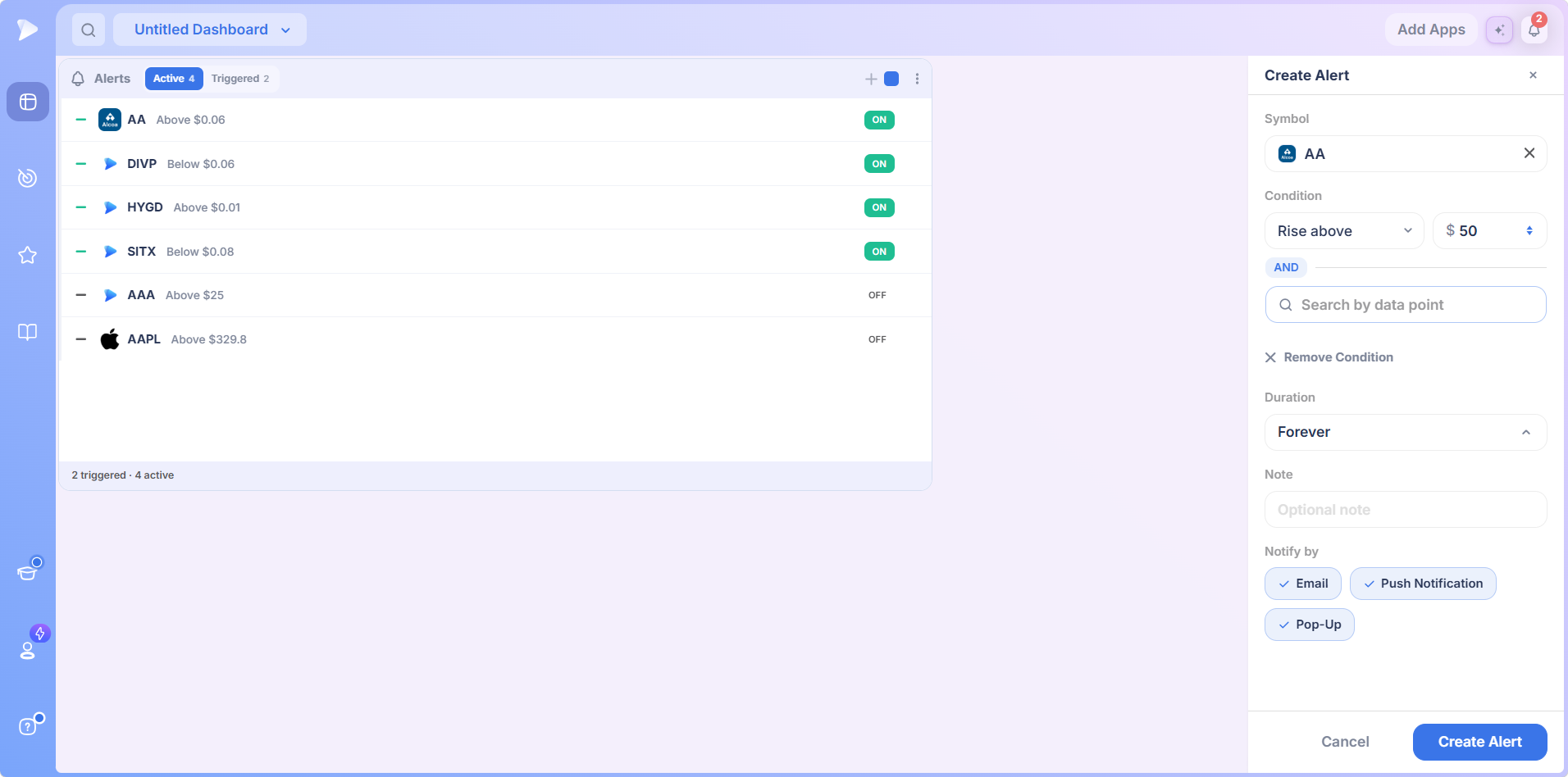
That field is the important bit. Your second condition comes from the same library that powers the screener and the Data Panel, not a short menu of price variations.
Type a phrase like moving average and the library’s boolean conditions surface, each with Yes and No buttons beneath. Those buttons set the condition’s polarity: require the state to be true for a strength filter, or false for the opposite. The finished alert reads like a sentence. Tell me when this stock rises above my level AND the short term averages are stacked.
Why This Saves You Money
A price only breakout alert fires on the first tick through the level, including the one that immediately reverses. You look, see nothing worth buying, and have spent your attention for no return.
Conditional stock alerts let you demand the context you would have checked by hand anyway: volume confirming, averages stacked, whatever your rules are. What reaches your phone is closer to a setup than a data point, so you act on more of them and second guess fewer.
Setting Alerts From the Chart
The dashboard app is the ledger, but most alerts start life on a chart, by two routes.
Route One: Draw a Trendline
Draw the line along the level or trend you care about, right click it, and choose Add Alert. The line turns orange, so a glance tells you which of your drawings are being watched. Extend the trendline far enough forward that price can actually cross it; a line that ends at yesterday cannot fire tomorrow.
Route Two: Right Click a Price Level
Skip the drawing. Right click at any price level, choose Add Alert, and the panel opens with that level filled in and editable, both directions available. Both routes end in the same place: a confirmation and a new row in the Alerts app.
Bracket the Level: a Two Alert Workflow
For a level that genuinely matters, set two alerts. One just beneath it is your heads up, the moment to get eyes on the chart while the approach is underway. One at the level confirms price is moving through rather than stalling. That pair turns a notification into a two stage countdown, the difference between watching a breakout happen and reading about it afterward.
The Watchlist Tab and Quick Access
Inside the watchlist module an Alerts tab carries a running counter for the name in focus, and the Quick Access menu on any right clicked symbol carries an alert entry alongside chart, watchlist and screener.
So a name that catches your eye in a screener result, a Top Movers row or an AI Terminal answer is one gesture from being watched. Trading alerts work best when setting one costs nothing.
Start with Deepvue and put your whole watchlist on alert instead of on your screen.
Managing Your Stock Alerts
The two tabs split the lifecycle. Active is everything still being watched, Triggered collects what has fired, and keeping them apart means your working list never silts up with history. The footer totals both.
The per row toggle covers the middle case. Flip an alert off and it stays defined but dormant. Silence the breakout alerts through a Fed week, wake them after, rebuild nothing.
What a Fired Alert Tells You
The notification is built to answer the question you will immediately ask: is this break real? A chime plays, a count appears on the module, and the card carries five things: when the alert was set, percent change on the day, relative volume, the current price, and Price Surge, the move over roughly the past 15 minutes.
A level crossed on heavy relative volume with a sharp Price Surge is a different event from the same level drifted through on nothing, and you can tell them apart from the notification alone. The email carries the same fields, built for subscribers who work full time and cannot watch price action all day.
The Alerts Manager
For anything beyond a glance, Manage Alerts opens a list that behaves like any other Deepvue watchlist, with alert specific columns and any column from the wider data point library beside them.
| Column type | Examples | What you do with it |
|---|---|---|
| Alert specific | Created, Alert Type, and the note you attached | Sort by when you set something, or find the alerts of a given type |
| Any data point | Relative volume, closing range, or whatever your process leans on | Judge which pending alerts are worth keeping without opening charts |
| Row controls | On and off toggles, plus an edit icon | Toggle in place, or reopen the alert box to change a level |
Bulk selection works the way it does elsewhere on the platform, so pruning a stale batch is one sweep rather than a row at a time.
Why Deepvue Alerts Beat a Basic Price Alert
Most brokers and charting sites offer basic trading alerts on price. The differences here are about noise, context and where the alert is set:
- ✓It asks a second question. An AND condition from the data point library keeps the alert quiet until the setup is in place, not just the price.
- ✓It is set where you work. Trendlines, right clicked price levels and Quick Access create alerts from the chart or list you are already reading.
- ✓It arrives with context. Relative volume, the day’s change and Price Surge tell you whether the break is real before you open a chart.
- ✓It reaches you anywhere. Email, push and pop up run independently, and your note travels with every notification.
- ✓It is not metered. Alerts come with the one plan, so a routine built on dozens of standing levels costs nothing extra.
No platform is right for everyone, and the honest way to decide is a proper comparison. Our Deepvue comparisons hub sets Deepvue against MarketSurge, TradingView, TC2000, TrendSpider, and Finviz feature by feature, and the compare category collects every comparison article in one place.
What Traders Say About Deepvue
Reviewers on the platform, quoted as published and linked to the original.
“Swipe mode for going through charts makes it great when on the go.”
Linutor, App Store review, February 2026, on the iPad app. See the App Store listing
“They use real-time data in their screening and charting tools at no extra charge.”
u/NeosDemocritus in r/CANSLIM. Thread
“It’s powerful, simple, and SUPER clean/easy to navigate.”
Verified user in financial services, G2, five out of five, April 2026. Read the review on G2
“One of the best trading tools out there and I can’t trade without it.”
Joshua Fong, Google Play, November 2025. Google Play listing
Deepvue’s reviews page collects 220 plus verified reviews at a 4.8 average, 97 percent of them recommending it.
Where Alerts Connect
- •Charts for the trendline and price level routes, and for judging a break once it fires.
- •Watchlists and the screener for the names that earn an alert, with every prebuilt approach collected under screener by strategy.
- •The Data Panel for the same data points the AND condition draws on.
- •The Position Size Calculator to turn an arrived level into a share count.
The Core Features hub links the rest of the daily toolkit, and the Knowledge Base documents each module.
What Alerts Cost
Alerts is included in Deepvue’s single plan at $49 per month, with monthly and annual options. There is no separate charge for dashboard apps and no cap to negotiate, which matters when a routine leans on dozens of standing levels.
That one plan covers:
- •The screener and its 1,152 data points.
- •Charts, watchlists, and alerts, all of them unrestricted.
- •Fully customizable dashboards, with every app in the catalog.
- •The Theme Tracker, Market Brief, and AI Terminal, the last with unbounded usage.
Deepvue has one plan, so there are no tiers to compare. For reference, MarketSurge, the legacy platform in this niche, runs $149 per month.
New subscribers also get a one on one onboarding session with a Deepvue team member, an onboarding email series covering platform features and use cases, and weekly live webinars that each go deep on one part of the platform.
Let the Platform Do the Watching
The names worth trading rarely break out on your schedule, and staring at them does not make them move any faster.
Stock price alerts with conditions attached turn every level you care about into a standing order for your own attention: silence until the price and the context agree, then a message wherever you happen to be.
Get started with Deepvue and put your levels on watch tonight.
↑ Back to contentsFrequently Asked Questions
Common questions about stock alerts before you hand the watching over.
What are stock alerts?
Stock alerts are standing instructions to a platform: watch this symbol and tell me when a condition I define becomes true. The simplest is a price level in one direction; richer ones add technical conditions, which is what Deepvue alerts do so every notification carries context you can act on.
What is the difference between a price alert and a technical alert?
The difference between a price alert and a technical alert is the trigger. A price alert fires when a stock touches a number you set; a technical alert fires on an indicator state, such as a moving average cross. Deepvue combines them: the price level is the trigger, the technical condition the filter.
Where should I set a price alert level?
You should set a price alert level where it would change your decision, not at a round number. For a breakout that is the pivot the base gives you; for a stop it is where the thesis is wrong. In Deepvue, right clicking that exact level on the chart sets the alert there.
How many stock alerts should I set?
You should set as many stock alerts as have a purpose, and no more. Alert fatigue is real: if your phone goes off every twenty minutes you stop reading the notifications, including the one that mattered. The fix is fewer names and better conditions, which is what Deepvue’s AND condition is for.
Can I set an alert on volume?
Yes, you can set an alert on volume in Deepvue through the second condition. The Search by data point field draws on the library behind the screener, so volume and relative volume states can be attached to a price trigger, demanding real participation before a breakout alert interrupts you.
What is the best stock alert app?
The best stock alert app is one built into the platform where you already research. Brokers offer basic price levels, and standalone alert apps add indicator triggers outside your workflow. Deepvue alerts are set from the chart you are reading and arrive with enough context to judge the move.
How do I set up a stock price alert?
You set up a stock price alert in Deepvue in three ways. Open the Alerts app, press the plus button, and pick a symbol and a price level. Or draw a trendline, right click it, and choose Add Alert. Or right click directly at a price level, which opens the panel prefilled.
What are conditional stock alerts?
Conditional stock alerts are alerts that need more than one thing to be true before firing. In Deepvue that means a price condition AND a data point condition, so a breakout alert can insist a short term moving average is above a longer one at the moment price crosses the level.
Can I set an alert on a moving average or an indicator?
Yes, you can set an alert on a moving average or an indicator in Deepvue through the second condition. The Search by data point field draws on the same library that powers the screener, so technical states attach to a price trigger and the alert fires only when both agree.
How many stock alerts can I create?
You can create as many stock alerts as your routine needs. The platform publishes no cap and the standard plan does not meter them, because Deepvue sells one plan rather than tiers with alert allowances, so dozens of standing levels are not a problem.
Do the alerts work when I am not logged in?
Yes, Deepvue alerts work when you are not logged in. Alerting runs on Deepvue’s side rather than in your browser, and email and push reach you away from the platform. The pop up covers you at the screen; the other two channels cover you when you are not.
What does a fired alert show?
A fired alert shows a chime, a count on the Alerts module, and a card with the time the alert was set, percent change on the day, relative volume, the current price, and Price Surge, the move over roughly the past 15 minutes. Deepvue’s alert email carries the same fields.
Are stock alerts free?
Stock alerts are free in basic form on many tools, and most brokers offer a simple price alert. What they rarely offer is a second condition from a full data point library, or a fired alert with relative volume and a 15 minute momentum read attached. Deepvue includes all of it in the one $49 plan.
How long does an alert stay active?
An alert stays active for as long as its duration allows. Deepvue defaults to Forever, so the alert persists until it fires or you remove it, and the dropdown offers other horizons, including One time and 1, 3, 6 or 9 months. Forever suits swing and position traders whose levels take weeks to arrive.
Can I turn an alert off without deleting it?
Yes, you can turn an alert off without deleting it. Every row in Deepvue’s Alerts app carries its own on and off toggle, so an alert goes dormant and comes back without being rebuilt. The minus control deletes it outright.
What is the difference between the Active and Triggered tabs?
The difference between the Active and Triggered tabs is status. Active lists alerts still being watched; Triggered collects alerts that have fired. Deepvue’s footer totals both, so the working list stays clean while the history stays available.
Can I add a note to an alert?
Yes, you can add a note to an alert. The Note field in Deepvue’s Create Alert panel takes an optional line that travels with the notification, which makes an alert firing weeks later immediately actionable.
Do alerts place trades?
No, alerts do not place trades. Deepvue is an analysis platform with no order routing, so an alert notifies you and the decision stays yours. Nothing here is financial advice.
Are stock alerts included in the standard Deepvue plan?
Yes, stock alerts are included in the standard Deepvue plan. Deepvue has a single plan at $49 per month that covers alerts along with the screener, charts, watchlists, dashboards, the Theme Tracker, the Market Brief, and the AI Terminal.